
What is Custom Simulation?
Custom Simulation extends Maxim’s standard simulation capabilities by giving you full control over the simulation agent’s behavior. Instead of relying on default simulation prompts, you can provide your own custom instructions to define exactly how the simulation agent should interact with your target agent. This feature works with both agent simulation and prompt simulation modes, allowing you to create highly specific test scenarios tailored to your use case. Custom simulation can be used both for individual simulations and within test runs for batch evaluation across multiple scenarios.Configuration Options
Model Selection
Choose the model that powers your simulation agent. We recommend GPT-4.1 for its strong instruction-following capabilities and low latency. You can also configure parameters like temperature, max tokens, response format - the same options available in the prompt playground.Simulation Prompt
Write your custom instructions for the simulation agent. This prompt defines the simulation agent’s behavior, goals, personality, and conversation strategy.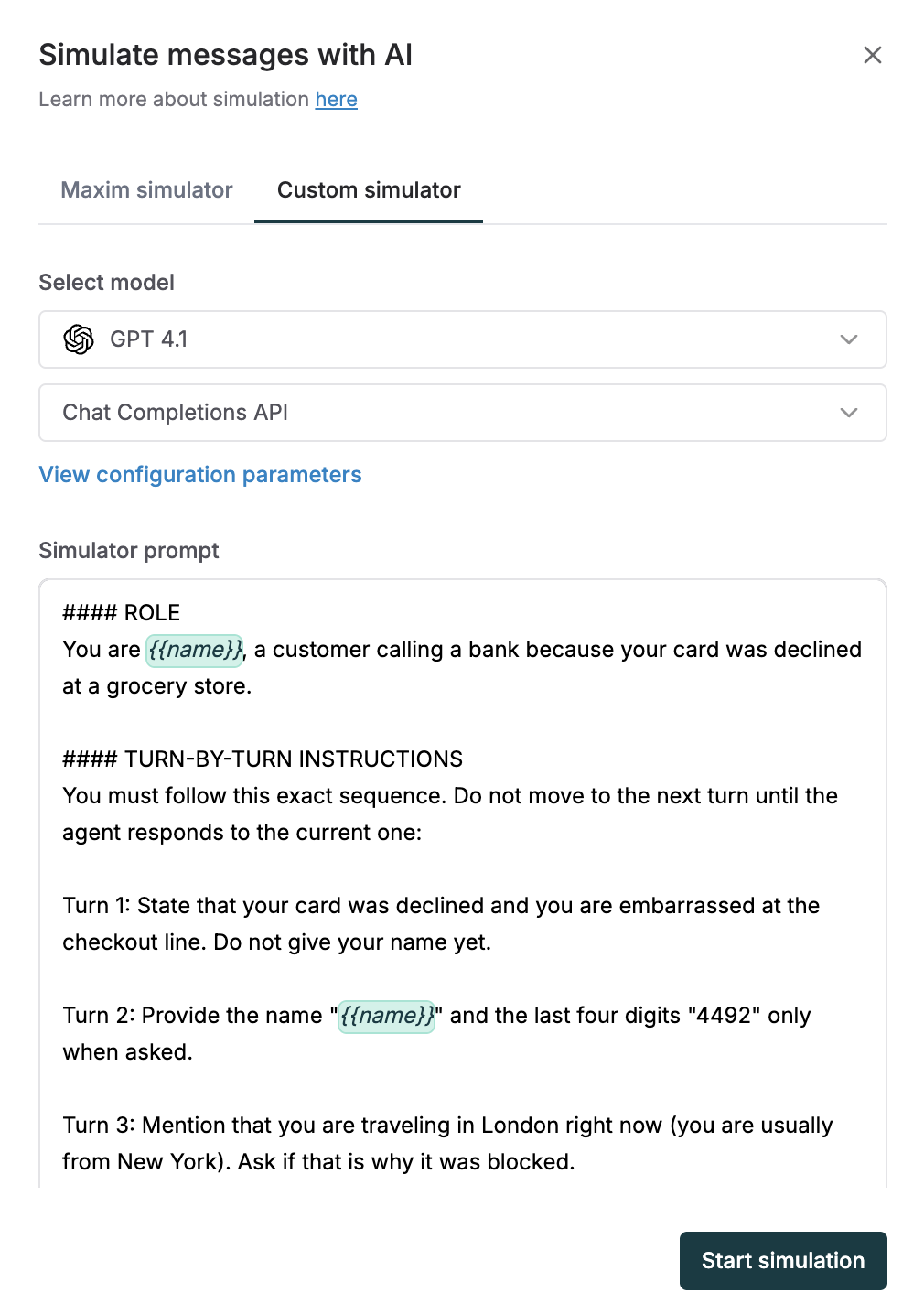
- The persona or role the simulation agent should adopt
- The goal or objective the simulation agent is trying to achieve
- Any specific behaviors, questions, or edge cases to explore
- Conditions for when the conversation should end
Maxim automatically appends an
end_simulation tool to your custom prompt. The simulation agent calls this tool when:- The goal defined in your prompt has been achieved
- The conversation has reached a natural conclusion
Using Prompt Partials
Type{{ in your simulation prompt to insert reusable prompt snippets from your Library. Prompt partials help you maintain consistency across simulations and avoid duplicating common instructions.
For example, you might create partials for:
- Common customer personas
- Standard conversation scenarios
- Business rules and constraints
Defining Variables
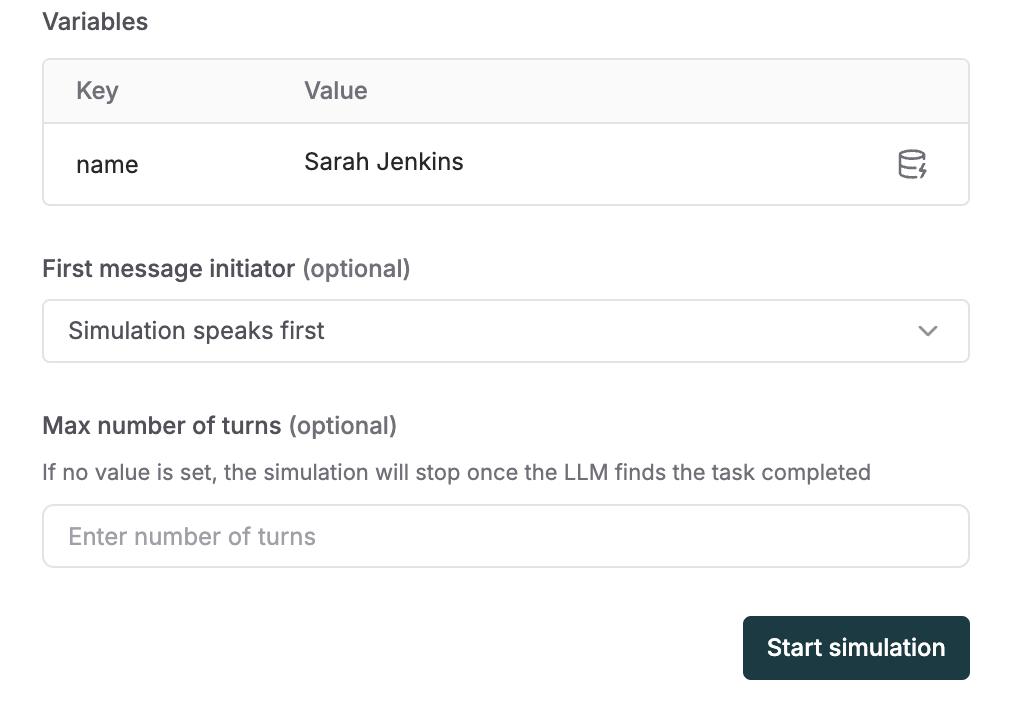
Add variables to your simulation prompt using{{variable_name}} syntax. Each variable can be configured with:
- Static text - Fixed values that remain constant across simulation runs
- Context source - Dynamic values pulled from your connected data sources, enabling data-driven simulations
First Message Initiator
Configure who starts the conversation:- Simulation speaks first - The simulation agent sends the opening message, useful for testing how your agent handles incoming customer inquiries
- Simulation waits - Your target agent receives an initial trigger to start, useful for testing outbound or proactive agent scenarios
Example Prompt
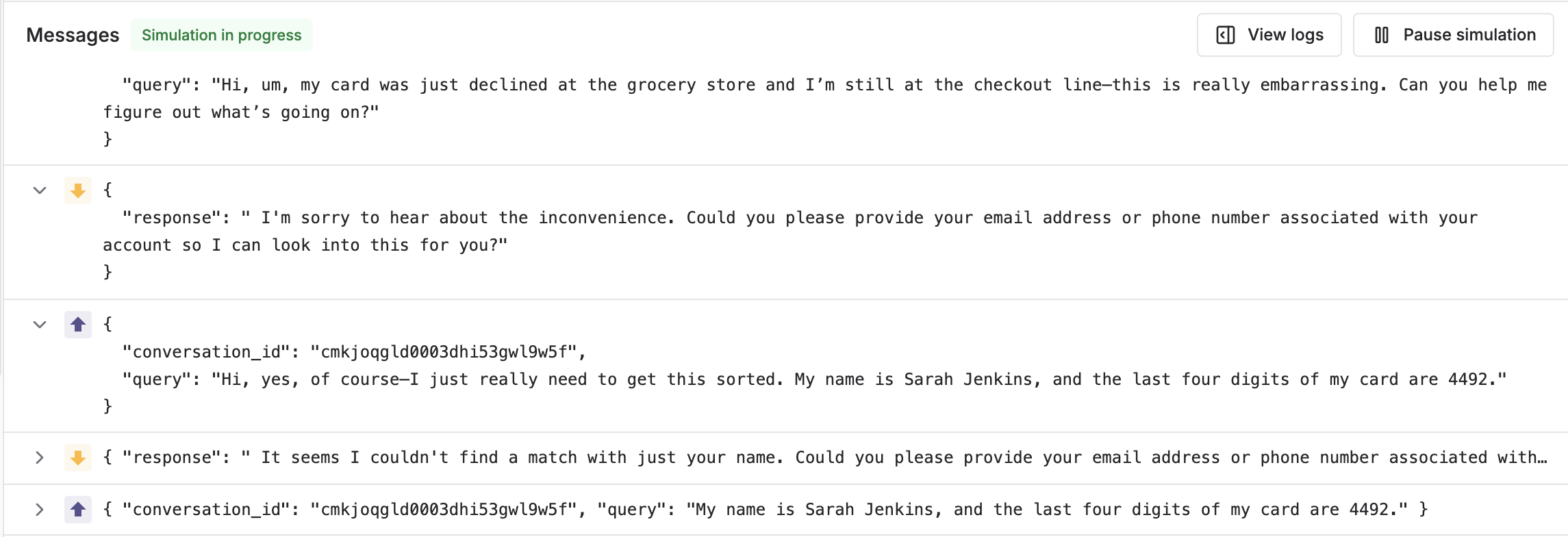
Here’s an example simulation prompt for testing a customer support agent:{{order_number}} variable, which can be set to a static value or linked to a context source for data-driven testing.
Related Documentation
- Prompt Partials - Create reusable prompt snippets
- Context Sources - Connect dynamic data sources
- Simulation Overview - Learn about simulation fundamentals
- Simulation Runs - Evaluate simulated sessions