
Getting Started
Prerequisites
- Python version >=3.10
- A Maxim account (sign up here)
- Generate Maxim API Key
- A Pydantic AI project
Installation
Install the required packages via pip:requirements.txt:
Basic Setup
1. Set up environment variables
Create a.env file in your project root:
2. Import the required packages
3. Initialize Maxim with your API key
4. Create and run your Pydantic AI application
Complete Example
Here’s a complete example showing how to integrate Pydantic AI with Maxim, including session management and multiple tools:Advanced Usage
Session Management
Pydantic AI integration with Maxim supports advanced session management to group related agent runs:Advanced Agent with Complex Tools
Streaming Support
Pydantic AI integration supports streaming responses with proper trace management:Error Handling
Ensure proper cleanup even when errors occur:Viewing Your Traces
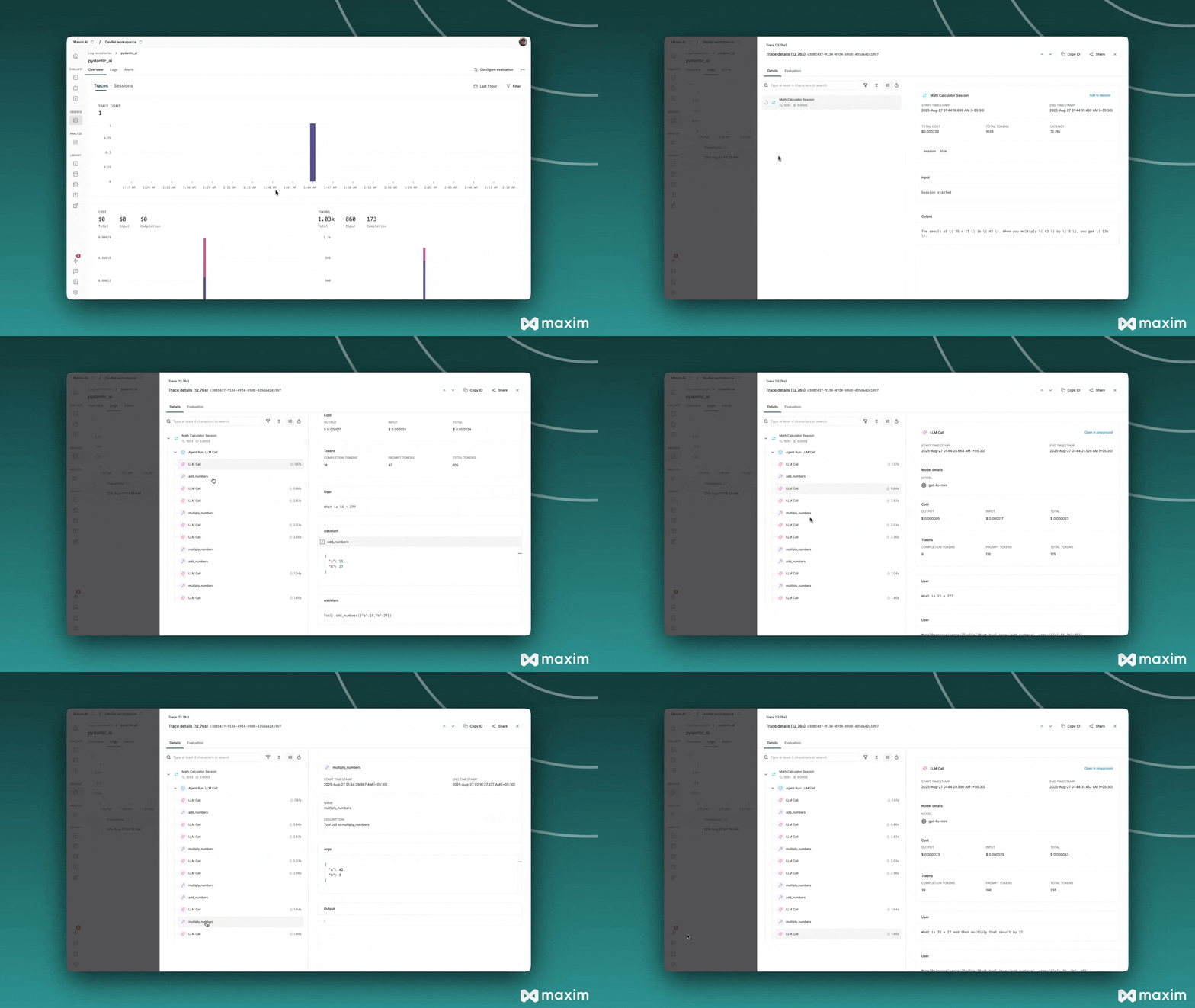
After running your Pydantic AI application:- Log in to your Maxim Dashboard
- Navigate to your repository
- View detailed agent traces, including:
- Agent conversations
- Tool usage patterns
- Performance metrics
- Cost analytics
- Session groupings
Troubleshooting
Common Issues
- No traces appearing: Ensure your API key and repository ID are correct
- Import errors: Make sure you’ve installed all required packages (
maxim-py,pydantic-ai,python-dotenv) - Tool not working: Ensure
instrument_pydantic_ai()is called before creating your agent - Environment variables: Verify your
.envfile is in the correct location and contains all required keys - Session management: Make sure to call
end_session()in afinallyblock to ensure proper cleanup
Debug Mode
Enable debug mode to surface any internal errors:Session Management Best Practices
- Always use try/finally: Ensure sessions are properly ended even when errors occur
- Group related operations: Use sessions to group related agent runs for better organization
- Meaningful session names: Use descriptive session names for easier debugging and analysis
Resources
Pydantic AI Docs
Official Pydantic AI documentation
Maxim Docs
Official Maxim documentation