Introducing the command palette in Bifrost: Navigate anywhere with ⌘K and view the dashboard in 11 languages
Reehan
Nov 27, 2026 · 4 min read
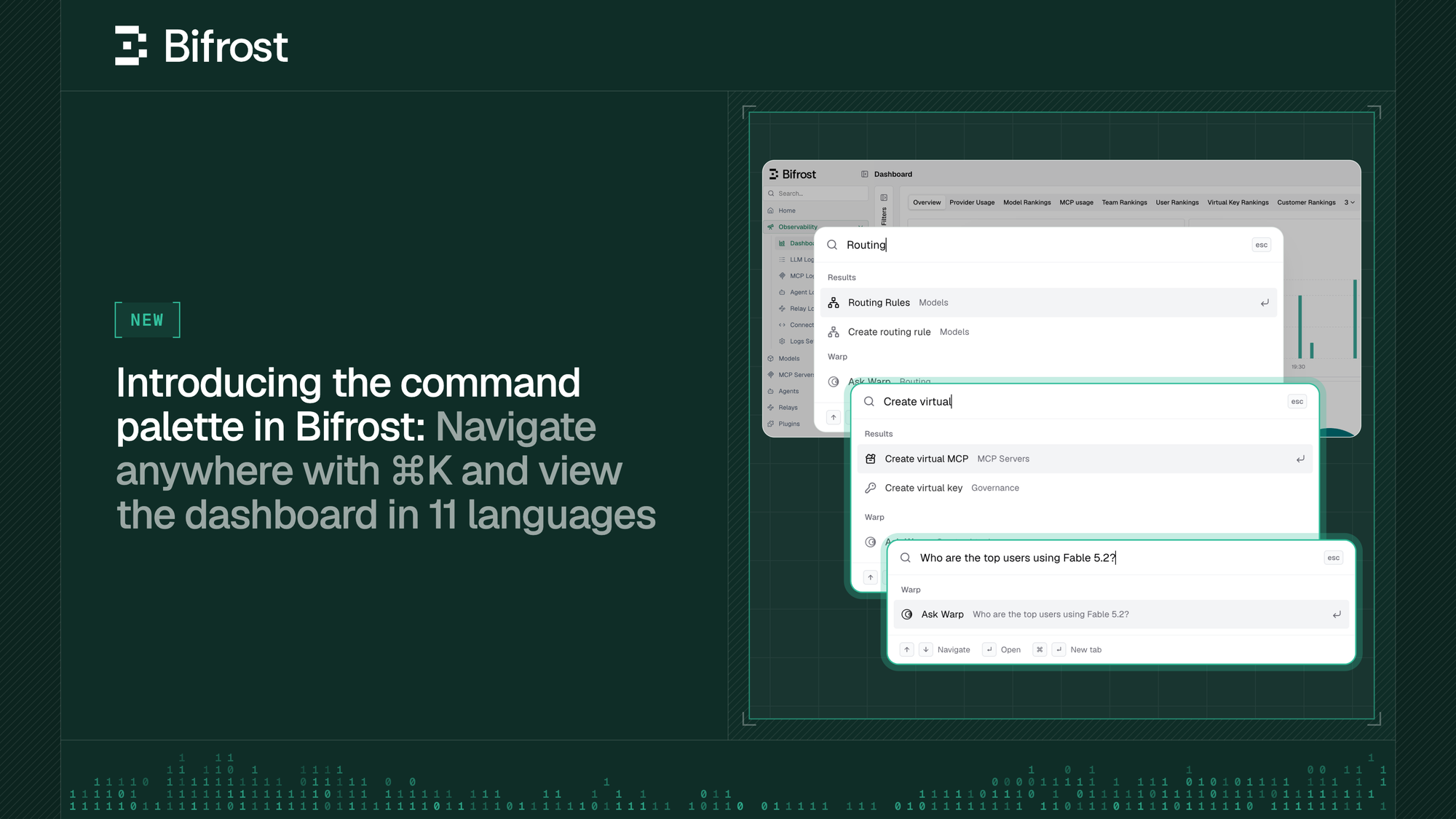
With Bifrost v2.5.0, ⌘K or Ctrl+K opens a command palette that takes you to any page, allows you to invoke 'Create' flows or enable/disable settings - right from the keyboard. A question you type can go straight to Warp. The dashboard can also be read in 11 languages.
Platform teams set up Bifrost using the dashboard, but they may not be the only people who use it. A team lead in Tokyo would want to check their team's budget. An engineer in São Paulo may want to open Logs to find out why a request to gpt-4o failed. A finance analyst in Berlin would want to look at spend by business unit.
Additionally, the dashboard keeps growing. Routing rules, virtual keys, access profiles, the MCP registry, agents, alerting, projects and skills each have their own page, and most of them sit two levels deep in the sidebar. Someone who opens the dashboard once a week has to hunt for the page they need, and even an admin who knows they want Routing Rules clicks through multiple options to get there.
Most people are already familiar with the shortcut for this from apps like Slack and Linear: ⌘K, which opens a quick search. With Bifrost v2.5.0, it works in the dashboard too. ⌘K (Ctrl+K on Windows and Linux) opens a command palette that takes you to any page, can help you create a new routing rule or virtual key, or change a setting. If Warp, the dashboard's built-in agent, is set up, the palette can also direct your natural language questions to the agent for a response!
Until now, the dashboard was also English only, and some people translated labels like "Access Profiles" or "Virtual MCPs" in their head before they could act on them. Bifrost can now be translated it into 11 languages.
Jump to any page with ⌘K
Press ⌘K anywhere in the dashboard and start typing. "routing" finds Routing Rules, "virtual keys" finds Virtual Keys, and each result shows the section it lives in, so two pages with similar names don't get mixed up. The page you're already on is marked Current.
Press ↵ to go there, or ⌘↵ (Ctrl+↵) to open it in a new tab. When the engineer in São Paulo is in Logs for the last 24 hours and jumps to MCP Logs, the palette keeps the same range, so they don't have to set it again. This works between the Dashboard, Logs, MCP Logs, Agent Logs and Relay Logs.
With RBAC in Bifrost Enterprise, the palette lists only the pages your role is permitted to view. A developer who isn't allowed to view access profiles won't find them in the palette either.
Perform actions without leaving the keyboard
The palette also runs actions. Choose 'Create…' and pick: a routing rule, a virtual key, a team, an access profile, an MCP server, an alert rule, a prompt and more. The palette opens that page with its create sheet already open. As with pages, it lists only what your edition and your role let you create.
From the same palette you can:
- Change theme… to switch between light, dark and system.
- Change language… to switch the dashboard's language. You can also search by a language's English name or its name in your current language, so "japanese" finds 日本語.
- Copy link to this page to share exactly where you are.
Some of these open a page of their own inside the palette, but you don't have to open it first: typing "dark" in the main search finds the dark theme. Press ⌫ on an empty search, or Esc, to step back out.
Got questions? Use the palette to ask Warp
Not everything you type into a search box is a destination. "Which model cost the most in the last 7 days?" doesn't match a page name, and it shouldn't have to.
If Warp is set up on your Gateway, every search in the palette ends with an Ask Warp row that carries what you typed. Press ↵ and the palette closes, the Warp panel opens, and your question is already sent. Warp answers from your own logs and metrics, scoped to the data you're allowed to see.
The row shows up only for people who can use Warp, and only when Warp is turned on.
Read the dashboard in your own language
The dashboard now comes in English, Simplified Chinese (简体中文), Traditional Chinese (繁體中文), Japanese (日本語), Korean (한국어), Spanish (Español), Portuguese (Português), French (Français), German (Deutsch), Italian (Italiano) and Russian (Русский). The language picker shows each one by its own name. The Enterprise views use the same translations, so governance pages and access profiles switch along with everything else.
The translations started as a community pull request from @occcat, and we extended them to the Enterprise views.
Numbers and dates follow the language too. The team lead in Tokyo sees dates and spend figures formatted the way they expect in Japanese, not US-style dates with Japanese labels around them.
To change the language, open the account menu in the top-right corner and choose Language, or go to Settings → Client Settings and pick one from Language. Either way, the change applies right away. The choice is saved in that browser, so each person picks their own language and nobody else's dashboard changes. On a first visit, the dashboard starts in the browser's language if it's one of the 11, and in English otherwise.
Get started
Upgrade to Bifrost v2.5.0 or later, press ⌘K, and pick your language from the account menu in the top-right corner. To set up the Ask Warp row, see the Warp docs.