Say hello to the Home page: Your AI usage at a glance, with built-in budget approvals
Suresh Chaudhary
Oct 21, 2026 · 3 min read
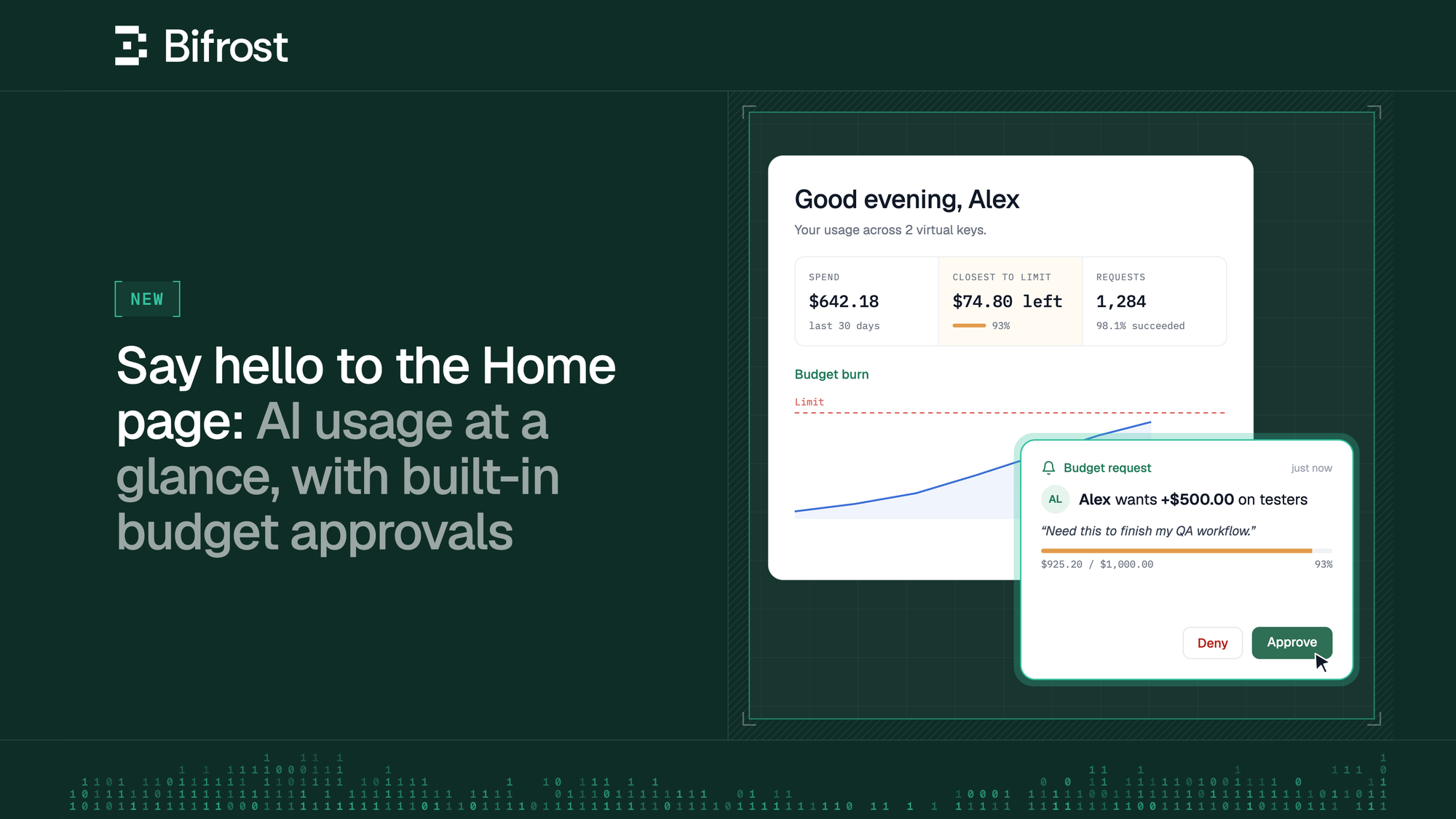
Bifrost already offers built-in observability. Yet for a user, to figure out “how much have I spent this week?” or "what models can I use?" involves navigating different sections of the Bifrost dashboard.
Some admins even built their own custom applications using Bifrost APIs just to give their users/employees this view.
With Bifrost Enterprise v2.3.0, this view comes out-of-the-box. Users now land on a Home page that displays their own usage, keys and access the moment they sign in.
Meet the new user Home page
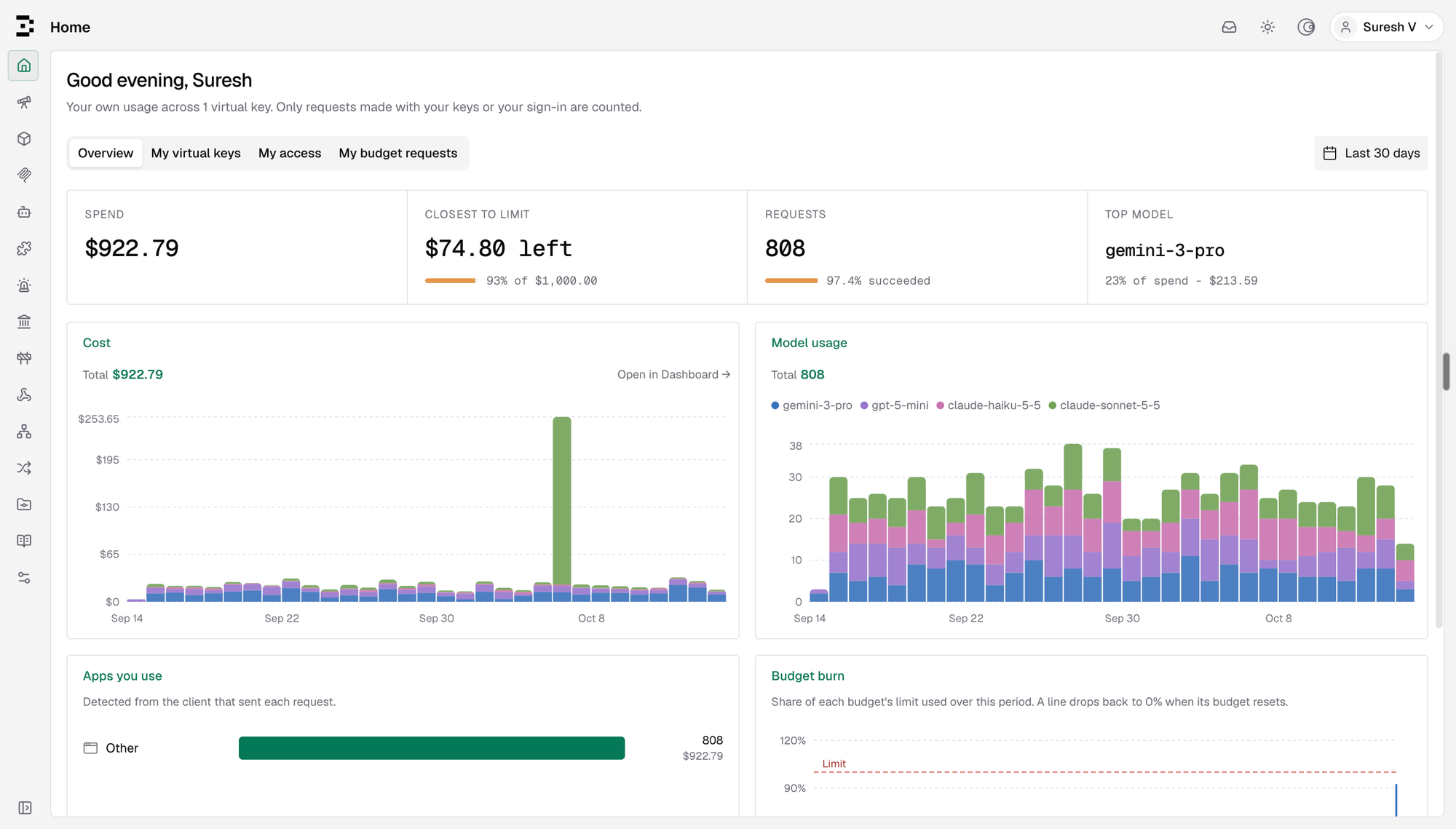
The Overview tab displays your user's spend, requests, top model, the budget closest to its limit, and a budget burn chart.
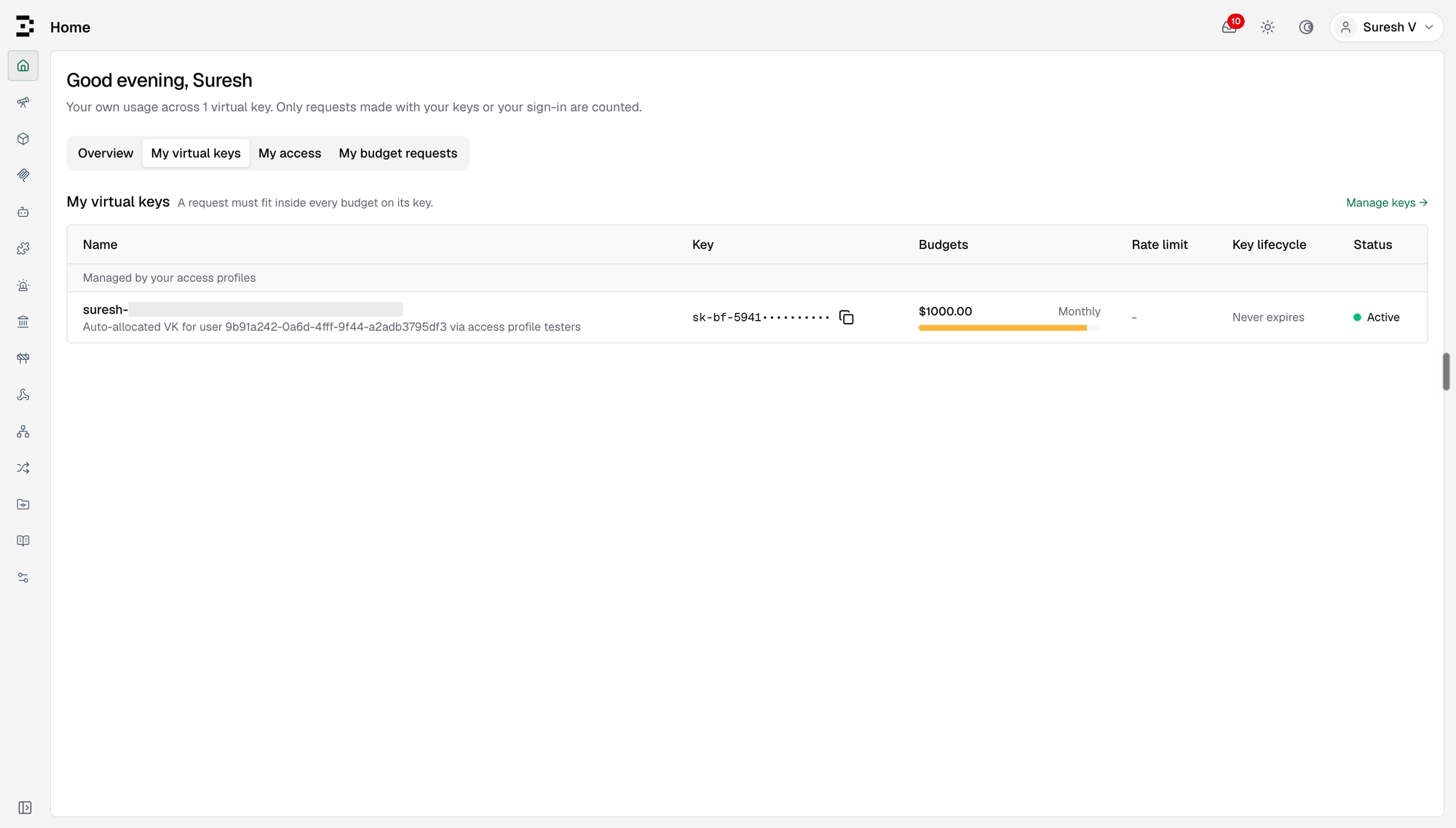
The My virtual keys tab shows the keys available to your users and their limits
The budget burn chart shows users how much of each budget they have consumed this cycle, where they’re projected to finish and when it resets. Users can proactively figure out if they're running low, before any of their requests fail.
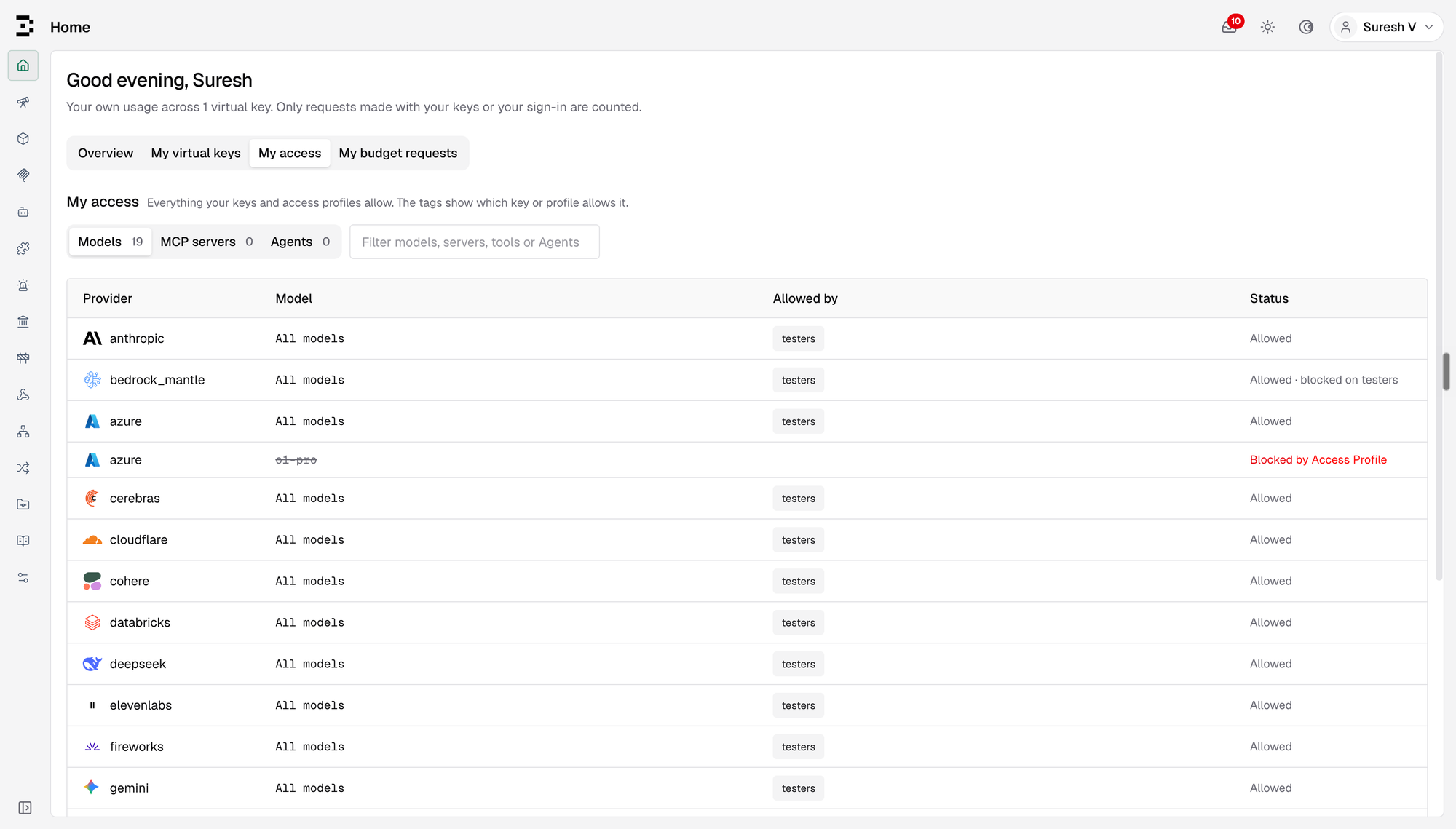
The My access tab lists the models, providers, MCP tools and agents your users have access to and can use.
Budget requests and approvals, all within the Gateway
Imagine your users are in the middle of their work when their AI requests no longer go through due to budget limits. They would need to contact or message an admin, explain what happened, and wait for approval before they can continue working.
With the newly introduced budget approval workflow, your users no longer need to message their admins on Slack/Teams or shoot an email and wait for someone to figure out which limit needs changing.
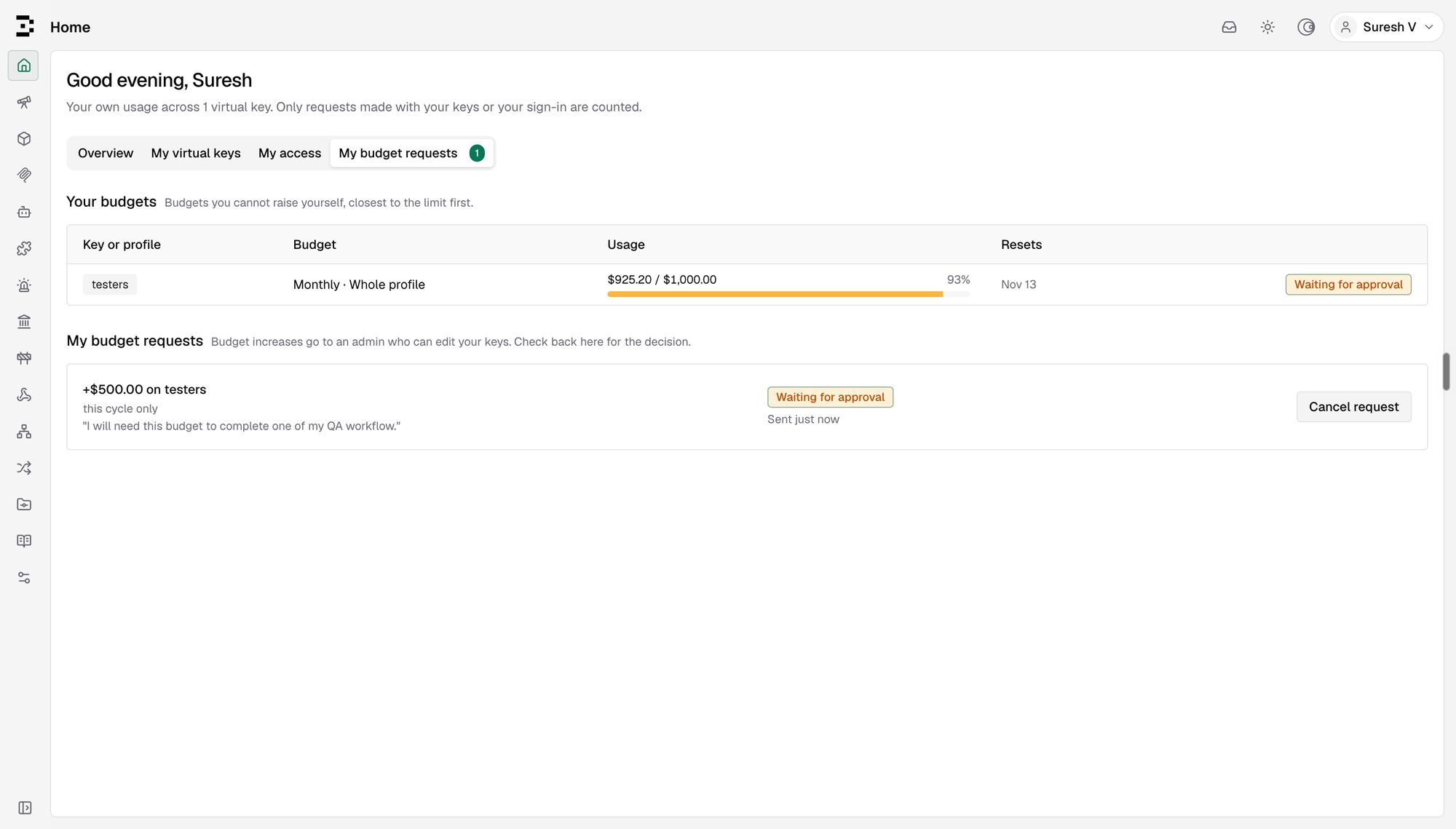
Users can now request an increase directly from their Home page:
- Users can pick the budget, enter the amount, define how long they need it for, and add a reason describing the need for extra budget
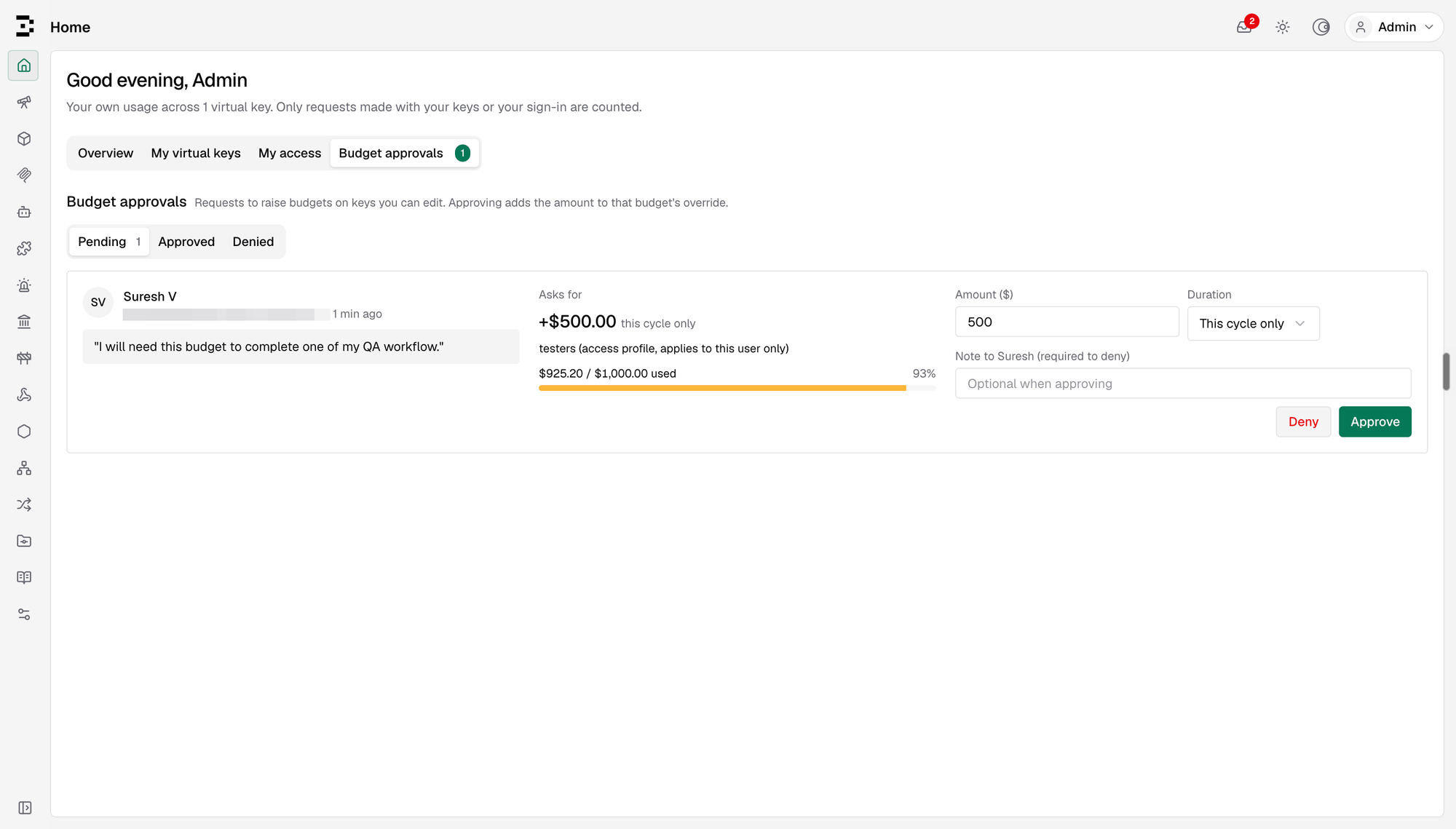
- Approvers/admins are notified directly in the Gateway and can review it from the Budget approvals tab on their own Home page
- Approvers/admins can approve the request, adjust the amount or duration, or deny it with a note
- An approved increase sits on top of your user's limits, and their base limits and reset schedules don’t change
Explore the Home page today
The Home page offers visibility for users and simplified control for admins.
Read the budget and limits documentation to learn more about the budget request-approval workflow.