Introducing View as User: See what any user sees, without a test account
Suresh Chaudhary
Nov 11, 2026 · 3 min read
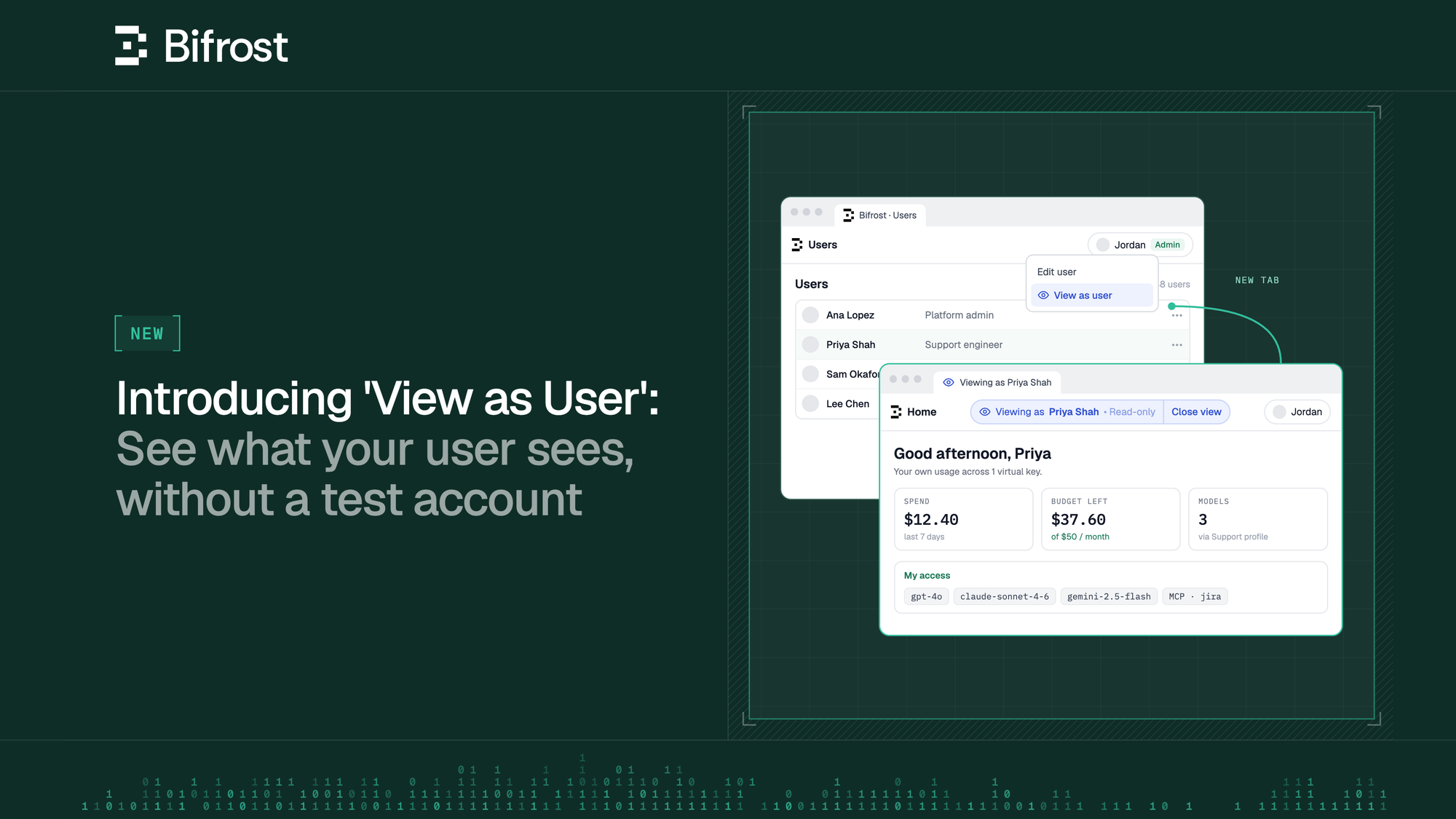
With Bifrost Enterprise v2.4.0, admins can now view the dashboard as any user in a read-only mode, and check how access settings apply for their users.
Setting up Bifrost for an enterprise means deciding, in several places, what each employee or user can access. A role decides the pages they can view and the actions they can take, and can carry access profiles with it. A data access scope limits which logs, keys and users they see. Access profiles grant models, MCP tools and budgets, and issue their virtual key. When users sign in, all of this reflects on the Home page: their spend, their keys and their model, MCP and agent access.
As admins, you set all of this up from the dashboard but your elevated role & permissions give you full visibility into every key, log and budget. You don't get to see how your set up for other users in your org actually reflects their experience.
Until now, the first person to check a new role or profile was the user it was meant for, unless you set up a test account to match theirs.
Now you can open the dashboard as any user and check for yourself, right after you save a change, before anyone has to tell you something is missing.
Validate changes as your users would experience them
Say you want to move your Support engineers to a new role. How do you check if their experience, access and limits remain as you intended on the Gateway and nothing breaks?
You change the role for one engineer first, then instantly check what they got. From the user menu in the top bar, choose View as user, search for the engineer by name or email, and Bifrost opens a new tab. You can also start it from a row in Users or from a user's detail sheet.
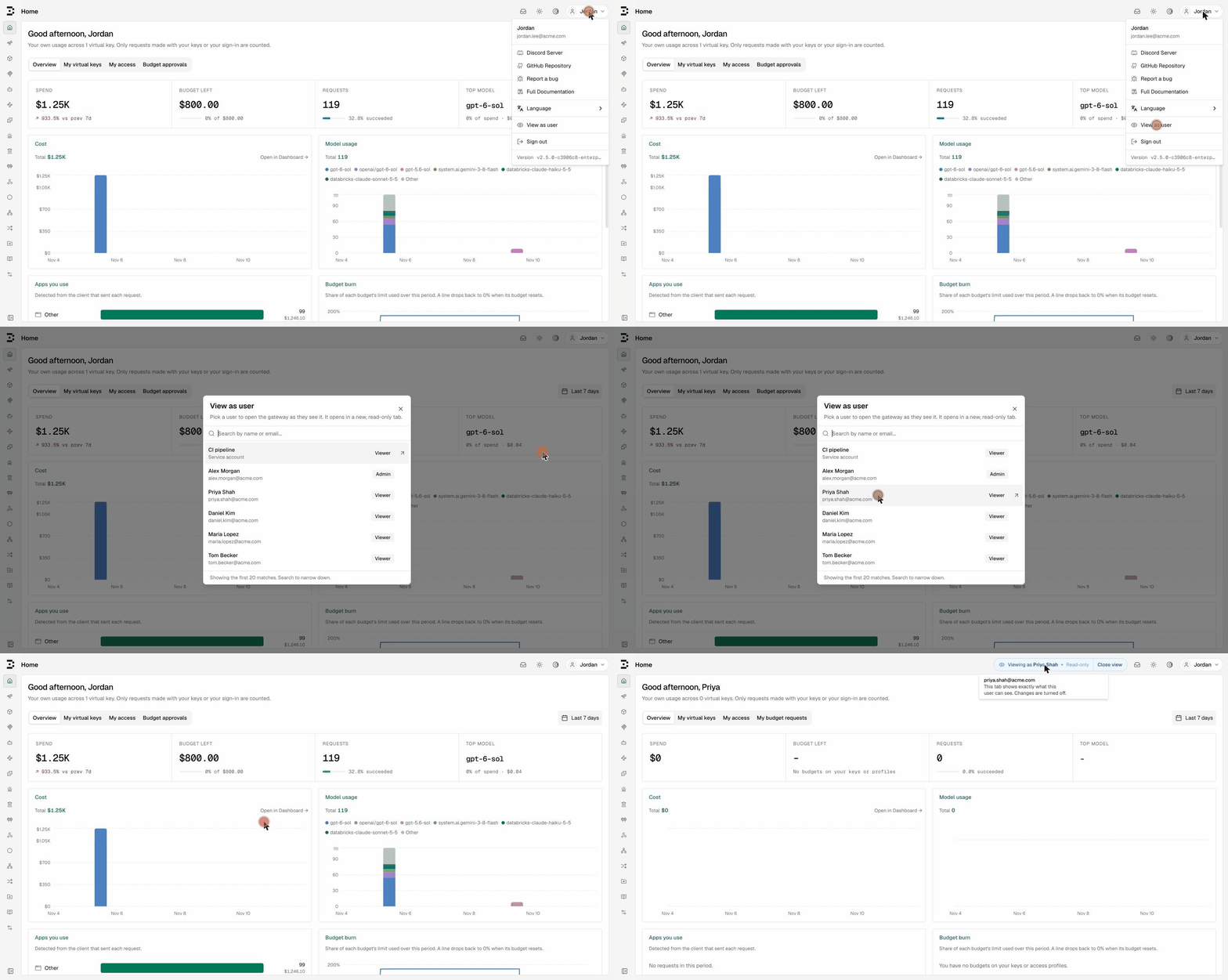
In this tab, the dashboard loads as the engineer. Role-based access control, data access scope and their access profiles all resolve as them, so the pages they can open, the logs and keys they can see, and their Home page all show what they get.
To help you differentiate visually, a pill in the center of the top bar reads "Viewing as" followed by the user's name, marked read-only, and the browser tab title starts with "Viewing as" and their name too.
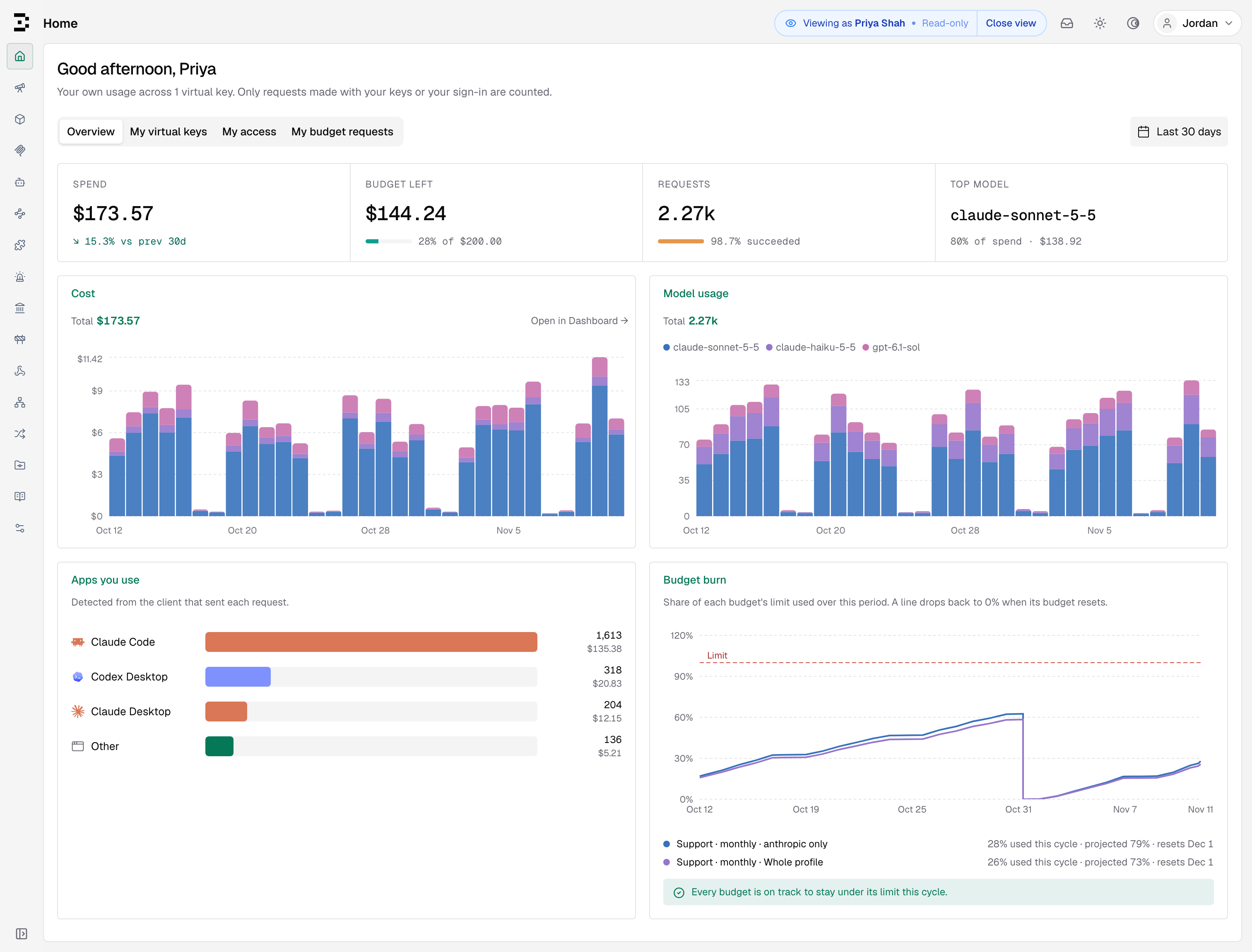
Your own session stays as it was
The view lives only in the new tab. Your original tab is still you, with full Admin access, so you can fix or modify capabilities as you see fit and reload the 'View' tab to check the results.
This capability also helps you troubleshoot access and budget issues without having to ask your engineers to screen share. You get to see the changes you make and how they reflect for your users, with just a browser refresh.
To end the view, click Close view in the pill or close the tab. Nothing else needs to be undone.
Read-only, permission-gated and audited
Looking at the dashboard as a user should never let you act as them, so the view has hard limits on the server, not only in the UI:
- Read-only: Bifrost accepts only
GET,HEADandOPTIONSrequests in a view. Any write returns403, so you can't change settings, keys or budgets while viewing as the developer - Behind its own permission: Starting a view needs the new 'Users → ViewAs' permission. The upgrade grants it to the Admin role only, and you can enable it for a custom role in the Roles & Permissions tab if needed
- Dashboard sessions only: API-key callers get
403, so a script can't borrow a user's identity through this feature. A view also can't send model, MCP or agent requests as the user - Recorded: Each view writes a
user.view_as_startedentry to the audit log, naming the admin who started it and the user they viewed

Get started today
View as User ships in Bifrost Enterprise v2.4.0. Upgrade, and every Admin finds View as user in the top bar user menu. See the View as User docs for permissions, limits and the API.