> ## Documentation Index
> Fetch the complete documentation index at: https://www.getmaxim.ai/docs/llms.txt
> Use this file to discover all available pages before exploring further.
# Members and Roles
> Learn how to invite team members and manage organization and workspace roles in Maxim.
export const MaximPlayer = ({url}) => {
return ;
};
## Understanding Roles
Maxim uses two types of roles that work together:
* **Organization roles**: Control access to organization-wide settings like billing, members, API keys, and workspace management.
* **Workspace roles**: Control access to resources within a specific workspace like prompts, workflows, and datasets.
Every user needs both an organization role and a workspace role for each workspace they access.
## Organization Roles
Organization roles determine what users can do at the organization level:
* **Super admin**: Full control including creating and managing roles
* **Admin**: Manage members, workspaces, and most settings (cannot create roles)
* **Billing admin**: Access to billing only
* **Contributor**: Can view and access workspaces (limited permissions)
* **Viewer**: Read-only access to workspaces
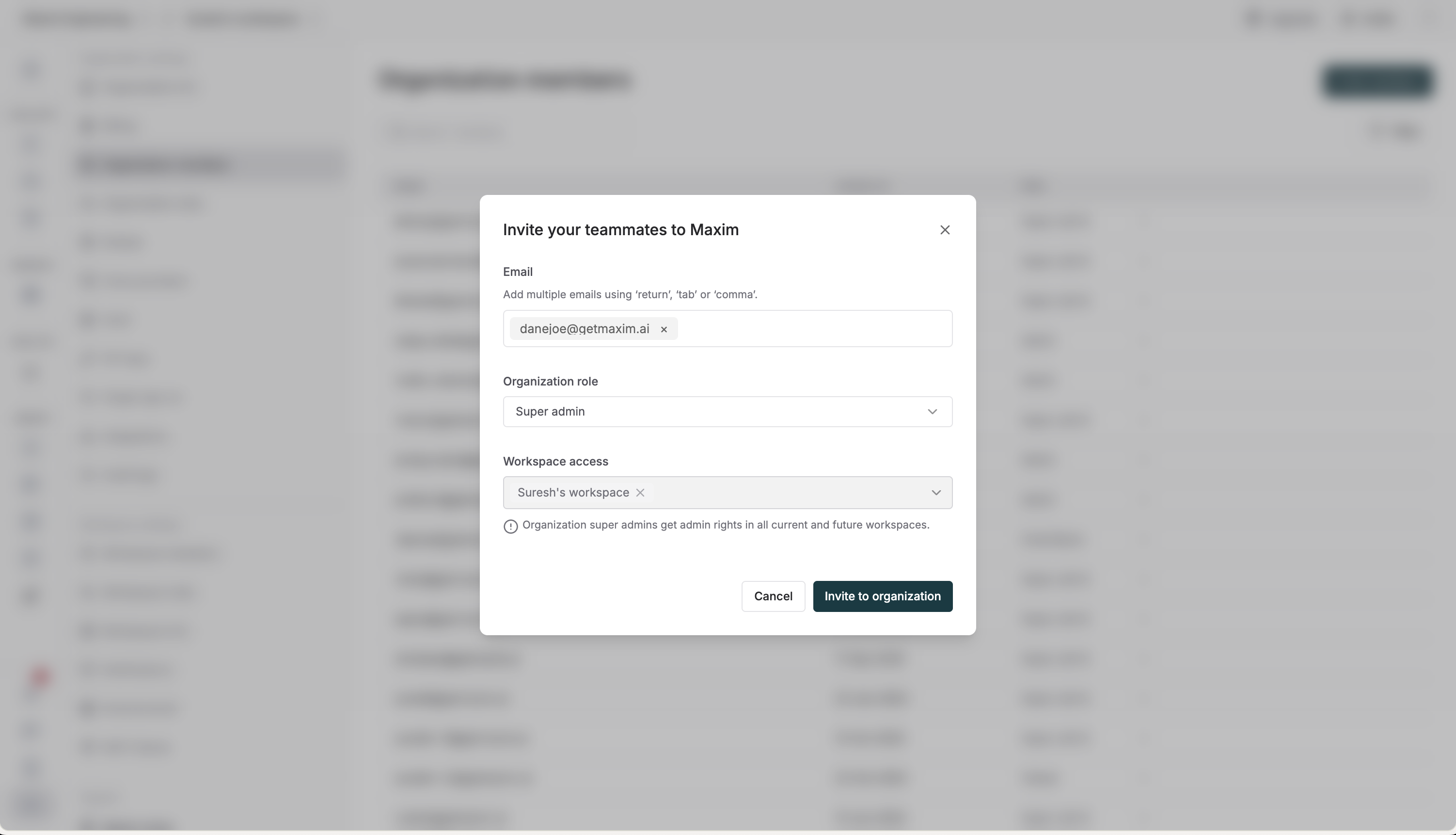
### Invite Organization Members
To invite a team member to your organization:
* Go to `Settings` → `Members` (under Organization settings)
* Click `Invite` at the top right
* Enter email addresses (separate multiple with commas)
* Select an organization role
* Select which workspaces they should access and their workspace role for each
* Click `Invite`
 ### Create Organization Roles
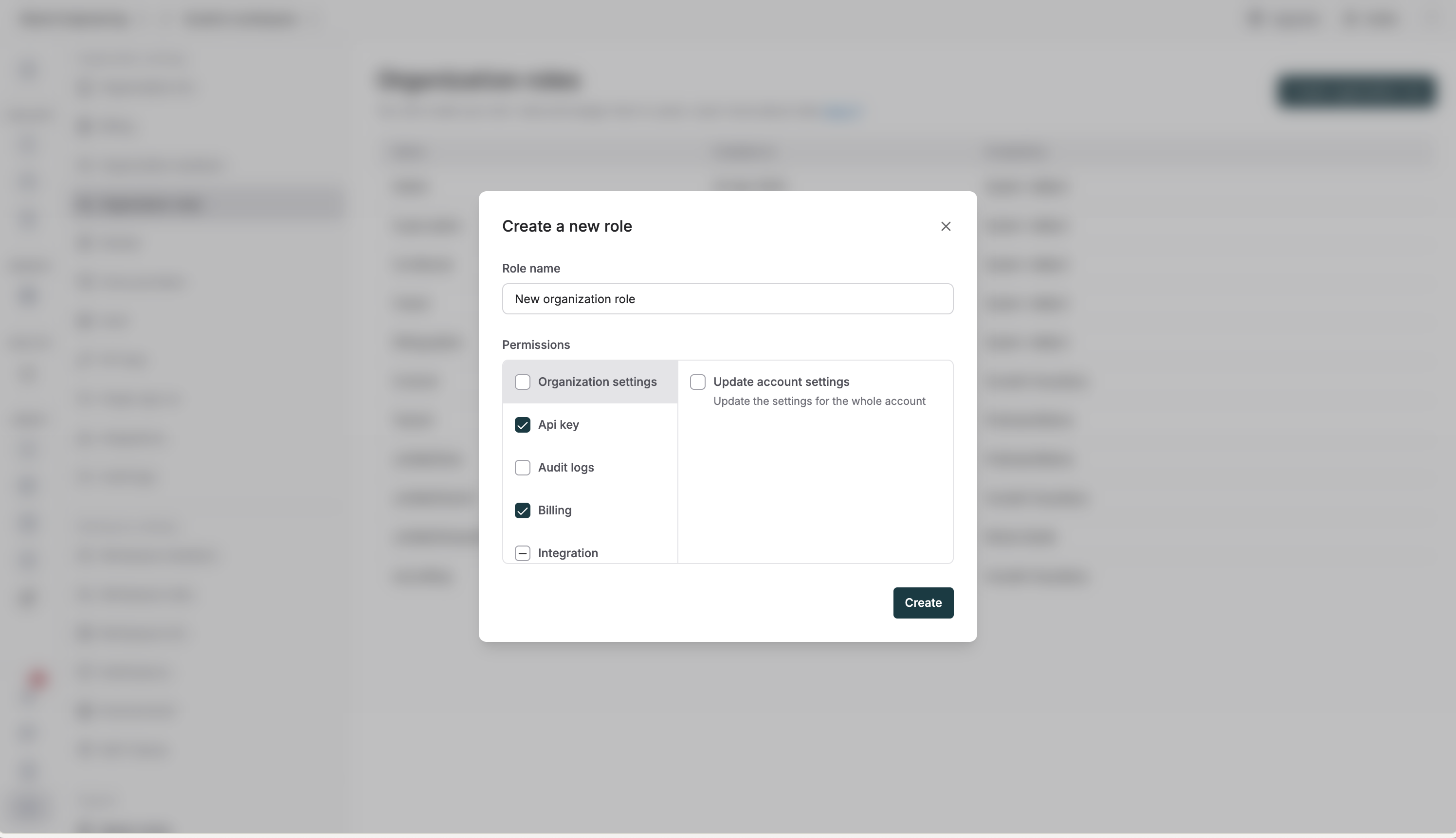
* Go to `Settings` → `Roles` (under Organization settings)
* Click `Create role`
* Enter a name for the role
* Select the permissions you want to assign
* Click `Create`
### Create Organization Roles
* Go to `Settings` → `Roles` (under Organization settings)
* Click `Create role`
* Enter a name for the role
* Select the permissions you want to assign
* Click `Create`
 ### Duplicate Organization Roles
You can duplicate built-in organization roles (Super admin, Admin, Billing admin, Contributor, Viewer) to create new roles with similar permissions:
* Go to `Settings` → `Roles` (under Organization settings)
* Hover over a built-in role in the roles table
* Click the `Duplicate` button that appears
* The role editor opens with the duplicated role's permissions pre-filled
* Modify the name and permissions as needed
* Click `Create` to save the new role
You cannot edit the name of built-in organization roles (Super admin, Admin, Billing admin, Contributor, Viewer). You can only duplicate them to create custom roles with similar permissions.
Custom organization roles cannot be duplicated but can be edited directly.
## Workspace Roles
Workspace roles determine what users can do within a specific workspace:
* **Admin**: Full access to workspace resources and settings
* **Editor**: Can create, edit, and delete workspace resources
* **Viewer**: Read-only access to workspace resources
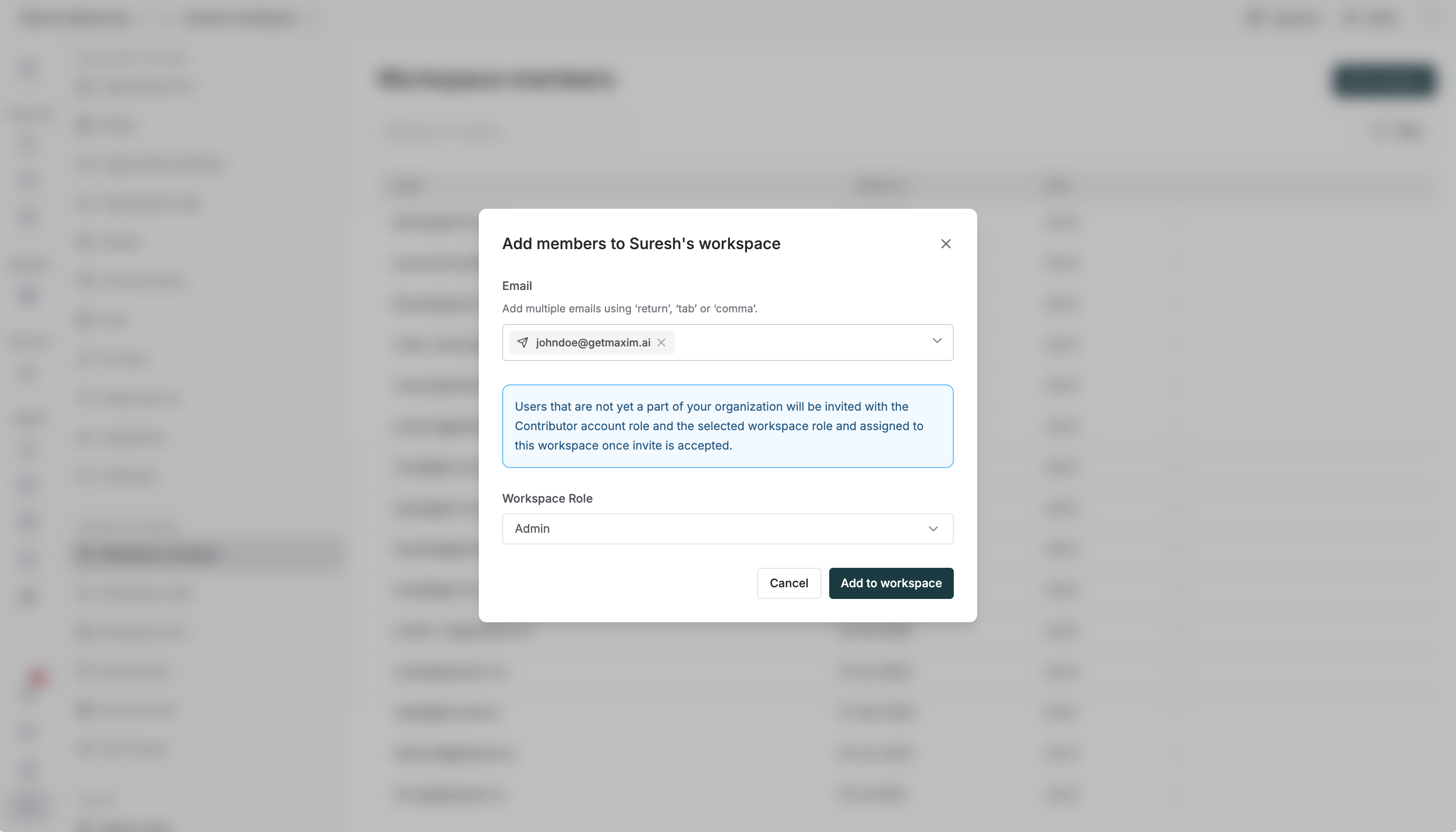
### Invite Workspace Members
To add members to a specific workspace:
* Go to `Settings` → `Workspace members` (under Workspace settings)
* Click `Invite`
* Enter email addresses or select existing organization members
* Select a workspace role
* Click `Invite`
### Duplicate Organization Roles
You can duplicate built-in organization roles (Super admin, Admin, Billing admin, Contributor, Viewer) to create new roles with similar permissions:
* Go to `Settings` → `Roles` (under Organization settings)
* Hover over a built-in role in the roles table
* Click the `Duplicate` button that appears
* The role editor opens with the duplicated role's permissions pre-filled
* Modify the name and permissions as needed
* Click `Create` to save the new role
You cannot edit the name of built-in organization roles (Super admin, Admin, Billing admin, Contributor, Viewer). You can only duplicate them to create custom roles with similar permissions.
Custom organization roles cannot be duplicated but can be edited directly.
## Workspace Roles
Workspace roles determine what users can do within a specific workspace:
* **Admin**: Full access to workspace resources and settings
* **Editor**: Can create, edit, and delete workspace resources
* **Viewer**: Read-only access to workspace resources
### Invite Workspace Members
To add members to a specific workspace:
* Go to `Settings` → `Workspace members` (under Workspace settings)
* Click `Invite`
* Enter email addresses or select existing organization members
* Select a workspace role
* Click `Invite`
 ### Create Workspace Roles
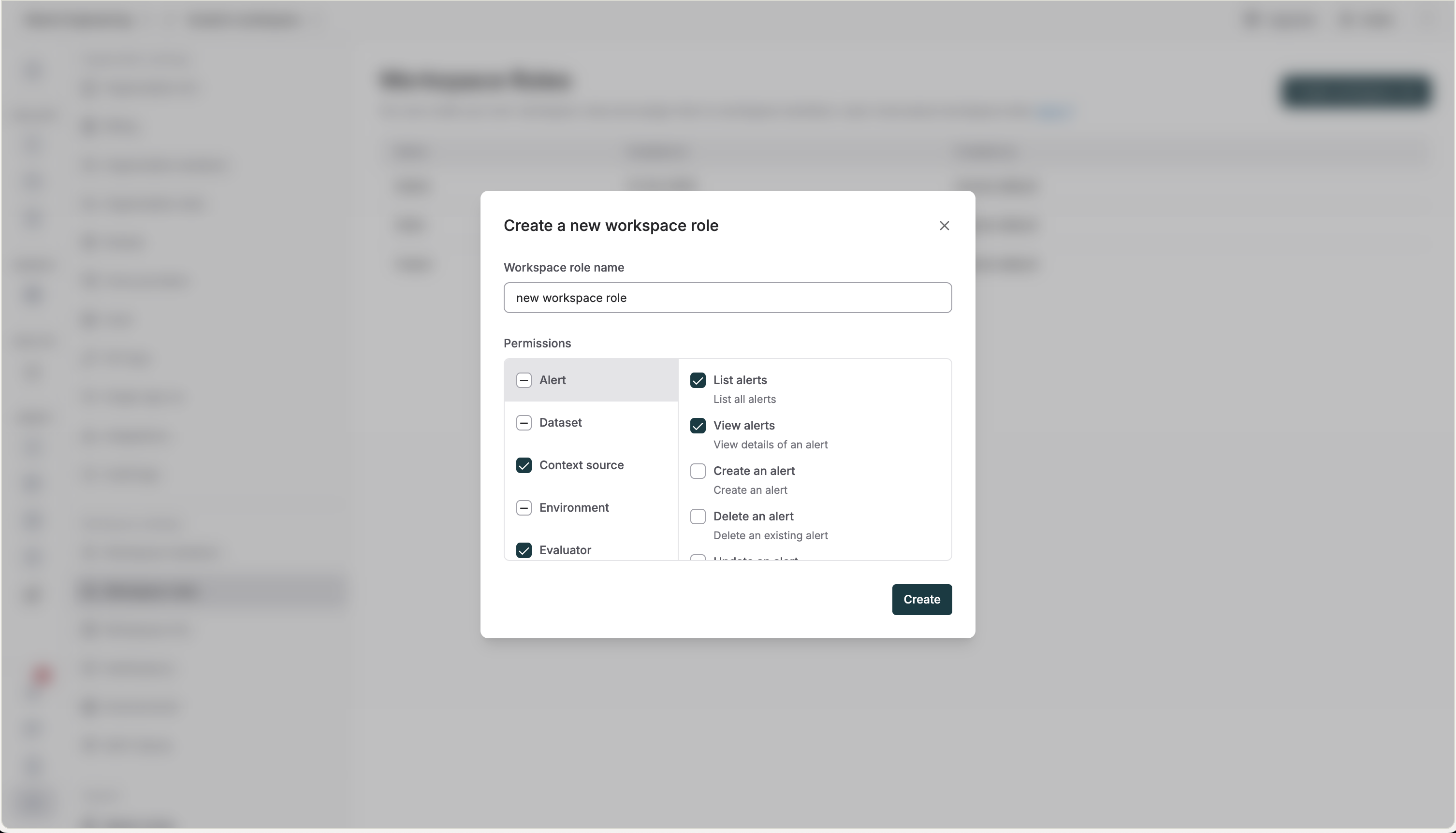
* Go to `Settings` → `Workspace roles` (under Workspace settings)
* Click `Create role`
* Enter a name for the role
* Select the permissions you want to assign
* Click `Create`
### Create Workspace Roles
* Go to `Settings` → `Workspace roles` (under Workspace settings)
* Click `Create role`
* Enter a name for the role
* Select the permissions you want to assign
* Click `Create`
 ### Duplicate Workspace Roles
You can duplicate built-in workspace roles (Admin, Editor, Viewer) to create new roles with similar permissions:
* Go to `Settings` → `Workspace roles` (under Workspace settings)
* Hover over a built-in role in the roles table
* Click the `Duplicate` button that appears
* The role editor opens with the duplicated role's permissions pre-filled
* Modify the name and permissions as needed
* Click `Create` to save the new role
You cannot edit the name of built-in workspace roles (Admin, Editor, Viewer). You can only duplicate them to create custom roles with similar permissions.
Custom workspace roles cannot be duplicated but can be edited directly.
### Duplicate Workspace Roles
You can duplicate built-in workspace roles (Admin, Editor, Viewer) to create new roles with similar permissions:
* Go to `Settings` → `Workspace roles` (under Workspace settings)
* Hover over a built-in role in the roles table
* Click the `Duplicate` button that appears
* The role editor opens with the duplicated role's permissions pre-filled
* Modify the name and permissions as needed
* Click `Create` to save the new role
You cannot edit the name of built-in workspace roles (Admin, Editor, Viewer). You can only duplicate them to create custom roles with similar permissions.
Custom workspace roles cannot be duplicated but can be edited directly.