> ## Documentation Index
> Fetch the complete documentation index at: https://www.getmaxim.ai/docs/llms.txt
> Use this file to discover all available pages before exploring further.
# LiveKit One-Line Integration
> Learn how to integrate Maxim observability with LiveKit agents for real-time voice AI applications with comprehensive tracing and monitoring.
export const MaximPlayer = ({url}) => {
return ;
};
## Introduction
LiveKit is a powerful platform for building real-time video, audio, and data applications. With Maxim's integration, you can monitor and trace your LiveKit voice agents, capturing detailed insights into conversation flows, function calls, and performance metrics in real-time.
This integration allows you to:
* Monitor voice agent conversations in real-time
* Trace function tool calls and their performance
* Debug and optimize your voice AI applications
## Requirements
```bash theme={null}
"livekit",
"livekit-agents[google,openai]~=1.0",
"livekit-api",
"maxim-py",
"python-dotenv",
"tavily-python",
```
## Environment Variables
Set up the following environment variables in your `.env` file:
```bash theme={null}
LIVEKIT_URL=
LIVEKIT_API_KEY=
LIVEKIT_API_SECRET=
OPENAI_API_KEY=
MAXIM_API_KEY=
MAXIM_LOG_REPO_ID=
```
## Getting Started
### Step 1: Obtain API Keys
#### Maxim API Key
1. Sign up at [Maxim Console](https://getmaxim.ai)
2. Create a new project or select an existing one
3. Navigate to API Keys section
4. Generate a new API key and copy your `MAXIM_API_KEY`
5. Go to Logs, create a new repository and copy`MAXIM_LOG_REPO_ID`
#### LiveKit Credentials
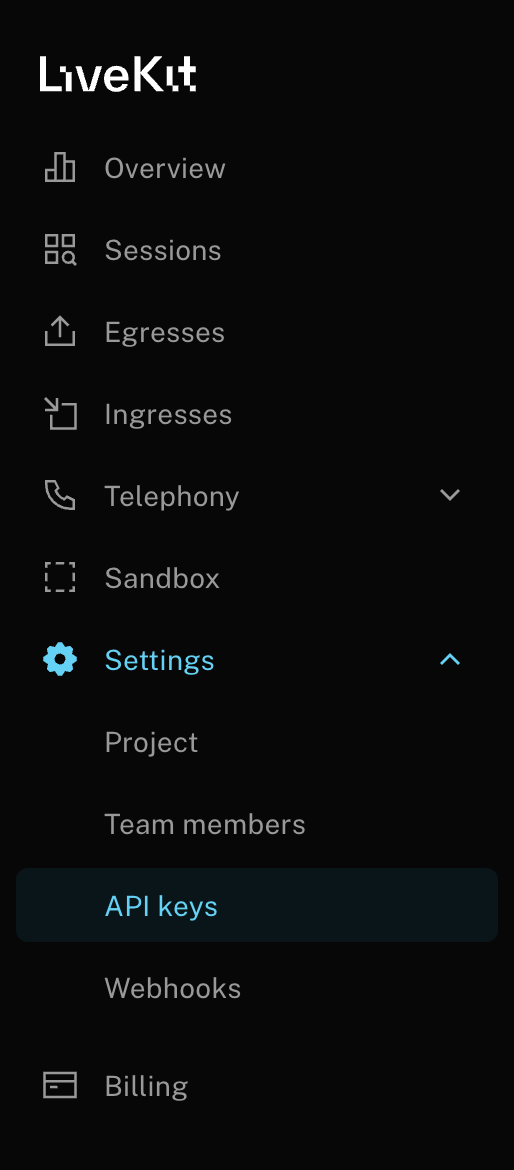
1. Set up your [LiveKit](https://cloud.livekit.io/) server or use LiveKit Cloud, and create a new project.
2. Get your server URL, API key, and API secret from the LiveKit dashboard
3. Configure the credentials in your environment variables
 #### OpenAI API Key
1. Go to OpenAI Platform & create an API Key [OpenAI Platform](https://platform.openai.com/api-keys)
2. Set the `OPENAI_API_KEY` environment variable
### Step 2: Initialize Maxim Logger
```python {21} theme={null}
import logging
from maxim import Maxim
from maxim.logger.livekit import instrument_livekit
# Initialize Maxim logger
logger = Maxim().logger()
# Automatically fetches MAXIM_API_KEY and MAXIM_LOG_REPO_ID from environment variables
# Optional: Set up event handling for trace lifecycle
def on_event(event: str, data: dict):
if event == "maxim.trace.started":
trace_id = data["trace_id"]
trace = data["trace"]
logging.info(f"Trace started - ID: {trace_id}")
elif event == "maxim.trace.ended":
trace_id = data["trace_id"]
trace = data["trace"]
logging.info(f"Trace ended - ID: {trace_id}")
# Instrument LiveKit with Maxim observability
instrument_livekit(logger, on_event)
```
`instrument_livekit`: This function integrates Maxim's observability features with LiveKit Agents . It allows you to automatically capture and send trace data to the platform:
`logger = Maxim().logger()` : This creates a Maxim logger instance that:
* Connects to your Maxim project using the `MAXIM_API_KEY` and `MAXIM_LOG_REPO_ID` environment variables
* Handles sending trace data to the Maxim platform
* Provides the logging interface for capturing events, metrics, and traces
`on_event` : This is a **callback function** that gets triggered during trace lifecycle events:
* `event`: A string indicating what happened (`"maxim.trace.started"` or `"maxim.trace.ended"`)
* `data`: A dictionary containing trace information:
* `trace_id`: Unique identifier for the trace
* `trace`: The actual trace object with metadata, timing, and other details
**What it does:**
* When a new conversation or interaction starts → logs "Trace started"
* When a conversation or interaction ends → logs "Trace ended"
* Useful for debugging and monitoring trace lifecycle in real-time
### Step 3: Create Your Voice Agent
```python theme={null}
import os
import uuid
import dotenv
from livekit import agents
from livekit import api as livekit_api
from livekit.agents import Agent, AgentSession, function_tool
from livekit.api.room_service import CreateRoomRequest
from livekit.plugins import google
dotenv.load_dotenv(override=True)
class Assistant(Agent):
def __init__(self) -> None:
super().__init__(
instructions="You are a helpful voice AI assistant. You can search the web using the web_search tool."
)
@function_tool()
async def web_search(self, query: str) -> str:
"""
Performs a web search for the given query.
Args:
query: The search query string
Returns:
Search results as a formatted string
"""
# Your web search implementation here
return f"Search results for: {query}"
async def entrypoint(ctx: agents.JobContext):
# Generate or use predefined room name
room_name = os.getenv("LIVEKIT_ROOM_NAME") or f"assistant-room-{uuid.uuid4().hex}"
# Initialize LiveKit API client
lkapi = livekit_api.LiveKitAPI(
url=os.getenv("LIVEKIT_URL"),
api_key=os.getenv("LIVEKIT_API_KEY"),
api_secret=os.getenv("LIVEKIT_API_SECRET"),
)
try:
# Create room with configuration
req = CreateRoomRequest(
name=room_name,
empty_timeout=300, # Keep room alive 5 minutes after empty
max_participants=10, # Adjust based on your needs
)
room = await lkapi.room.create_room(req)
print(f"Room created: {room.name}")
# Create agent session with Gemini model
session = AgentSession(
llm=openai.realtime.RealtimeModel(voice="coral"),
)
# Start the session
await session.start(room=room, agent=Assistant())
await ctx.connect()
# Generate initial greeting
await session.generate_reply(
instructions="Greet the user and offer your assistance."
)
finally:
await lkapi.aclose()
# Run the agent
if __name__ == "__main__":
opts = agents.WorkerOptions(entrypoint_fnc=entrypoint)
agents.cli.run_app(opts)
```
This code -
**Creates a custom agent class:**
* Inherits from `Agent`: Base class for all LiveKit agents
* `instructions`: System prompt that defines the agent's personality and capabilities
* **Tells the agent**: It's a voice assistant that can use web search
**Creates a callable tool:**
* `@function_tool()`: Decorator that registers this method as a tool the agent can call
* `async def`: Asynchronous function (required for LiveKit agents)
* **Type hints**: `query: str -> str` helps the AI understand input/output types
* **Docstring**: Describes the function for the AI model
* **Current implementation**: Placeholder that returns a formatted string
**The main function that runs when the agent starts:**
* `ctx: agents.JobContext`: Contains information about the current job/session
**Creates a unique room name:**
* **First tries**: Environment variable `LIVEKIT_ROOM_NAME`
* **Falls back to**: Generated name like `assistant-room-a1b2c3d4e5f6...`
* `uuid.uuid4().hex`: Creates a random hexadecimal string
**Starts the agent and begins conversation:**
* `session.start()`: Connects the agent to the room
* `agent=Assistant()`: Uses your custom Assistant class
* `ctx.connect()`: Connects to the LiveKit infrastructure
* `generate_reply()`: Makes the agent speak first with a greeting
## Complete Example with Web Search
Here's a complete example that includes web search functionality using Tavily:
```python theme={null}
import logging
import os
import uuid
import dotenv
from livekit import agents
from livekit import api as livekit_api
from livekit.agents import Agent, AgentSession, function_tool
from livekit.api.room_service import CreateRoomRequest
from livekit.plugins import google
from maxim import Maxim
from maxim.logger.livekit import instrument_livekit
from tavily import TavilyClient
dotenv.load_dotenv(override=True)
logging.basicConfig(level=logging.INFO)
# Initialize Maxim observability
logger = Maxim().logger()
TAVILY_API_KEY = os.getenv("TAVILY_API_KEY")
def on_event(event: str, data: dict):
if event == "maxim.trace.started":
trace_id = data["trace_id"]
trace = data["trace"]
logging.info(f"Trace started - ID: {trace_id}")
elif event == "maxim.trace.ended":
trace_id = data["trace_id"]
trace = data["trace"]
logging.info(f"Trace ended - ID: {trace_id}")
# Instrument LiveKit with Maxim
instrument_livekit(logger, on_event)
class Assistant(Agent):
def __init__(self) -> None:
super().__init__(
instructions="You are a helpful voice AI assistant. You can search the web using the web_search tool."
)
@function_tool()
async def web_search(self, query: str) -> str:
"""
Performs a web search for the given query.
Args:
query: The search query string
Returns:
Search results as a formatted string
"""
if not TAVILY_API_KEY:
return "Web search is not available. Please configure the Tavily API key."
tavily_client = TavilyClient(api_key=TAVILY_API_KEY)
try:
response = tavily_client.search(query=query, search_depth="basic")
if response.get('answer'):
return response['answer']
return str(response.get('results', 'No results found.'))
except Exception as e:
return f"An error occurred during web search: {e}"
async def entrypoint(ctx: agents.JobContext):
room_name = os.getenv("LIVEKIT_ROOM_NAME") or f"assistant-room-{uuid.uuid4().hex}"
lkapi = livekit_api.LiveKitAPI(
url=os.getenv("LIVEKIT_URL"),
api_key=os.getenv("LIVEKIT_API_KEY"),
api_secret=os.getenv("LIVEKIT_API_SECRET"),
)
try:
req = CreateRoomRequest(
name=room_name,
empty_timeout=300,
max_participants=10,
)
room = await lkapi.room.create_room(req)
print(f"Room created: {room.name}")
session = AgentSession(
llm=openai.realtime.RealtimeModel(voice="coral"),
)
await session.start(room=room, agent=Assistant())
await ctx.connect()
await session.generate_reply(
instructions="Greet the user and offer your assistance."
)
finally:
await lkapi.aclose()
if __name__ == "__main__":
opts = agents.WorkerOptions(entrypoint_fnc=entrypoint)
agents.cli.run_app(opts)
```
## What Gets Traced
### Agent Conversations
Transcript containing System Instructions, User and Assistant Messages are pushed to Maxim
## Running Your Agent
1. Working code is uploaded here - [https://github.com/maximhq/maxim-cookbooks/blob/main/python/observability-online-eval/livekit/livekit-gemini.py](https://github.com/maximhq/maxim-cookbooks/blob/main/python/observability-online-eval/livekit/livekit-gemini.py)
2. **Start your LiveKit server** (if self-hosting) or ensure your LiveKit Cloud instance is running
3. **Run your agent**:
```bash theme={null}
uv sync
uv run livekit-gemini.py console
```
## Troubleshooting
### Common Issues
**Agent not connecting to LiveKit**:
* Verify your LiveKit credentials are correct
* Check that your LiveKit server is accessible
**Traces not appearing in Maxim**:
* Confirm your `MAXIM_API_KEY` and `MAXIM_LOG_REPO_ID` are set correctly
* Check the Maxim console for any API errors
## Resources
Official LiveKit documentation
#### OpenAI API Key
1. Go to OpenAI Platform & create an API Key [OpenAI Platform](https://platform.openai.com/api-keys)
2. Set the `OPENAI_API_KEY` environment variable
### Step 2: Initialize Maxim Logger
```python {21} theme={null}
import logging
from maxim import Maxim
from maxim.logger.livekit import instrument_livekit
# Initialize Maxim logger
logger = Maxim().logger()
# Automatically fetches MAXIM_API_KEY and MAXIM_LOG_REPO_ID from environment variables
# Optional: Set up event handling for trace lifecycle
def on_event(event: str, data: dict):
if event == "maxim.trace.started":
trace_id = data["trace_id"]
trace = data["trace"]
logging.info(f"Trace started - ID: {trace_id}")
elif event == "maxim.trace.ended":
trace_id = data["trace_id"]
trace = data["trace"]
logging.info(f"Trace ended - ID: {trace_id}")
# Instrument LiveKit with Maxim observability
instrument_livekit(logger, on_event)
```
`instrument_livekit`: This function integrates Maxim's observability features with LiveKit Agents . It allows you to automatically capture and send trace data to the platform:
`logger = Maxim().logger()` : This creates a Maxim logger instance that:
* Connects to your Maxim project using the `MAXIM_API_KEY` and `MAXIM_LOG_REPO_ID` environment variables
* Handles sending trace data to the Maxim platform
* Provides the logging interface for capturing events, metrics, and traces
`on_event` : This is a **callback function** that gets triggered during trace lifecycle events:
* `event`: A string indicating what happened (`"maxim.trace.started"` or `"maxim.trace.ended"`)
* `data`: A dictionary containing trace information:
* `trace_id`: Unique identifier for the trace
* `trace`: The actual trace object with metadata, timing, and other details
**What it does:**
* When a new conversation or interaction starts → logs "Trace started"
* When a conversation or interaction ends → logs "Trace ended"
* Useful for debugging and monitoring trace lifecycle in real-time
### Step 3: Create Your Voice Agent
```python theme={null}
import os
import uuid
import dotenv
from livekit import agents
from livekit import api as livekit_api
from livekit.agents import Agent, AgentSession, function_tool
from livekit.api.room_service import CreateRoomRequest
from livekit.plugins import google
dotenv.load_dotenv(override=True)
class Assistant(Agent):
def __init__(self) -> None:
super().__init__(
instructions="You are a helpful voice AI assistant. You can search the web using the web_search tool."
)
@function_tool()
async def web_search(self, query: str) -> str:
"""
Performs a web search for the given query.
Args:
query: The search query string
Returns:
Search results as a formatted string
"""
# Your web search implementation here
return f"Search results for: {query}"
async def entrypoint(ctx: agents.JobContext):
# Generate or use predefined room name
room_name = os.getenv("LIVEKIT_ROOM_NAME") or f"assistant-room-{uuid.uuid4().hex}"
# Initialize LiveKit API client
lkapi = livekit_api.LiveKitAPI(
url=os.getenv("LIVEKIT_URL"),
api_key=os.getenv("LIVEKIT_API_KEY"),
api_secret=os.getenv("LIVEKIT_API_SECRET"),
)
try:
# Create room with configuration
req = CreateRoomRequest(
name=room_name,
empty_timeout=300, # Keep room alive 5 minutes after empty
max_participants=10, # Adjust based on your needs
)
room = await lkapi.room.create_room(req)
print(f"Room created: {room.name}")
# Create agent session with Gemini model
session = AgentSession(
llm=openai.realtime.RealtimeModel(voice="coral"),
)
# Start the session
await session.start(room=room, agent=Assistant())
await ctx.connect()
# Generate initial greeting
await session.generate_reply(
instructions="Greet the user and offer your assistance."
)
finally:
await lkapi.aclose()
# Run the agent
if __name__ == "__main__":
opts = agents.WorkerOptions(entrypoint_fnc=entrypoint)
agents.cli.run_app(opts)
```
This code -
**Creates a custom agent class:**
* Inherits from `Agent`: Base class for all LiveKit agents
* `instructions`: System prompt that defines the agent's personality and capabilities
* **Tells the agent**: It's a voice assistant that can use web search
**Creates a callable tool:**
* `@function_tool()`: Decorator that registers this method as a tool the agent can call
* `async def`: Asynchronous function (required for LiveKit agents)
* **Type hints**: `query: str -> str` helps the AI understand input/output types
* **Docstring**: Describes the function for the AI model
* **Current implementation**: Placeholder that returns a formatted string
**The main function that runs when the agent starts:**
* `ctx: agents.JobContext`: Contains information about the current job/session
**Creates a unique room name:**
* **First tries**: Environment variable `LIVEKIT_ROOM_NAME`
* **Falls back to**: Generated name like `assistant-room-a1b2c3d4e5f6...`
* `uuid.uuid4().hex`: Creates a random hexadecimal string
**Starts the agent and begins conversation:**
* `session.start()`: Connects the agent to the room
* `agent=Assistant()`: Uses your custom Assistant class
* `ctx.connect()`: Connects to the LiveKit infrastructure
* `generate_reply()`: Makes the agent speak first with a greeting
## Complete Example with Web Search
Here's a complete example that includes web search functionality using Tavily:
```python theme={null}
import logging
import os
import uuid
import dotenv
from livekit import agents
from livekit import api as livekit_api
from livekit.agents import Agent, AgentSession, function_tool
from livekit.api.room_service import CreateRoomRequest
from livekit.plugins import google
from maxim import Maxim
from maxim.logger.livekit import instrument_livekit
from tavily import TavilyClient
dotenv.load_dotenv(override=True)
logging.basicConfig(level=logging.INFO)
# Initialize Maxim observability
logger = Maxim().logger()
TAVILY_API_KEY = os.getenv("TAVILY_API_KEY")
def on_event(event: str, data: dict):
if event == "maxim.trace.started":
trace_id = data["trace_id"]
trace = data["trace"]
logging.info(f"Trace started - ID: {trace_id}")
elif event == "maxim.trace.ended":
trace_id = data["trace_id"]
trace = data["trace"]
logging.info(f"Trace ended - ID: {trace_id}")
# Instrument LiveKit with Maxim
instrument_livekit(logger, on_event)
class Assistant(Agent):
def __init__(self) -> None:
super().__init__(
instructions="You are a helpful voice AI assistant. You can search the web using the web_search tool."
)
@function_tool()
async def web_search(self, query: str) -> str:
"""
Performs a web search for the given query.
Args:
query: The search query string
Returns:
Search results as a formatted string
"""
if not TAVILY_API_KEY:
return "Web search is not available. Please configure the Tavily API key."
tavily_client = TavilyClient(api_key=TAVILY_API_KEY)
try:
response = tavily_client.search(query=query, search_depth="basic")
if response.get('answer'):
return response['answer']
return str(response.get('results', 'No results found.'))
except Exception as e:
return f"An error occurred during web search: {e}"
async def entrypoint(ctx: agents.JobContext):
room_name = os.getenv("LIVEKIT_ROOM_NAME") or f"assistant-room-{uuid.uuid4().hex}"
lkapi = livekit_api.LiveKitAPI(
url=os.getenv("LIVEKIT_URL"),
api_key=os.getenv("LIVEKIT_API_KEY"),
api_secret=os.getenv("LIVEKIT_API_SECRET"),
)
try:
req = CreateRoomRequest(
name=room_name,
empty_timeout=300,
max_participants=10,
)
room = await lkapi.room.create_room(req)
print(f"Room created: {room.name}")
session = AgentSession(
llm=openai.realtime.RealtimeModel(voice="coral"),
)
await session.start(room=room, agent=Assistant())
await ctx.connect()
await session.generate_reply(
instructions="Greet the user and offer your assistance."
)
finally:
await lkapi.aclose()
if __name__ == "__main__":
opts = agents.WorkerOptions(entrypoint_fnc=entrypoint)
agents.cli.run_app(opts)
```
## What Gets Traced
### Agent Conversations
Transcript containing System Instructions, User and Assistant Messages are pushed to Maxim
## Running Your Agent
1. Working code is uploaded here - [https://github.com/maximhq/maxim-cookbooks/blob/main/python/observability-online-eval/livekit/livekit-gemini.py](https://github.com/maximhq/maxim-cookbooks/blob/main/python/observability-online-eval/livekit/livekit-gemini.py)
2. **Start your LiveKit server** (if self-hosting) or ensure your LiveKit Cloud instance is running
3. **Run your agent**:
```bash theme={null}
uv sync
uv run livekit-gemini.py console
```
## Troubleshooting
### Common Issues
**Agent not connecting to LiveKit**:
* Verify your LiveKit credentials are correct
* Check that your LiveKit server is accessible
**Traces not appearing in Maxim**:
* Confirm your `MAXIM_API_KEY` and `MAXIM_LOG_REPO_ID` are set correctly
* Check the Maxim console for any API errors
## Resources
Official LiveKit documentation