> ## Documentation Index
> Fetch the complete documentation index at: https://www.getmaxim.ai/docs/llms.txt
> Use this file to discover all available pages before exploring further.
# LiveKit Observability with OpenTelemetry
> Learn how to use OpenTelemetry to integrate Maxim observability with LiveKit agents for real-time voice AI applications with comprehensive tracing and monitoring.
## Introduction
LiveKit is a powerful platform for building real-time video, audio, and data applications. With Maxim's integration, you can monitor and trace your LiveKit voice agents, capturing detailed insights into conversation flows, function calls, and performance metrics in real-time.
This integration allows you to:
* Monitor voice agent conversations in real-time
* Trace function tool calls and their performance
* Debug and optimize your voice AI applications
## Requirements
```bash theme={null}
"livekit",
"livekit-agents[google,openai]~=1.0",
"livekit-api",
"maxim-py",
"opentelemetry-api",
"opentelemetry-sdk",
"opentelemetry-exporter-otlp-proto-http",
"python-dotenv",
"tavily-python",
```
## Environment Variables
Set up the following environment variables in your `.env` file:
```bash theme={null}
LIVEKIT_URL=
LIVEKIT_API_KEY=
LIVEKIT_API_SECRET=
OPENAI_API_KEY=
MAXIM_API_KEY=
MAXIM_LOG_REPO_ID=
```
## Getting Started
### Step 1: Obtain API Keys
#### Maxim API Key
1. Sign up at [Maxim Console](https://getmaxim.ai)
2. Create a new project or select an existing one
3. Navigate to API Keys section
4. Generate a new API key and copy your `MAXIM_API_KEY`
5. Go to Logs, create a new repository and copy `MAXIM_LOG_REPO_ID`
#### LiveKit Credentials
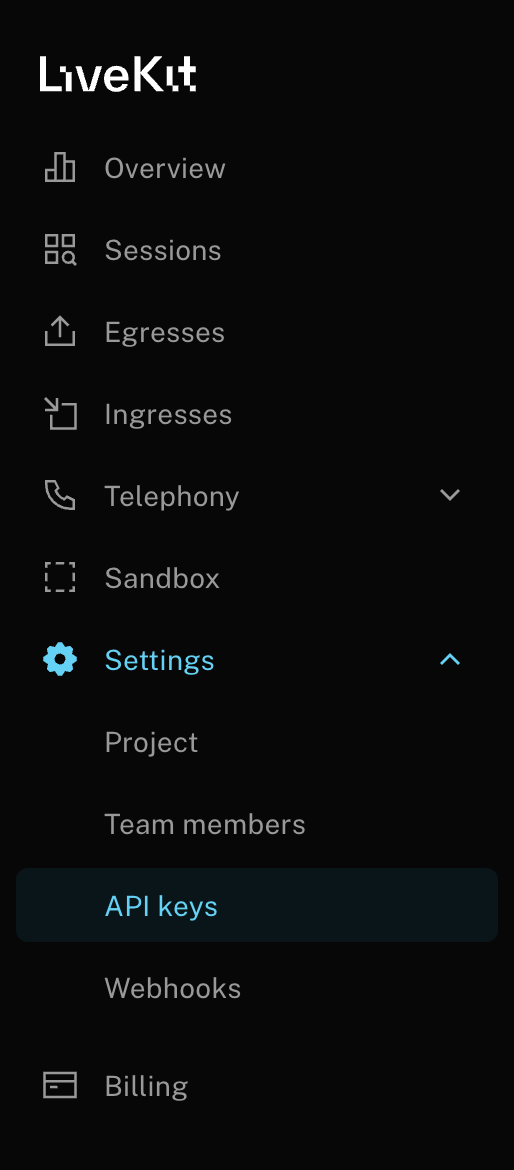
1. Set up your [LiveKit](https://cloud.livekit.io/) server or use LiveKit Cloud, and create a new project.
2. Get your server URL, API key, and API secret from the LiveKit dashboard
3. Configure the credentials in your environment variables
 #### OpenAI API Key
1. Go to OpenAI Platform & create an API Key [OpenAI Platform](https://platform.openai.com/api-keys)
2. Set the `OPENAI_API_KEY` environment variable
### Step 2: Set Up OpenTelemetry
Set up OpenTelemetry to send traces to Maxim using the OTLP endpoint. Create a setup function that configures the tracer provider with Maxim's OTLP exporter:
```python theme={null}
import os
from opentelemetry.exporter.otlp.proto.http.trace_exporter import OTLPSpanExporter
from opentelemetry.sdk.trace.export import BatchSpanProcessor
from opentelemetry.sdk.trace import TracerProvider
from opentelemetry.trace import AttributeValue
from maxim import set_tracer_provider
def setup_maxim_otel(
metadata: dict[str, AttributeValue] | None = None,
) -> TracerProvider:
"""
Set up OpenTelemetry tracing with Maxim's OTLP endpoint.
Args:
metadata: Optional dictionary of metadata attributes to attach to traces.
Can include Maxim-specific attributes like maxim-trace-tags,
maxim-tags, maxim-trace-metrics, and maxim-metrics.
Returns:
Configured TracerProvider instance.
"""
repo_id = os.getenv("MAXIM_LOG_REPO_ID")
api_key = os.getenv("MAXIM_API_KEY")
trace_provider = TracerProvider()
trace_provider.add_span_processor(
BatchSpanProcessor(
OTLPSpanExporter(
endpoint="https://api.getmaxim.ai/v1/otel",
headers={
"x-maxim-repo-id": repo_id or "",
"x-maxim-api-key": api_key or "",
},
)
)
)
set_tracer_provider(trace_provider, metadata=metadata)
return trace_provider
```
#### Using the Setup Function
Call `setup_maxim_otel()` at the start of your application to initialize OpenTelemetry tracing:
```python theme={null}
# Basic setup
trace_provider = setup_maxim_otel()
# With metadata for enriching traces
trace_provider = setup_maxim_otel(
metadata={
"maxim-trace-tags": {
"environment": "production",
"service": "livekit-agent",
},
"maxim-trace-metrics": {
"version": 1.0,
},
}
)
```
The `BatchSpanProcessor` is used for better performance in production environments, automatically batching spans before sending them to Maxim. For development or debugging, you can use `SimpleSpanProcessor` instead for immediate span export.
#### Supported Attributes
Maxim supports the following attributes to enrich your traces:
* `maxim-trace-tags`: A `Map` of tags that will be attached to the parent trace of the span (if the current node is a trace itself, this will be attached to the same trace).
* `maxim-tags`: A `Map` of tags that will be attached to the current node.
* `maxim-trace-metrics`: A `Map` of metrics that will be attached to the parent trace of the span (if the current node is a trace itself, this will be attached to the same trace).
* `maxim-metrics`: A `Map` of metrics that will be attached to the current node.
## Resources
Official LiveKit documentation
#### OpenAI API Key
1. Go to OpenAI Platform & create an API Key [OpenAI Platform](https://platform.openai.com/api-keys)
2. Set the `OPENAI_API_KEY` environment variable
### Step 2: Set Up OpenTelemetry
Set up OpenTelemetry to send traces to Maxim using the OTLP endpoint. Create a setup function that configures the tracer provider with Maxim's OTLP exporter:
```python theme={null}
import os
from opentelemetry.exporter.otlp.proto.http.trace_exporter import OTLPSpanExporter
from opentelemetry.sdk.trace.export import BatchSpanProcessor
from opentelemetry.sdk.trace import TracerProvider
from opentelemetry.trace import AttributeValue
from maxim import set_tracer_provider
def setup_maxim_otel(
metadata: dict[str, AttributeValue] | None = None,
) -> TracerProvider:
"""
Set up OpenTelemetry tracing with Maxim's OTLP endpoint.
Args:
metadata: Optional dictionary of metadata attributes to attach to traces.
Can include Maxim-specific attributes like maxim-trace-tags,
maxim-tags, maxim-trace-metrics, and maxim-metrics.
Returns:
Configured TracerProvider instance.
"""
repo_id = os.getenv("MAXIM_LOG_REPO_ID")
api_key = os.getenv("MAXIM_API_KEY")
trace_provider = TracerProvider()
trace_provider.add_span_processor(
BatchSpanProcessor(
OTLPSpanExporter(
endpoint="https://api.getmaxim.ai/v1/otel",
headers={
"x-maxim-repo-id": repo_id or "",
"x-maxim-api-key": api_key or "",
},
)
)
)
set_tracer_provider(trace_provider, metadata=metadata)
return trace_provider
```
#### Using the Setup Function
Call `setup_maxim_otel()` at the start of your application to initialize OpenTelemetry tracing:
```python theme={null}
# Basic setup
trace_provider = setup_maxim_otel()
# With metadata for enriching traces
trace_provider = setup_maxim_otel(
metadata={
"maxim-trace-tags": {
"environment": "production",
"service": "livekit-agent",
},
"maxim-trace-metrics": {
"version": 1.0,
},
}
)
```
The `BatchSpanProcessor` is used for better performance in production environments, automatically batching spans before sending them to Maxim. For development or debugging, you can use `SimpleSpanProcessor` instead for immediate span export.
#### Supported Attributes
Maxim supports the following attributes to enrich your traces:
* `maxim-trace-tags`: A `Map` of tags that will be attached to the parent trace of the span (if the current node is a trace itself, this will be attached to the same trace).
* `maxim-tags`: A `Map` of tags that will be attached to the current node.
* `maxim-trace-metrics`: A `Map` of metrics that will be attached to the parent trace of the span (if the current node is a trace itself, this will be attached to the same trace).
* `maxim-metrics`: A `Map` of metrics that will be attached to the current node.
## Resources
Official LiveKit documentation