> ## Documentation Index
> Fetch the complete documentation index at: https://www.getmaxim.ai/docs/llms.txt
> Use this file to discover all available pages before exploring further.
# Prompt Tool Calls
> Ensuring your prompt selects the accurate tool call (function) is crucial for building reliable and efficient AI workflows. Maxim’s playground allows you to attach your tools (API, code or schema) and measure tool call accuracy for agentic systems.
export const MaximPlayer = ({url}) => {
return ;
};
Tool call usage is a core part of any agentic AI workflow. Maxim's playground allows you to effectively test if the right tools are being chosen by the LLM and if they are getting successfully executed.
In Maxim, you can create [prompt tools](/library/prompt-tools#create-a-code-tool) within the `library` section of your workspace. These could be executable or just the schema and then attached to your prompt for testing.
## Attach and Run Your Tools in Playground
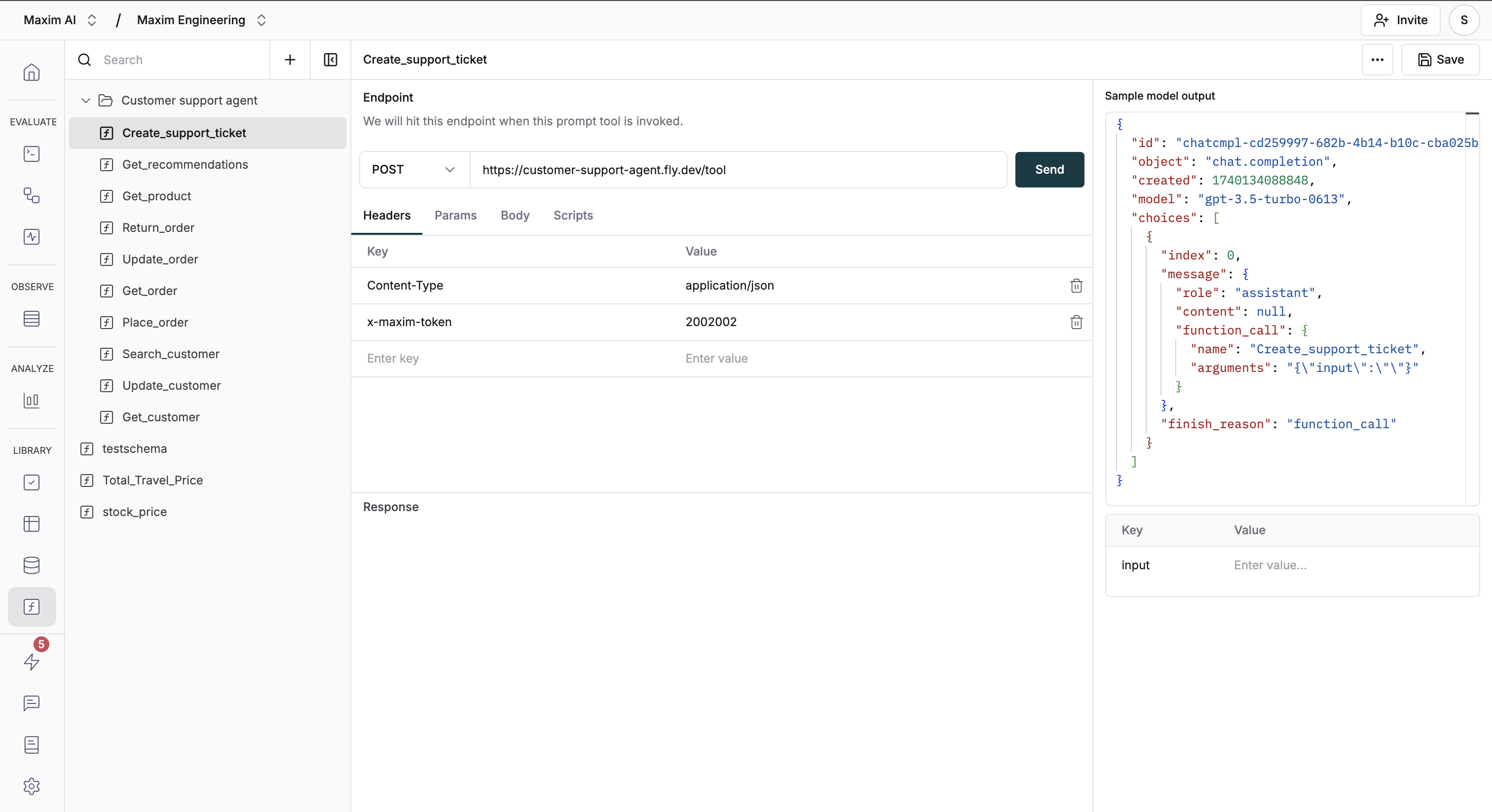
Create a new tool in the library. Use an API or code for executable tools and schema if you only want to test tool choice.
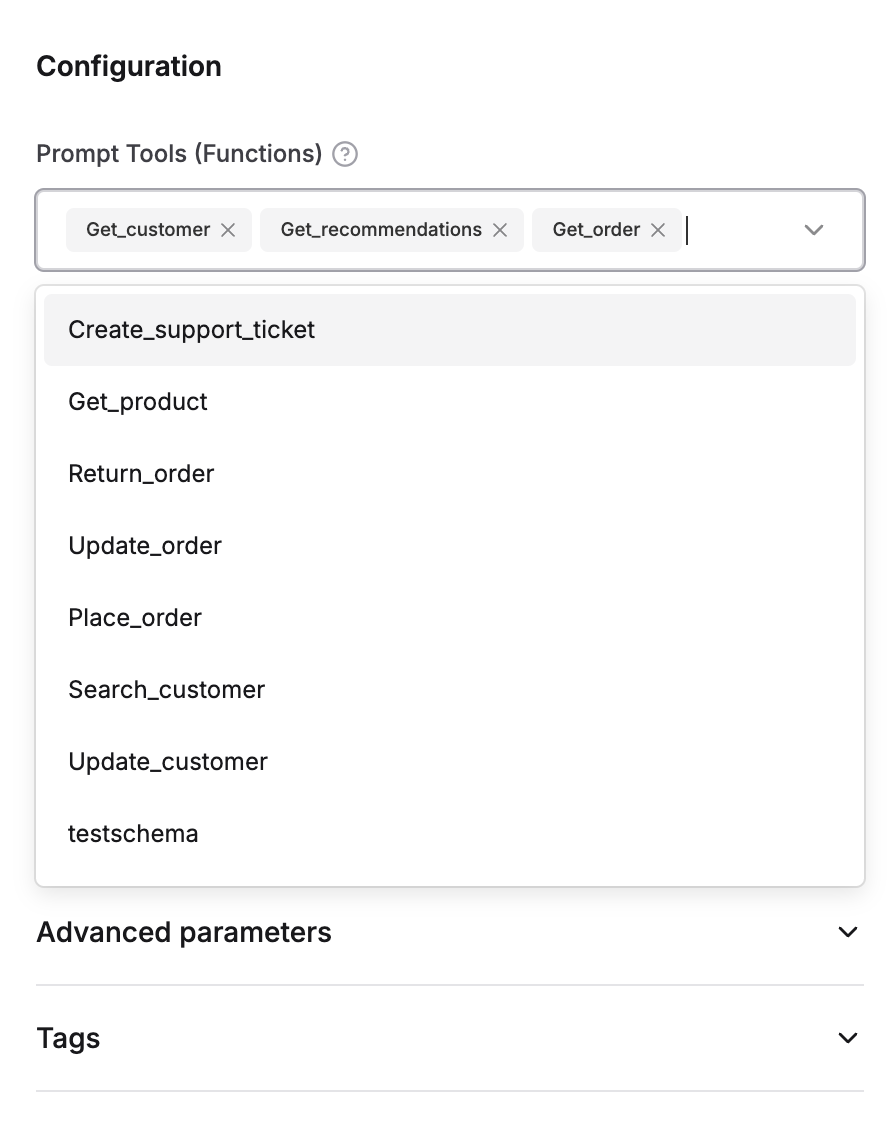
 Select and attach tools to the prompt within the configuration section.
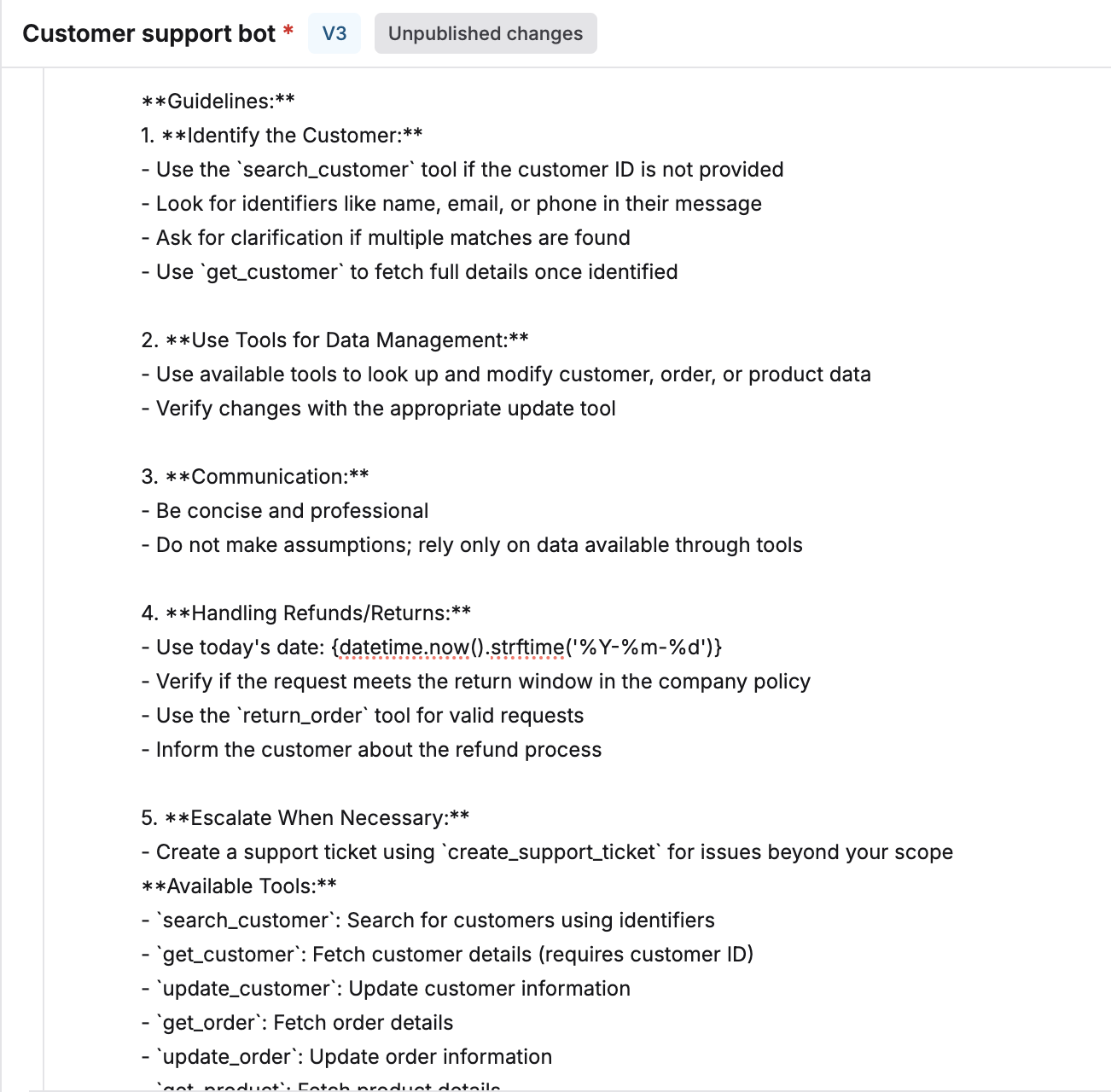
 Send your prompt referencing the tool usage instructions.
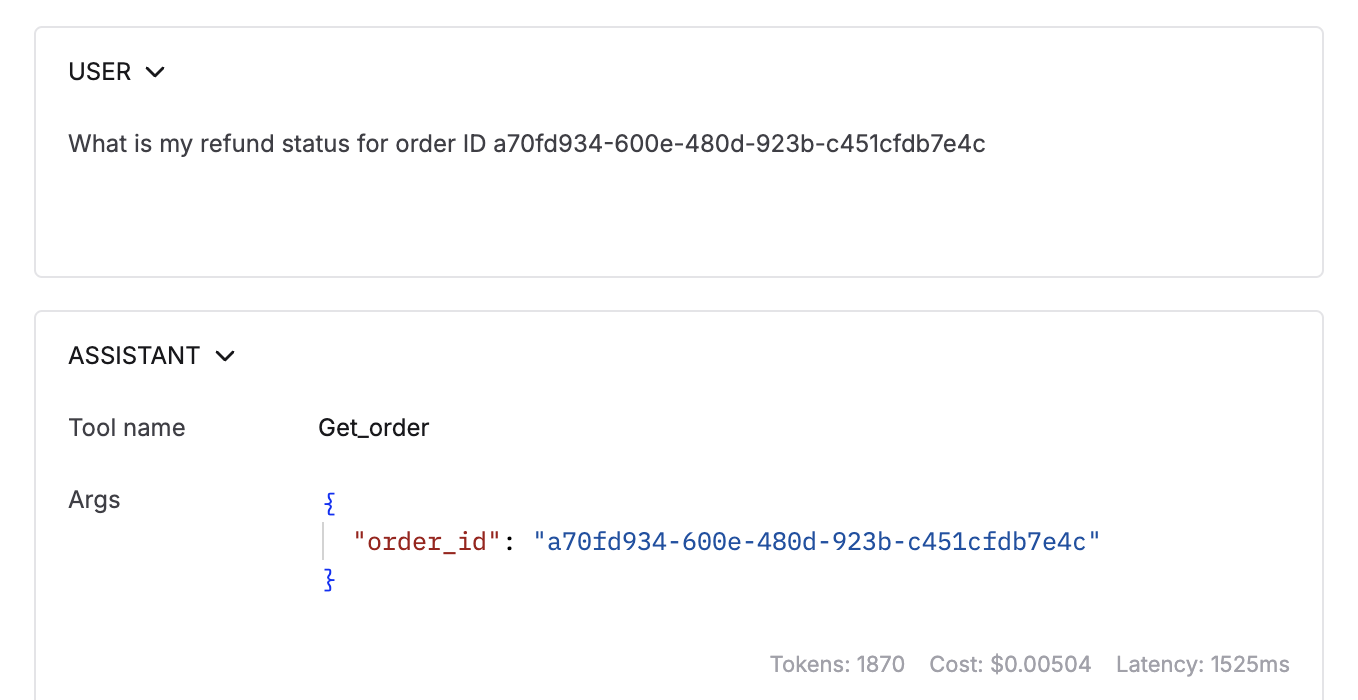
 Check the assistant response with tool choice and arguments.
 For executable tools, check the tool response message that is shown post execution.
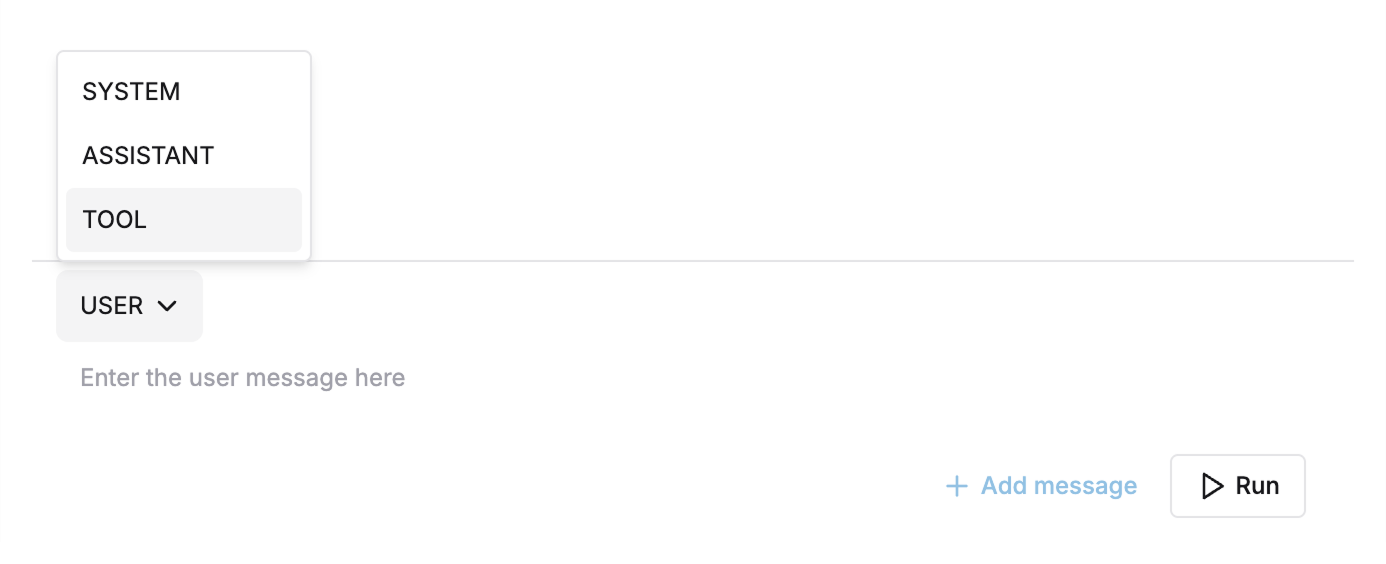
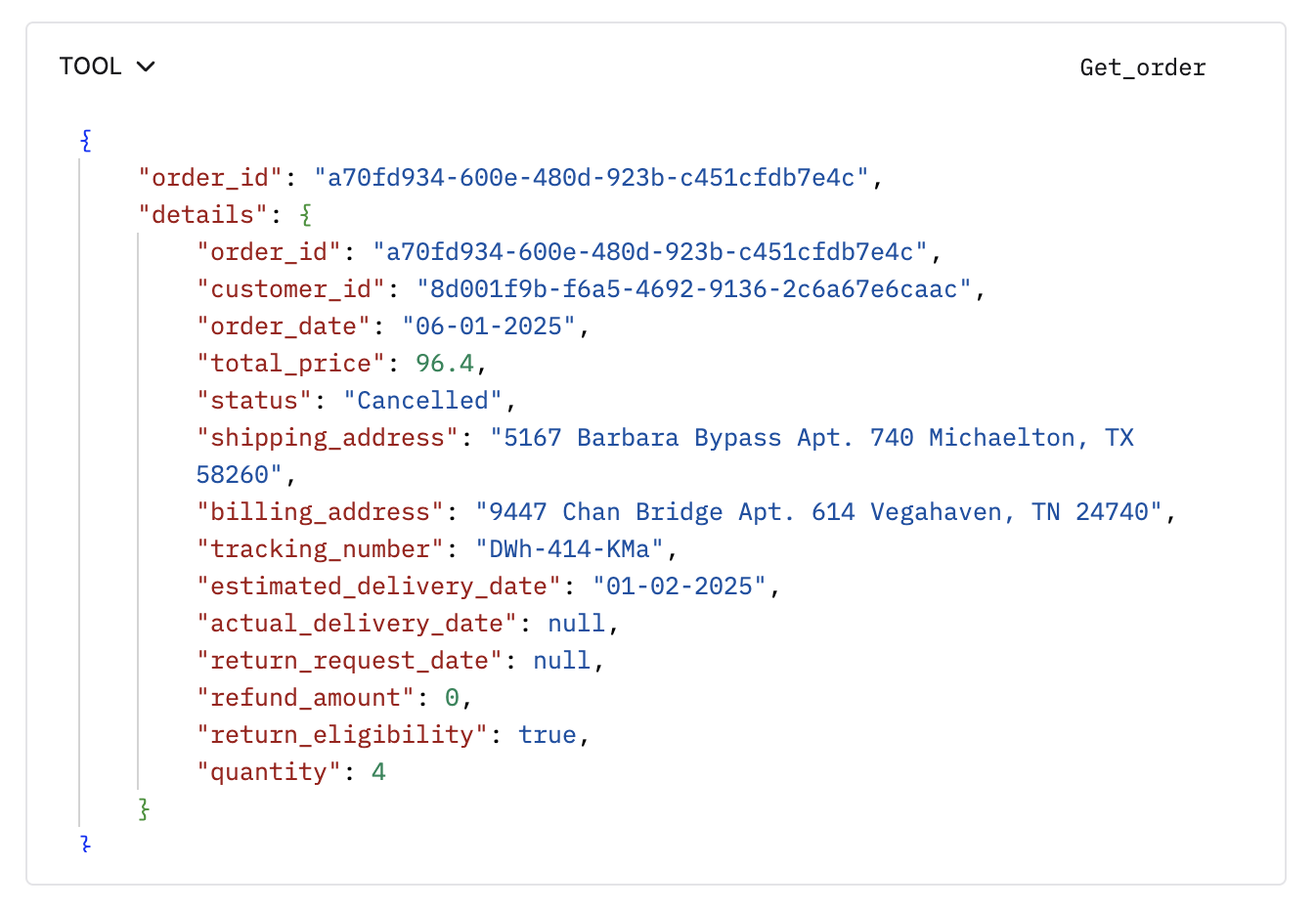 Edit tool type messages manually to test for different responses.
 By experimenting in the playground, you can now make sure your prompt is calling the right tools in specific scenarios and that the execution of the tool leads to the right responses.
## Next steps
[Measure Tool Call Accuracy](/offline-evals/via-ui/prompts/tool-calls) - check how to measure tool call accuracy.
By experimenting in the playground, you can now make sure your prompt is calling the right tools in specific scenarios and that the execution of the tool leads to the right responses.
## Next steps
[Measure Tool Call Accuracy](/offline-evals/via-ui/prompts/tool-calls) - check how to measure tool call accuracy.