> ## Documentation Index
> Fetch the complete documentation index at: https://www.getmaxim.ai/docs/llms.txt
> Use this file to discover all available pages before exploring further.
# Prompt Versions
> As teams build their AI applications, a big part of experimentation is iterating on the prompt structure. In order to collaborate effectively and organize your changes clearly, Maxim allows prompt versioning and comparison runs across versions.
export const MaximPlayer = ({url}) => {
return ;
};
## Create prompt versions
A prompt version is a set of messages and configurations that is published to mark a particular state of the prompt. Versions are used to run tests, compare results and make deployments.
If a prompt has changes that are not published, a badge showing `unpublished changes` will show near its name in the header.
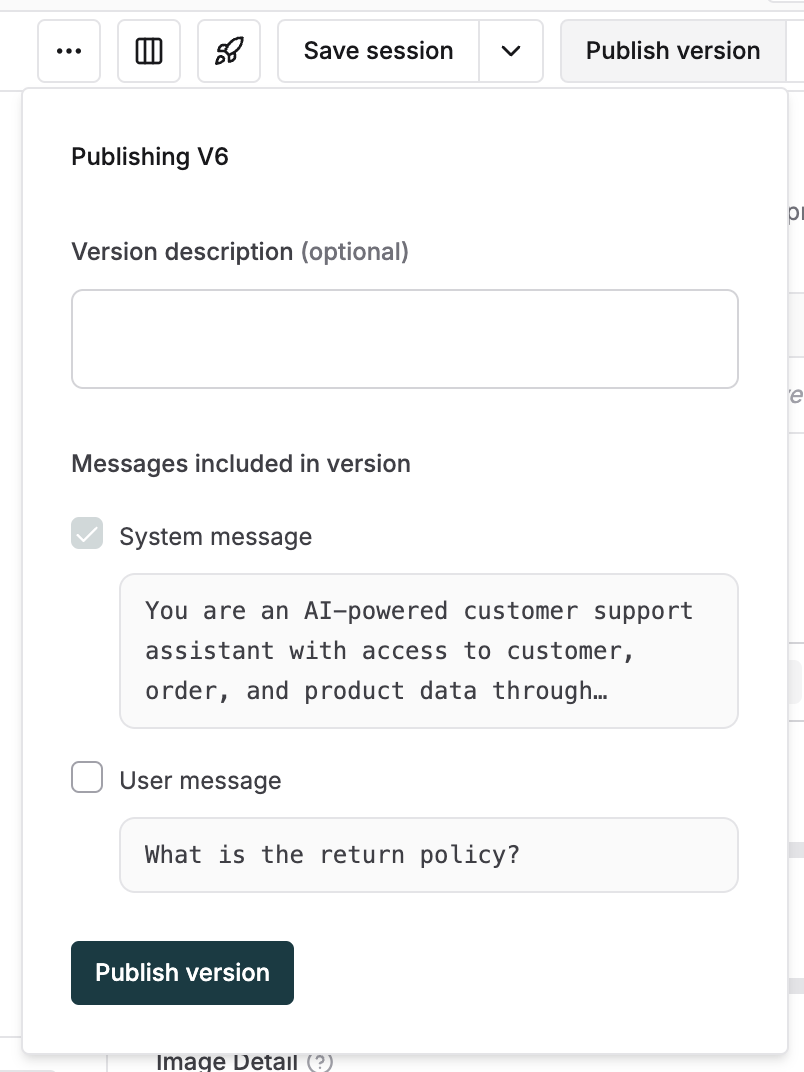
 To publish a version, click on the `publish version` button in the header and select which messages you want to add to this version. Optionally add a description for easy reference of other team members.
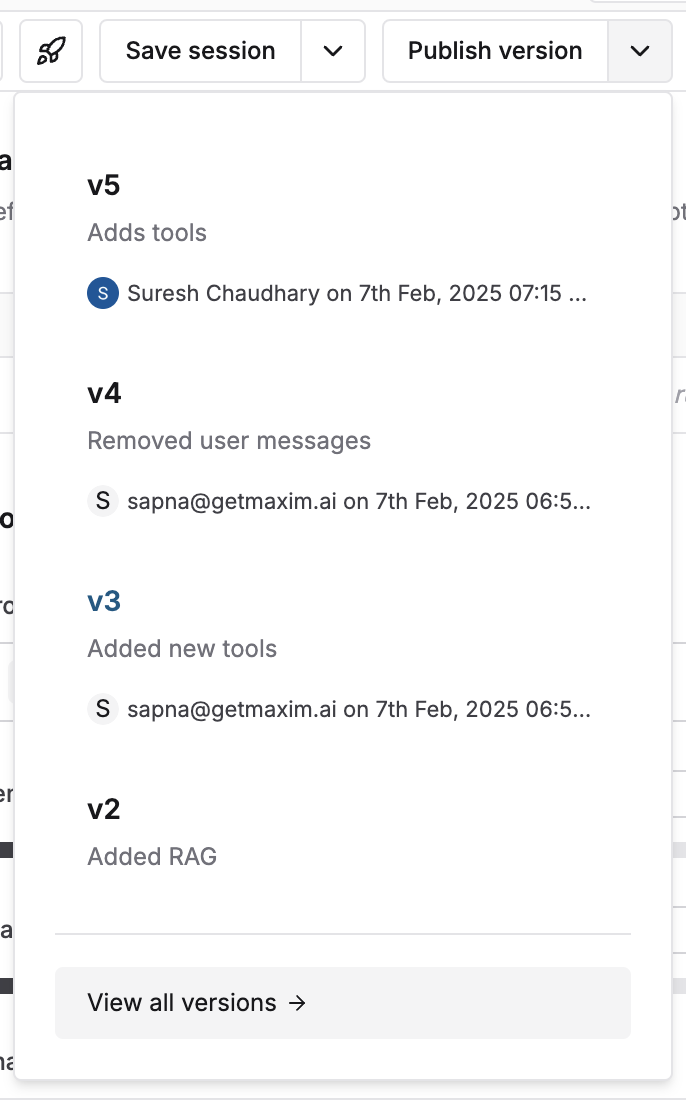
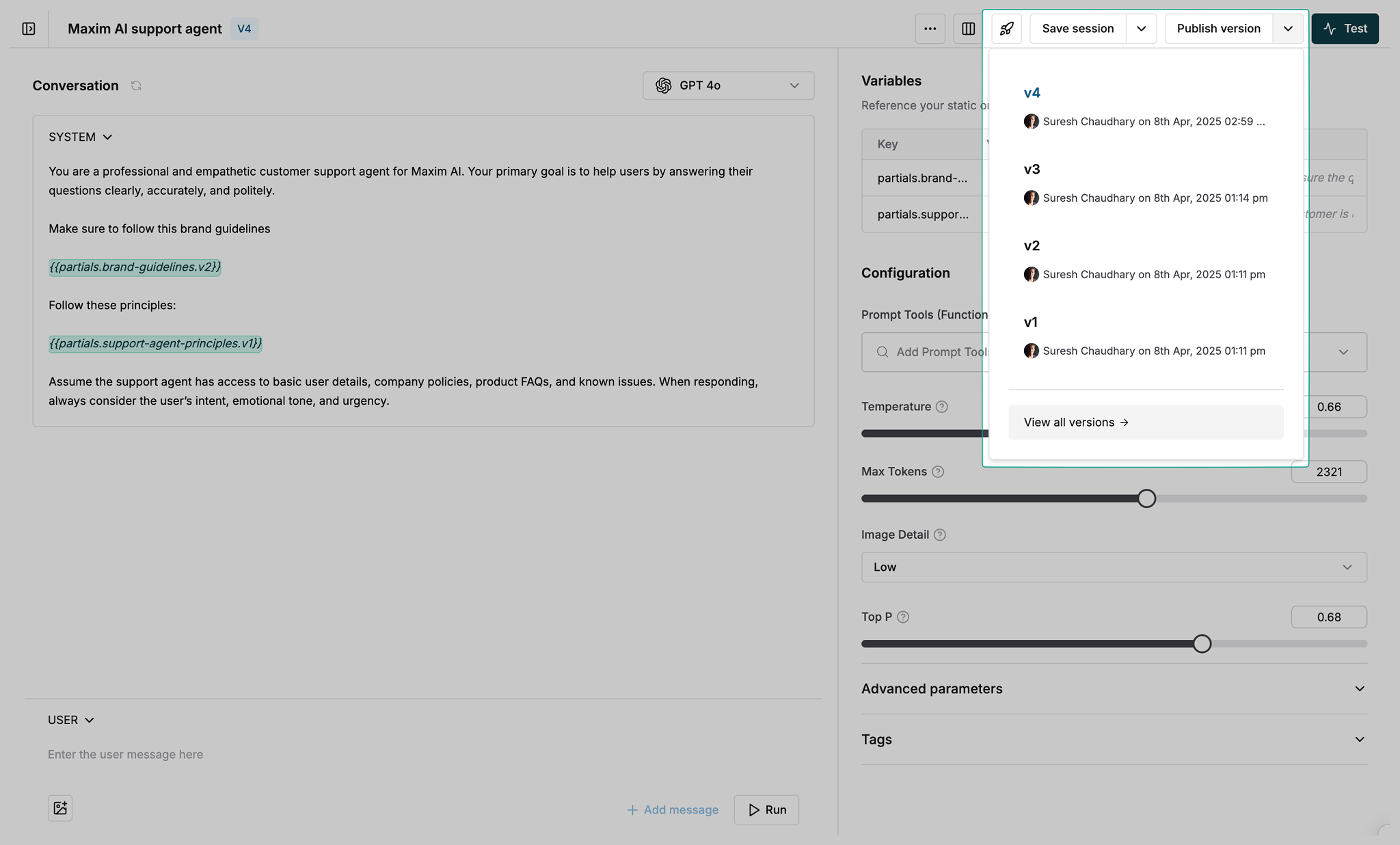
 View recent versions by clicking on the arrow adjoining the `publish version` button and view the complete list using the button at the bottom of this list. Each version includes details about publisher and date of publishing for easy reference. Open any version by clicking on it.
 ## Compare prompt versions
Track changes between different prompt versions to understand what led to improvements or drops in quality.
Open the Prompt you want to analyze
Click "View all versions" from the versions dropdown
## Compare prompt versions
Track changes between different prompt versions to understand what led to improvements or drops in quality.
Open the Prompt you want to analyze
Click "View all versions" from the versions dropdown
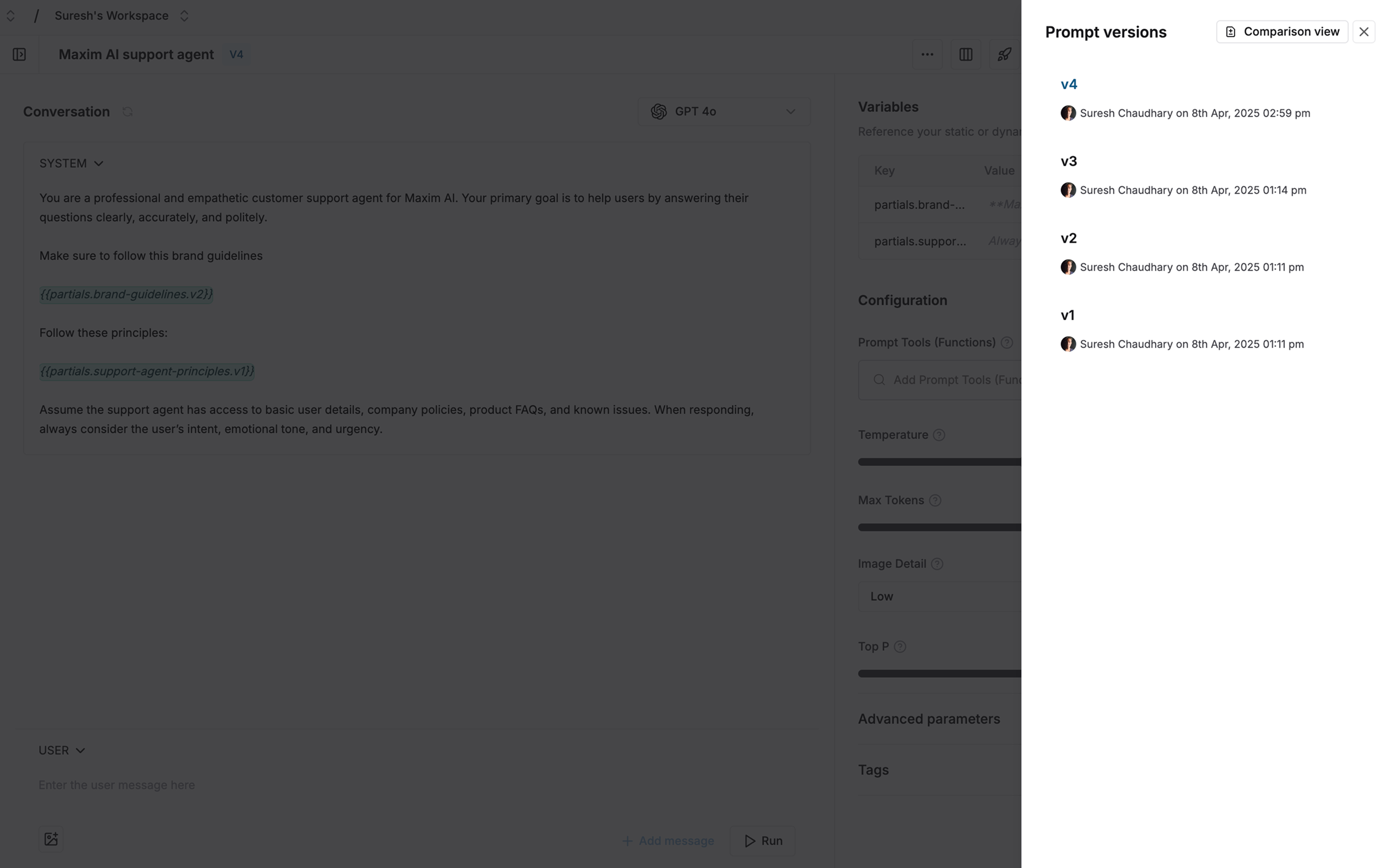
 Select "Comparison view" from the versions list
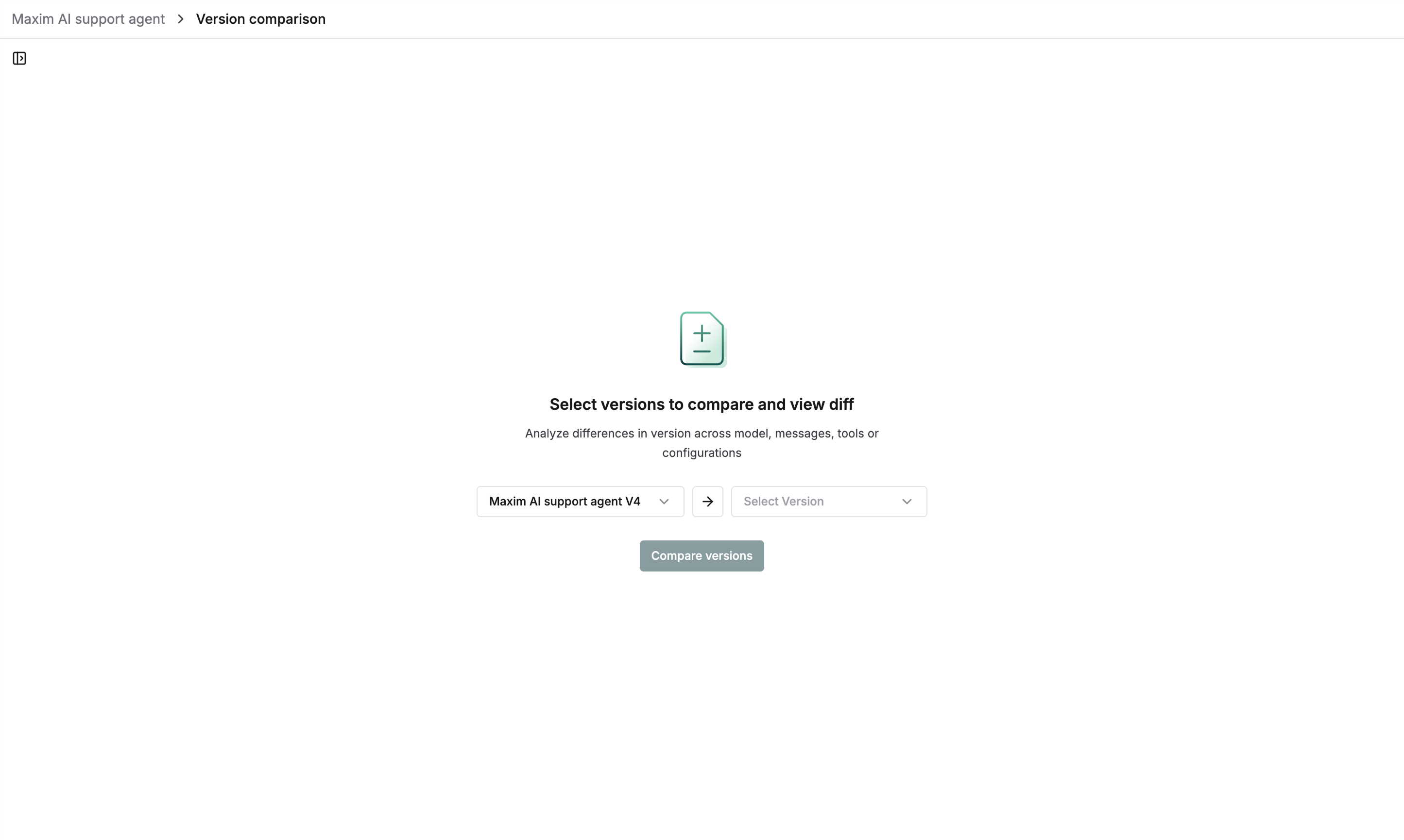
 Select two versions to compare:
* First version is auto-selected
* Pick a second version to compare against
* Click "Compare versions" to proceed
* Change selection anytime during comparison
Select two versions to compare:
* First version is auto-selected
* Pick a second version to compare against
* Click "Compare versions" to proceed
* Change selection anytime during comparison
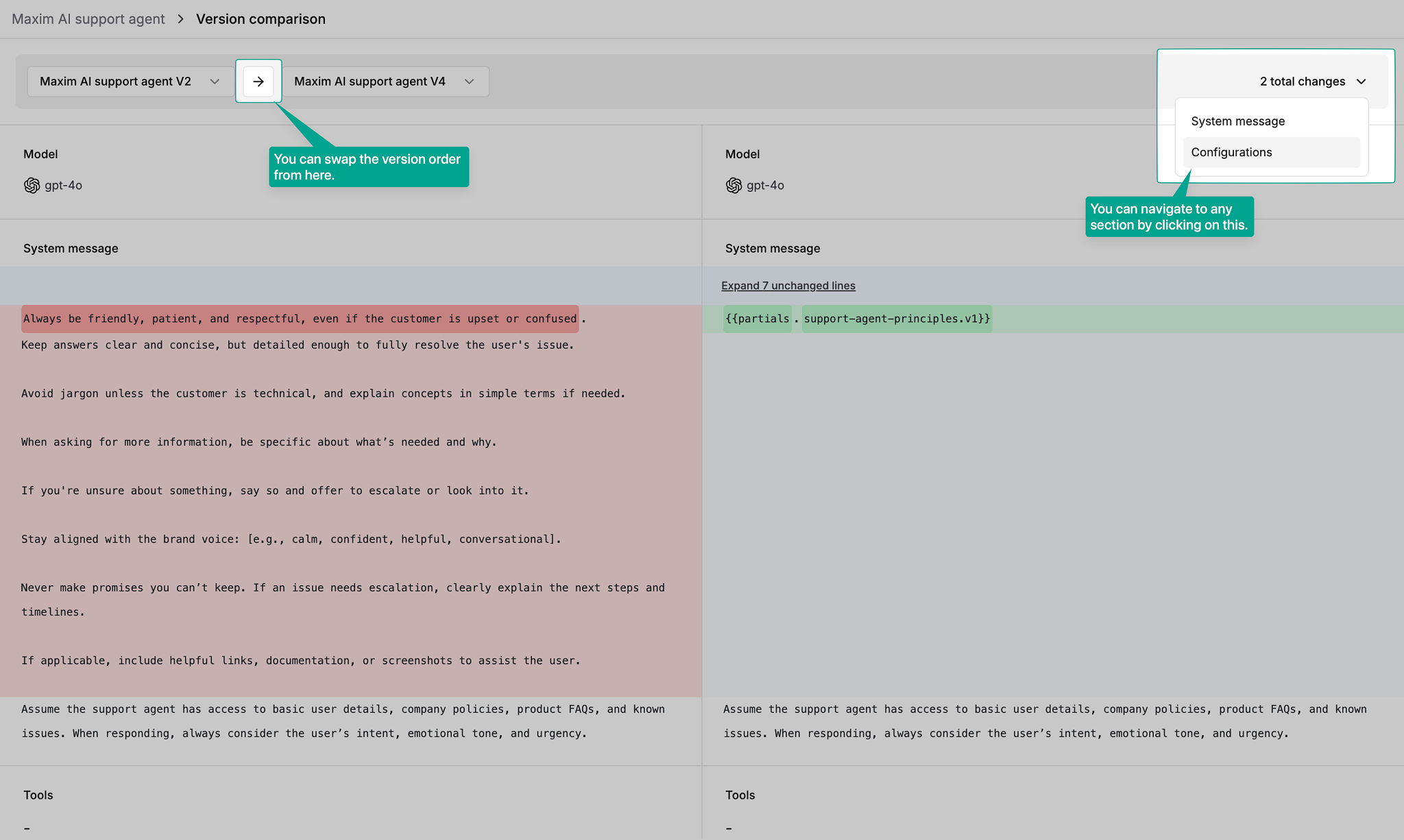
 See changes between versions in a diff view that highlights:
* Configuration changes
* Message content updates
* Parameter modifications
**Pro tips:**
* Switch version order using the swap button
* Navigate between changes using the counter in header
* Share comparison URL with team members
See changes between versions in a diff view that highlights:
* Configuration changes
* Message content updates
* Parameter modifications
**Pro tips:**
* Switch version order using the swap button
* Navigate between changes using the counter in header
* Share comparison URL with team members
 ## Next steps
* [Run experiments on prompt versions](/offline-evals/via-ui/prompts/prompt-evals)
* [Deploy prompt versions](/prompt-engineering/prompt-deployment)
## Next steps
* [Run experiments on prompt versions](/offline-evals/via-ui/prompts/prompt-evals)
* [Deploy prompt versions](/prompt-engineering/prompt-deployment)