> ## Documentation Index
> Fetch the complete documentation index at: https://www.getmaxim.ai/docs/llms.txt
> Use this file to discover all available pages before exploring further.
# Prompt Playground
> Learn how to use the Prompt Playground to experiment with prompts, test their effectiveness, and ensure they work well before integrating them into more complex workflows for your application.
export const MaximPlayer = ({url}) => {
return ;
};
## What is the Prompt Playground?
Prompts in Maxim provide a powerful way to experiment with prompt structures, models and configurations. Maxim's playground allows you to iterate over prompts, test their effectiveness, and ensure they work well before integrating them into more complex workflows for your application.
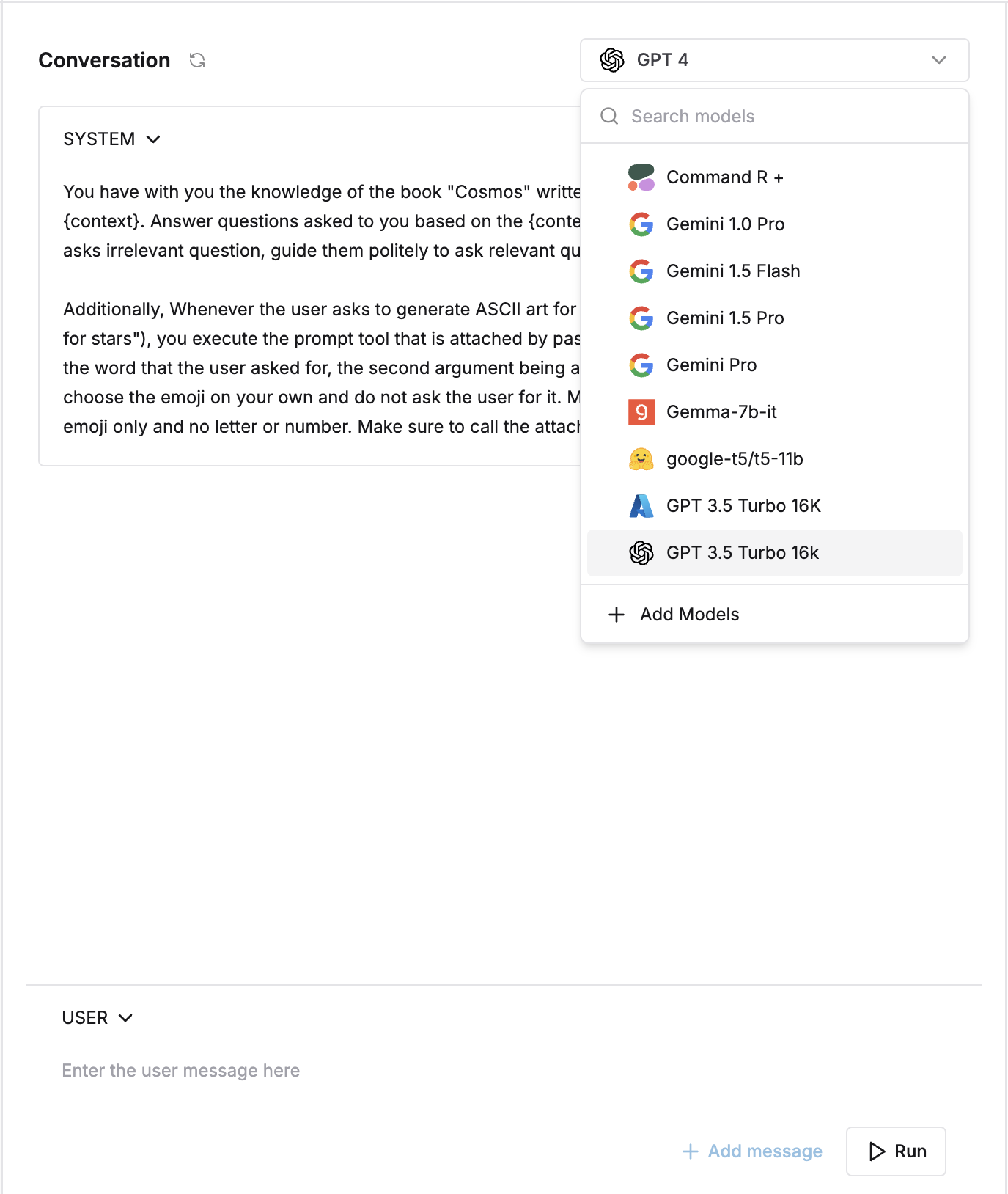
## Selecting a model
Maxim supports a wide range of models, including:
* Open-source models
* Closed models
* Custom models
Easily experiment across models by [configuring models](/settings/model-configuration) and selecting the relevant model from the dropdown at the top of the prompt playground.
 ## Adding system and user prompts
In the prompt editor, add your system and user prompts. The system prompt sets the context or instructions for the AI, while the user prompt represents the input you want the AI to respond to. Use the `Add message` button to append messages in the conversations before running it. Mimic assistant responses for debugging using the `assistant` type message.
## Adding system and user prompts
In the prompt editor, add your system and user prompts. The system prompt sets the context or instructions for the AI, while the user prompt represents the input you want the AI to respond to. Use the `Add message` button to append messages in the conversations before running it. Mimic assistant responses for debugging using the `assistant` type message.
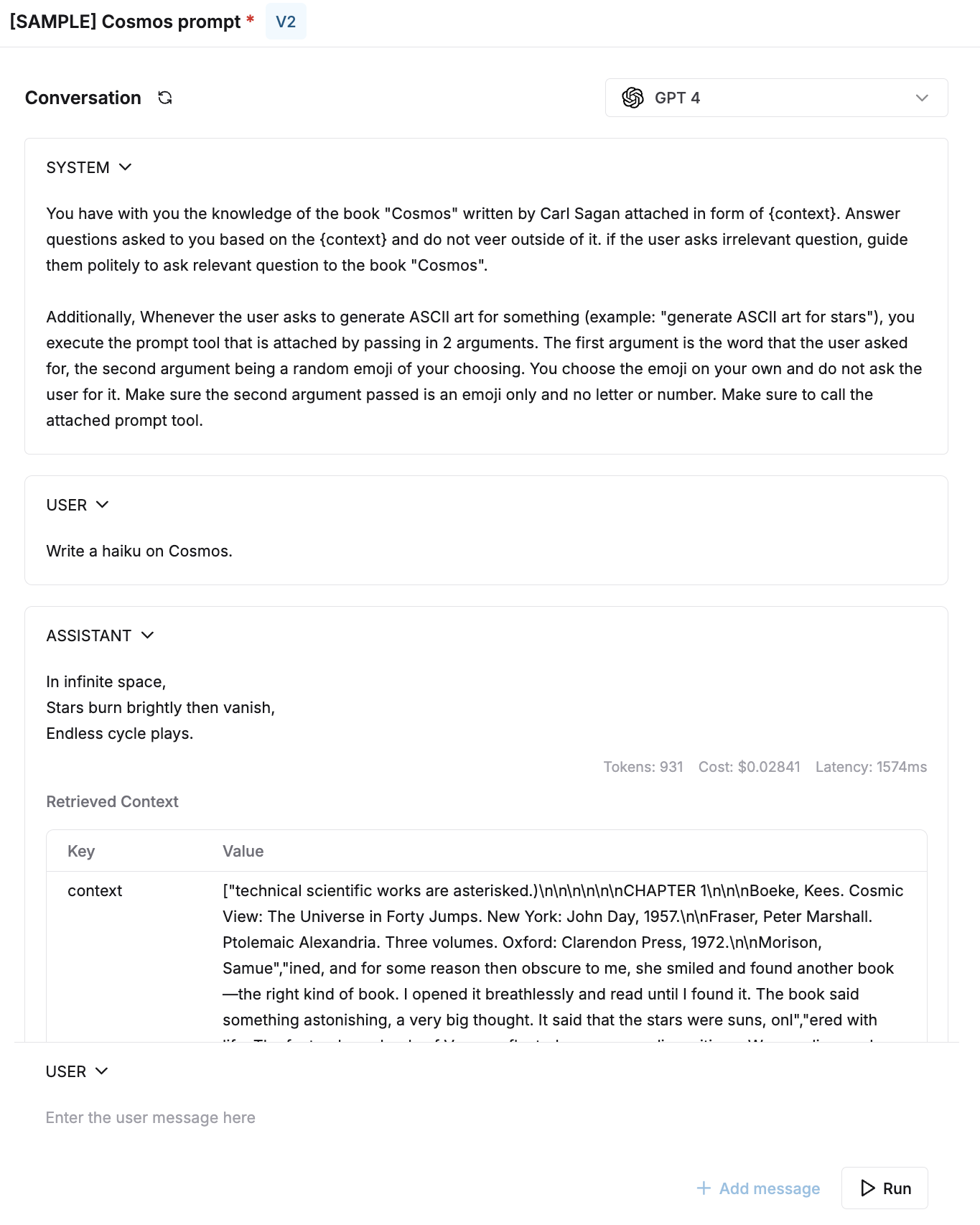 If your prompts require tool usage, you can attach tools and experiment using `tool` type messages. [Learn about using tools in playground](/prompt-engineering/tool-calls).
## Configuring parameters
Each prompt has a set of parameters that you can configure to control the behavior of the model. Find details about the different parameters for each model in the model's documentation. Here are some examples of common parameters:
* Temperature
* Max tokens
* topP
* Logit bias
* Prompt tools (for function calls)
* Custom stop sequences
If your prompts require tool usage, you can attach tools and experiment using `tool` type messages. [Learn about using tools in playground](/prompt-engineering/tool-calls).
## Configuring parameters
Each prompt has a set of parameters that you can configure to control the behavior of the model. Find details about the different parameters for each model in the model's documentation. Here are some examples of common parameters:
* Temperature
* Max tokens
* topP
* Logit bias
* Prompt tools (for function calls)
* Custom stop sequences
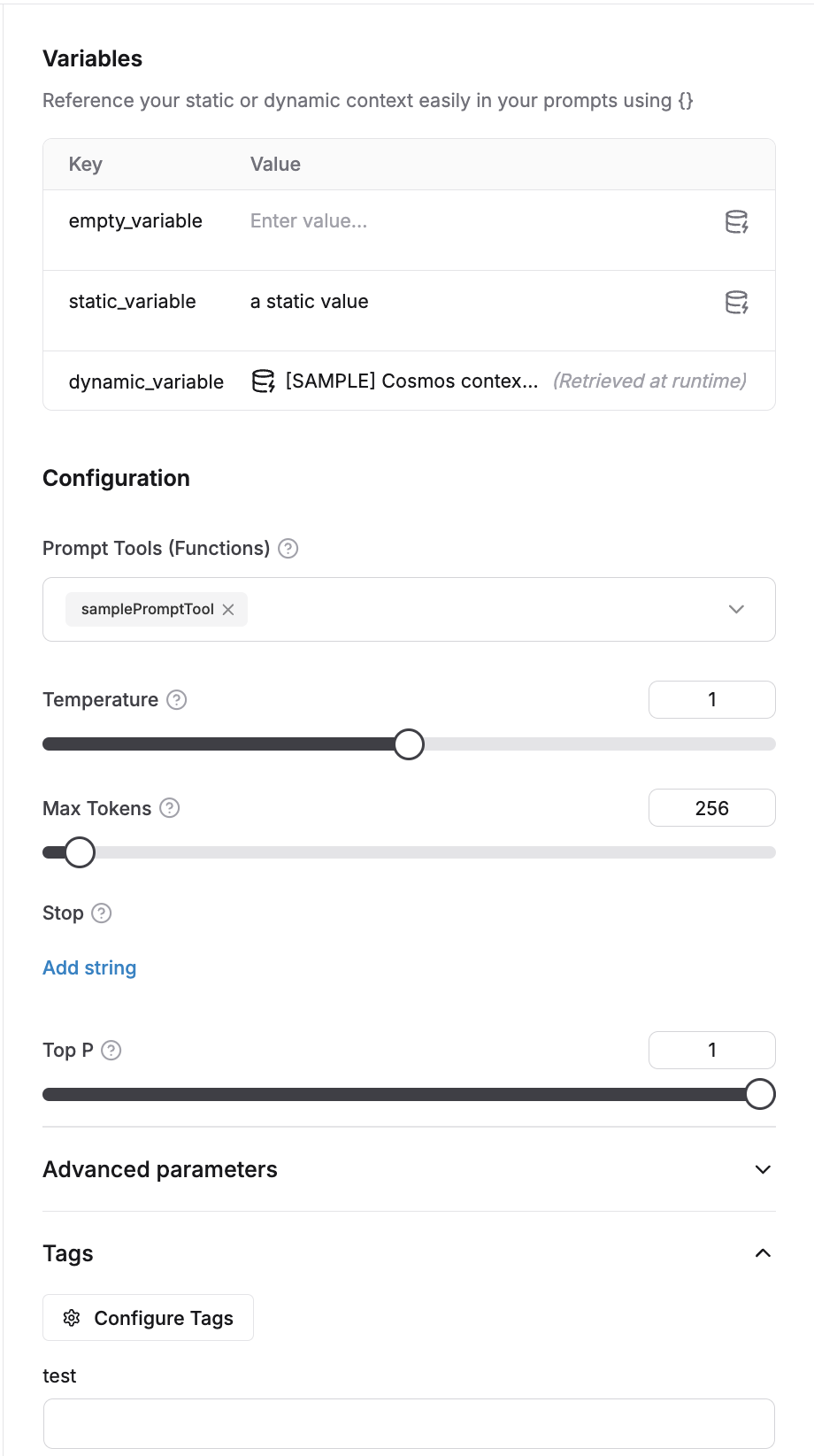 Experiment using the right response format like structured output, or JSON for models that allow it.
## Using variables
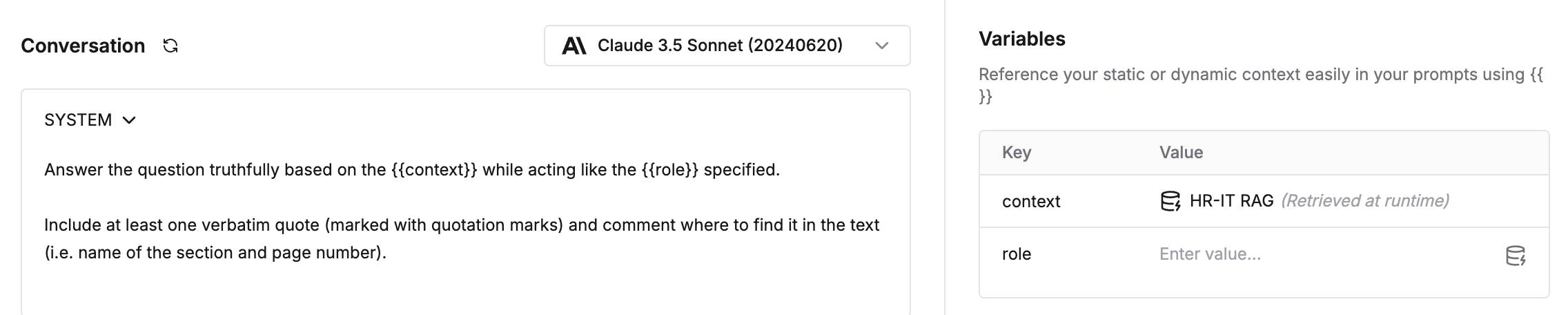
Maxim allows you to include variables in your prompts using double curly braces `{{ }}`. You can use this to reference dynamic data and add the values within the variable section on the right side.
Variable values can be static or dynamic where its connected to a [context source](/library/context-sources#bring-your-rag-via-an-api-endpoint).
Experiment using the right response format like structured output, or JSON for models that allow it.
## Using variables
Maxim allows you to include variables in your prompts using double curly braces `{{ }}`. You can use this to reference dynamic data and add the values within the variable section on the right side.
Variable values can be static or dynamic where its connected to a [context source](/library/context-sources#bring-your-rag-via-an-api-endpoint).
 ### Prompt comparison
Prompt comparison combines multiple single Prompts into one view, enabling a streamlined approach for various workflows:
1. **Model comparison**: Evaluate the performance of different models on the same Prompt.
2. **Prompt optimization**: Compare different versions of a Prompt to identify the most effective formulation.
3. **Cross-Model consistency**: Ensure consistent outputs across various models for the same Prompt.
4. **Performance benchmarking**: Analyze metrics like latency, cost, and token count across different models and Prompts.
### Create a new comparison
Navigate to the a prompt of your choice.
In your prompt page, click on the `+` button located in the header on top.
Choose Prompts from your existing Prompts or just select a model from the dropdown menu directly.
### Prompt comparison
Prompt comparison combines multiple single Prompts into one view, enabling a streamlined approach for various workflows:
1. **Model comparison**: Evaluate the performance of different models on the same Prompt.
2. **Prompt optimization**: Compare different versions of a Prompt to identify the most effective formulation.
3. **Cross-Model consistency**: Ensure consistent outputs across various models for the same Prompt.
4. **Performance benchmarking**: Analyze metrics like latency, cost, and token count across different models and Prompts.
### Create a new comparison
Navigate to the a prompt of your choice.
In your prompt page, click on the `+` button located in the header on top.
Choose Prompts from your existing Prompts or just select a model from the dropdown menu directly.
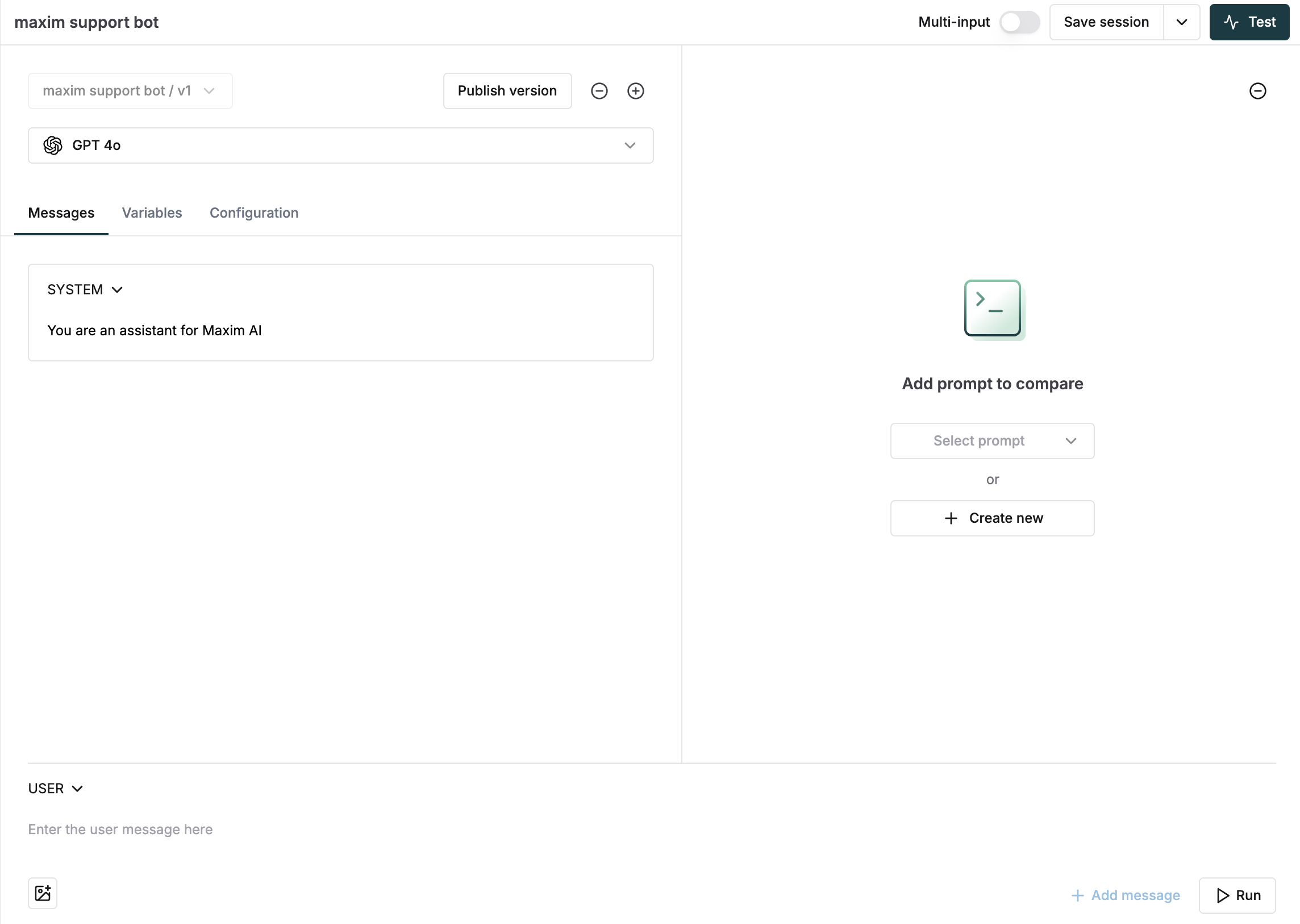 Add more Prompts to compare using the "+" icon.
Customize each Prompt independently. You can make changes to the prompt, including modify model parameters, add context, or add tool calls.
To save the changes to the respective prompt, click on `Save Session` button. You can also publish a version of the respective prompt by clicking on `Publish Version` button.
### Run your comparison
You can choose to have the `Multi input` option either enabled or disabled.
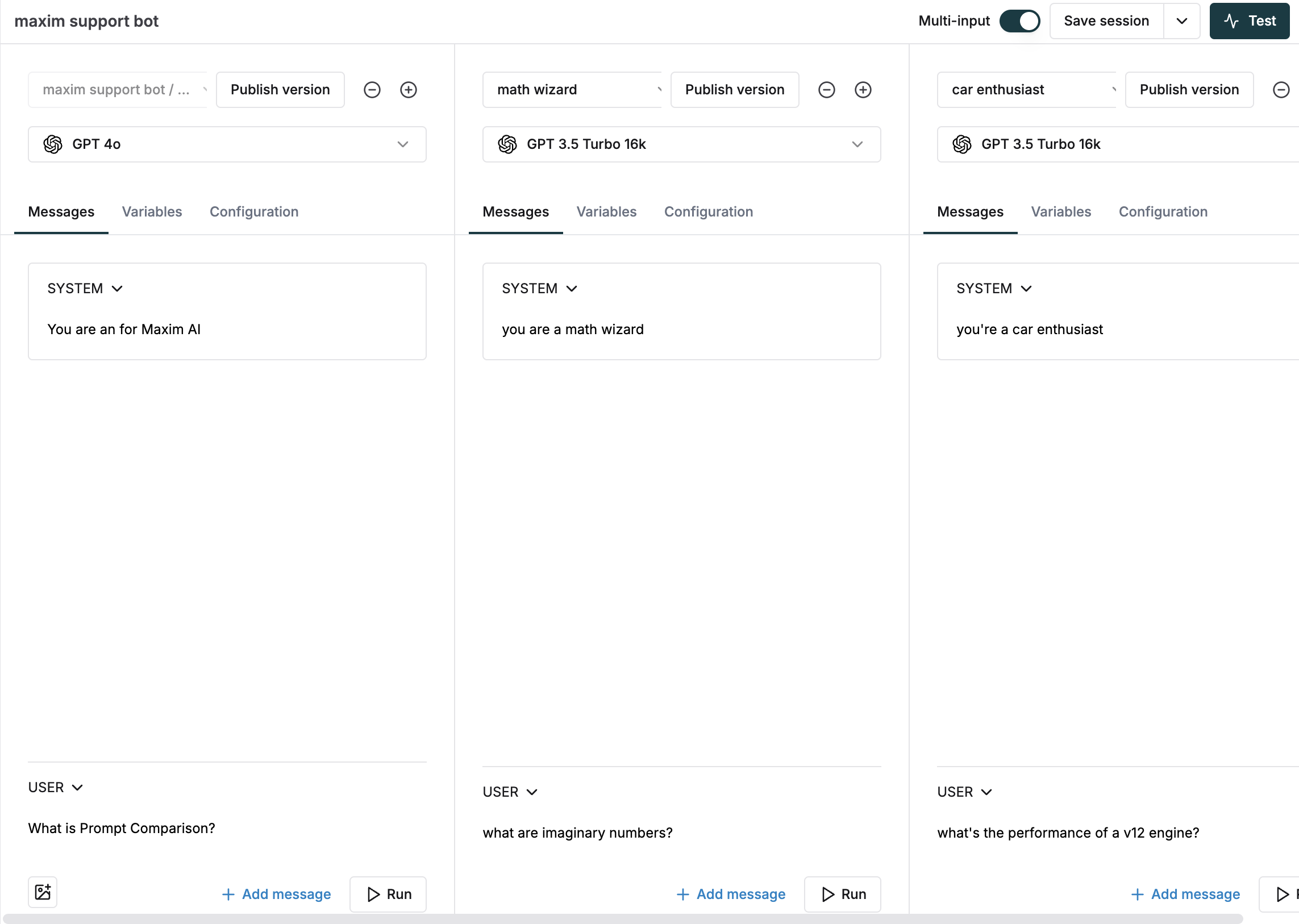
* If enabled, provide input to each entry in the comparison individually.
Add more Prompts to compare using the "+" icon.
Customize each Prompt independently. You can make changes to the prompt, including modify model parameters, add context, or add tool calls.
To save the changes to the respective prompt, click on `Save Session` button. You can also publish a version of the respective prompt by clicking on `Publish Version` button.
### Run your comparison
You can choose to have the `Multi input` option either enabled or disabled.
* If enabled, provide input to each entry in the comparison individually.
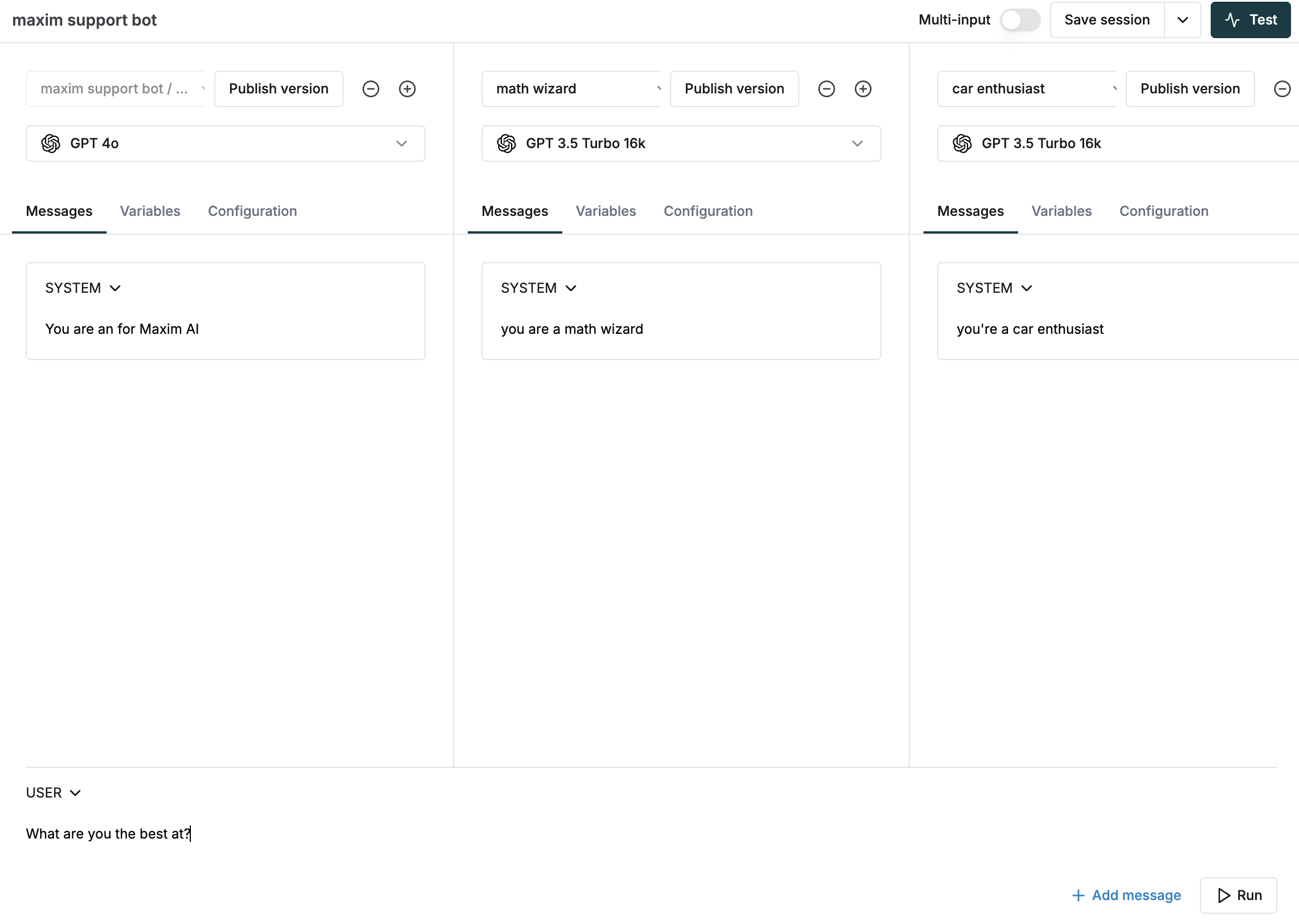
 * If disabled, the same input is taken for all the Prompts in the comparison.
 ### Open an existing Prompt Comparison
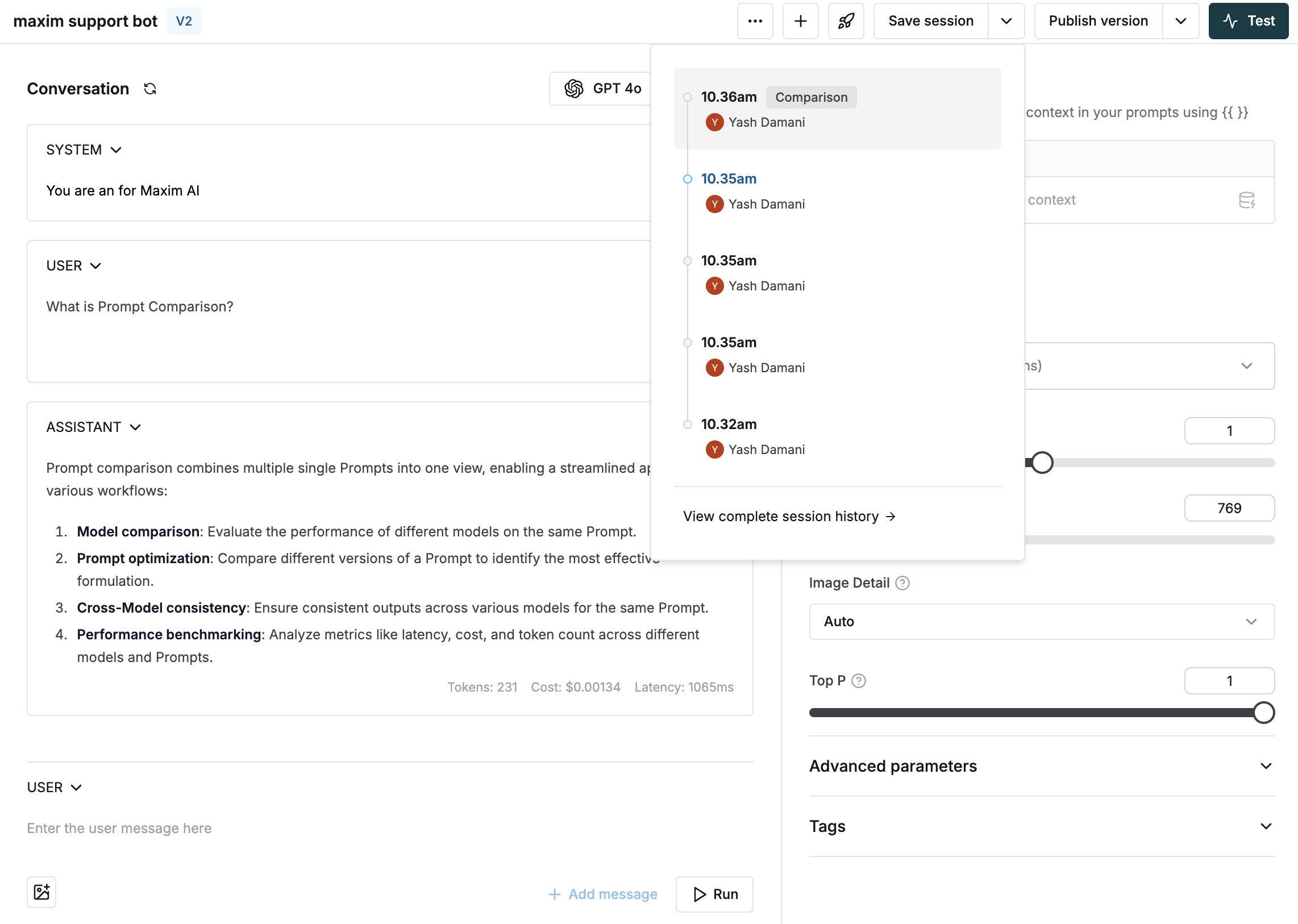
Whenever you save a session in when comparing Prompts, a session gets saved in the base Prompt. You can access this anytime via the sessions drop down of that Prompt, marked with a `Comparison` badge.
### Open an existing Prompt Comparison
Whenever you save a session in when comparing Prompts, a session gets saved in the base Prompt. You can access this anytime via the sessions drop down of that Prompt, marked with a `Comparison` badge.
 You can compare up to **five** different Prompts side by side in a single comparison.
## Next steps
* For RAG applications using retrieved context, learn about [attaching context to your prompt](/prompt-engineering/retrieval).
* For agentic systems in which you want to test out correct tool usage by your prompt, learn about [running a prompt with tool calls](/prompt-engineering/tool-calls).
* For better collaborative management of your prompts, learn about [versioning prompts](/prompt-engineering/prompt-versions).
* For comparing results across multiple test cases, learn about [bulk comparisons](/offline-evals/via-ui/prompts/prompt-evals).
[Schedule a demo](https://getmaxim.ai/demo) to see how Maxim AI helps teams ship reliable agents.
You can compare up to **five** different Prompts side by side in a single comparison.
## Next steps
* For RAG applications using retrieved context, learn about [attaching context to your prompt](/prompt-engineering/retrieval).
* For agentic systems in which you want to test out correct tool usage by your prompt, learn about [running a prompt with tool calls](/prompt-engineering/tool-calls).
* For better collaborative management of your prompts, learn about [versioning prompts](/prompt-engineering/prompt-versions).
* For comparing results across multiple test cases, learn about [bulk comparisons](/offline-evals/via-ui/prompts/prompt-evals).
[Schedule a demo](https://getmaxim.ai/demo) to see how Maxim AI helps teams ship reliable agents.