> ## Documentation Index
> Fetch the complete documentation index at: https://www.getmaxim.ai/docs/llms.txt
> Use this file to discover all available pages before exploring further.
# MCP (Model Context Protocol)
> Discover how to integrate and use Model Context Protocol (MCP) servers in Maxim to test prompts with tool-assisted workflows. This page walks you through connecting MCP clients, adding tools, and leveraging agentic or non-agentic modes for prompt evaluation.
export const MaximPlayer = ({url}) => {
return ;
};
You can use various tools like Composio, Gumloop, etc to set up your MCP server. Please refer to the documentation of the tool you are using for more details.
For the purposes of this example, we will use an MCP server set up on Composio, and hence use the Composio client.
Once you have set up an MCP server, to add it to Maxim, you can go to Settings → MCP Clients and click Add new client.
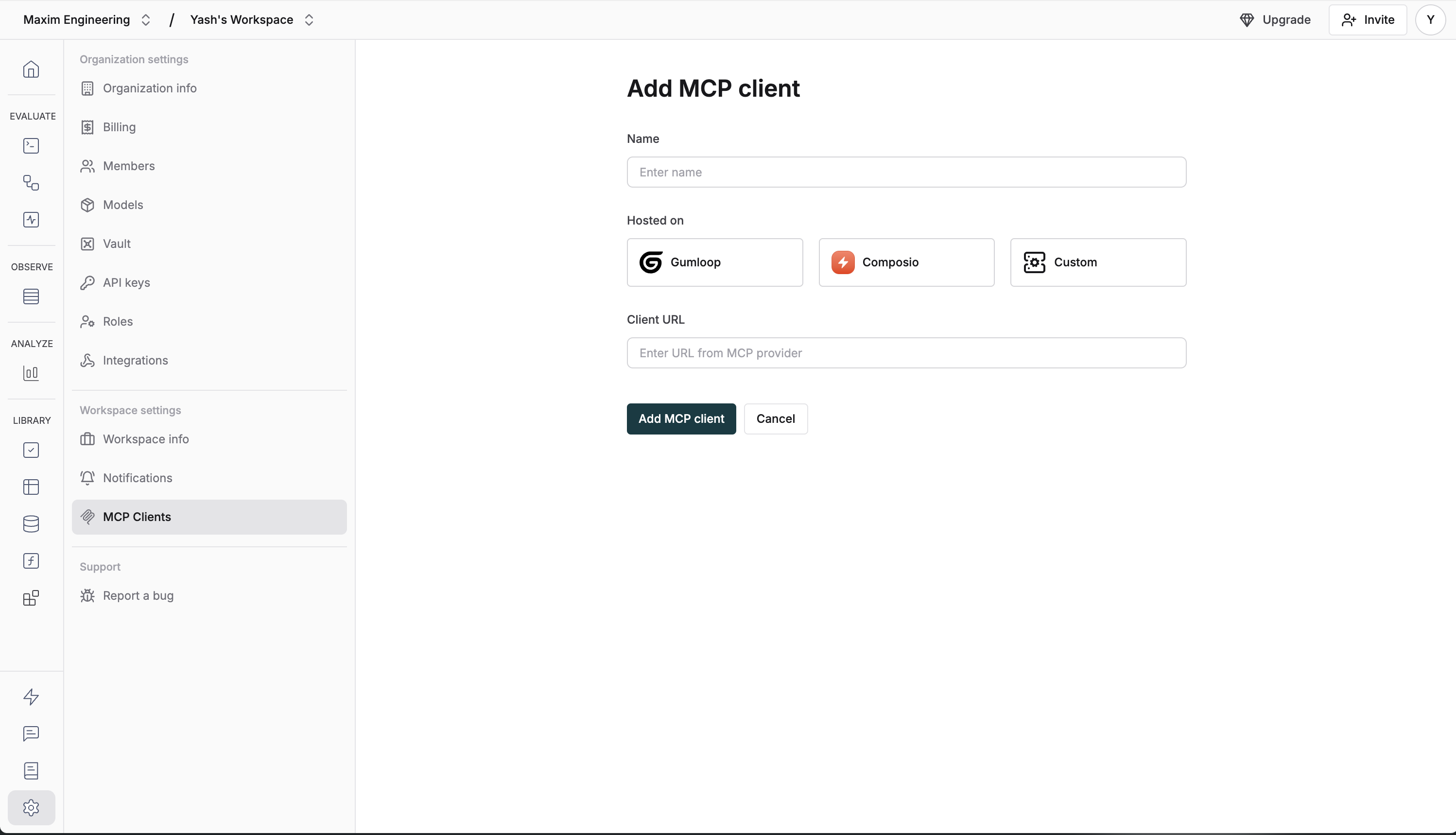 Once you have added the MCP client, head over to
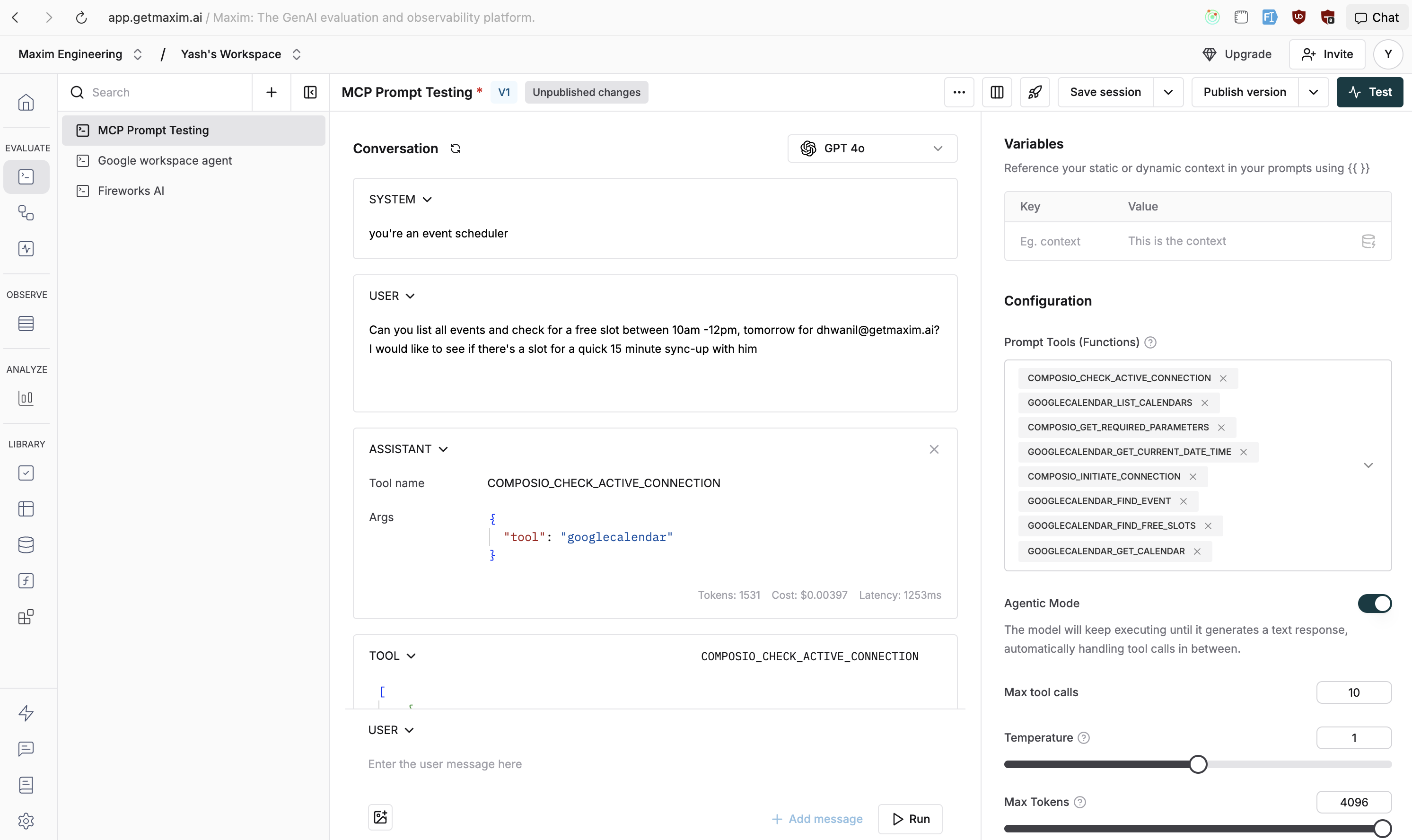
 Prompts. You will find all the tools you have set up under Prompt Tools.
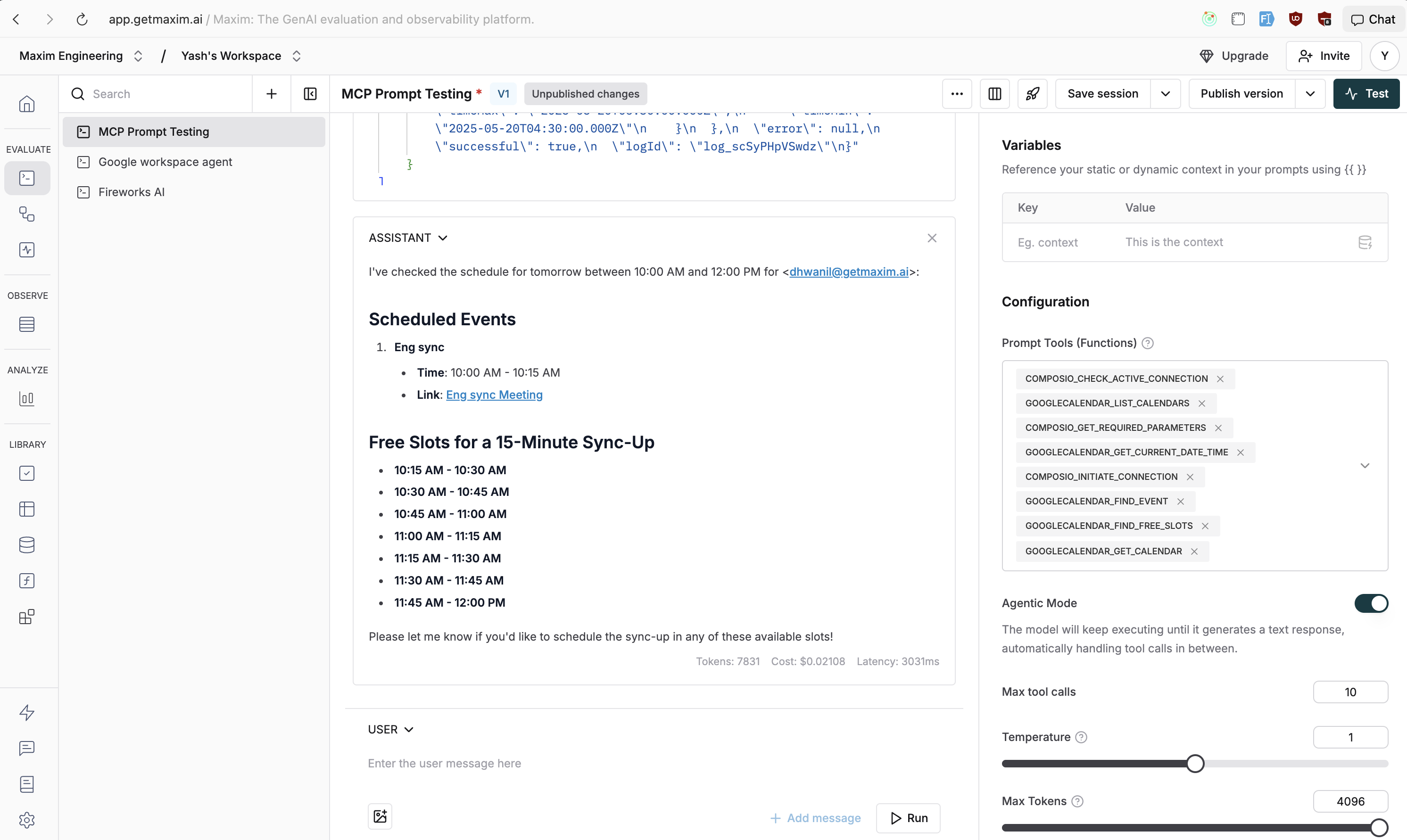
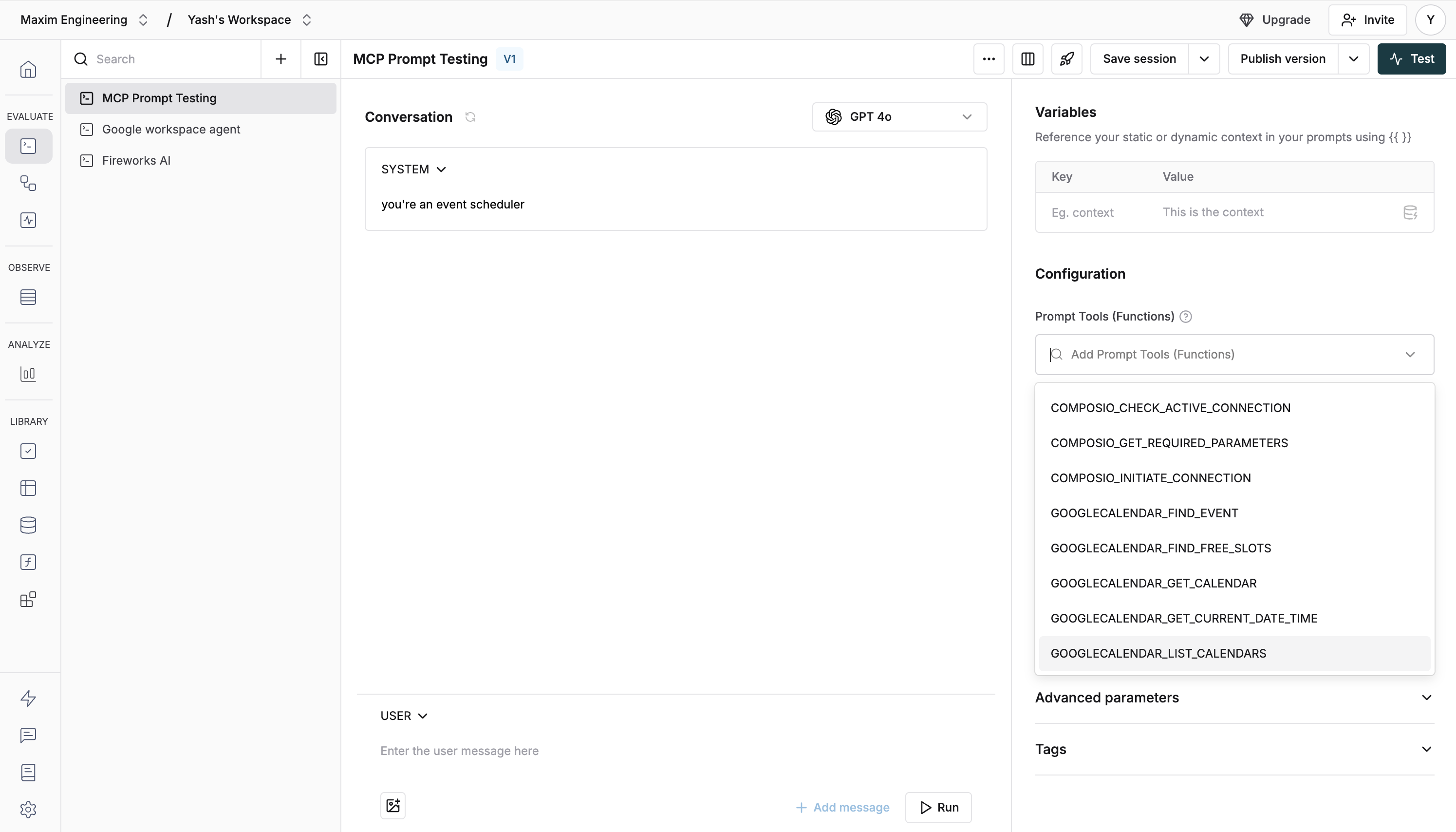 Once you have added the tools, you will see an Agentic Mode switch. On enabling this, the model will keep executing until it generates a text response, automatically handling tool calls in between. This is optional, and you can choose to use the tool in non-agentic mode as well.