> ## Documentation Index
> Fetch the complete documentation index at: https://www.getmaxim.ai/docs/llms.txt
> Use this file to discover all available pages before exploring further.
# Folders and Tags
> Building AI applications collaboratively needs Prompts to be organized well for easy reference and access. Adding Prompts to folders, tagging them, and versioning on Maxim helps you maintain a holistic Prompt CMS.
## Organize using folders
All Prompts can be grouped under folders that map to your applications, projects or teams. This way, even with a large number of single Prompts, finding and iterating on Prompts is easy for any team member who joins your Maxim organization.
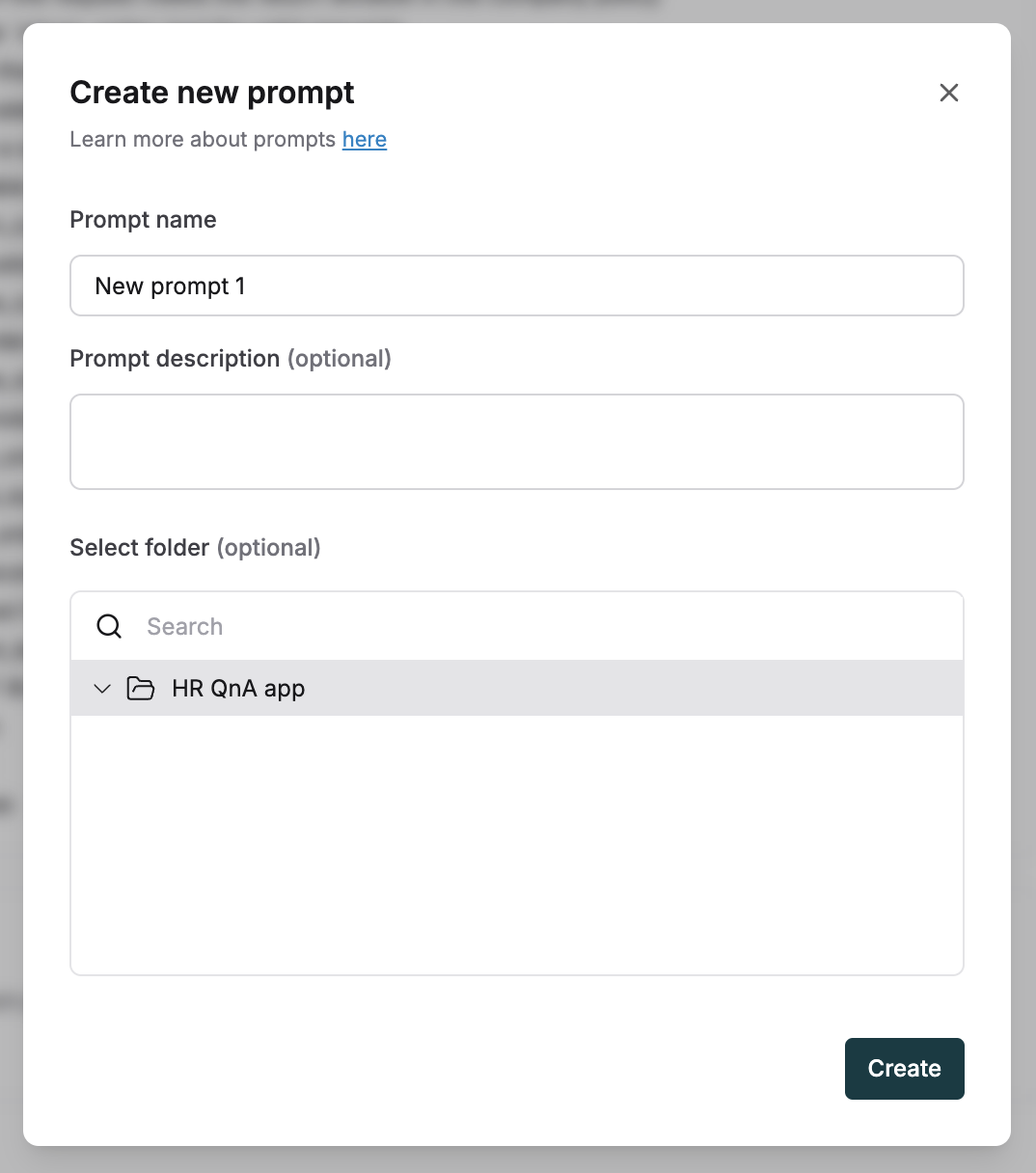
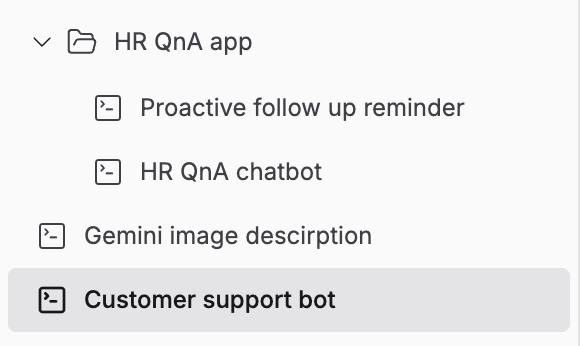 Create a new folder by clicking on the `+` icon on the Prompts sidebar. Give it a name. Start adding new Prompts to it via drag and drop or select the folder when creating a new Prompt.
 ## Tag prompts
Tags act as custom metadata that can be used to identify and retrieve Prompts through the Maxim SDK. Add tags to a Prompt via the configuration section on the right side of the Prompt playground. Tags are simple key value pairs that can be defined and edited easily.
## Tag prompts
Tags act as custom metadata that can be used to identify and retrieve Prompts through the Maxim SDK. Add tags to a Prompt via the configuration section on the right side of the Prompt playground. Tags are simple key value pairs that can be defined and edited easily.
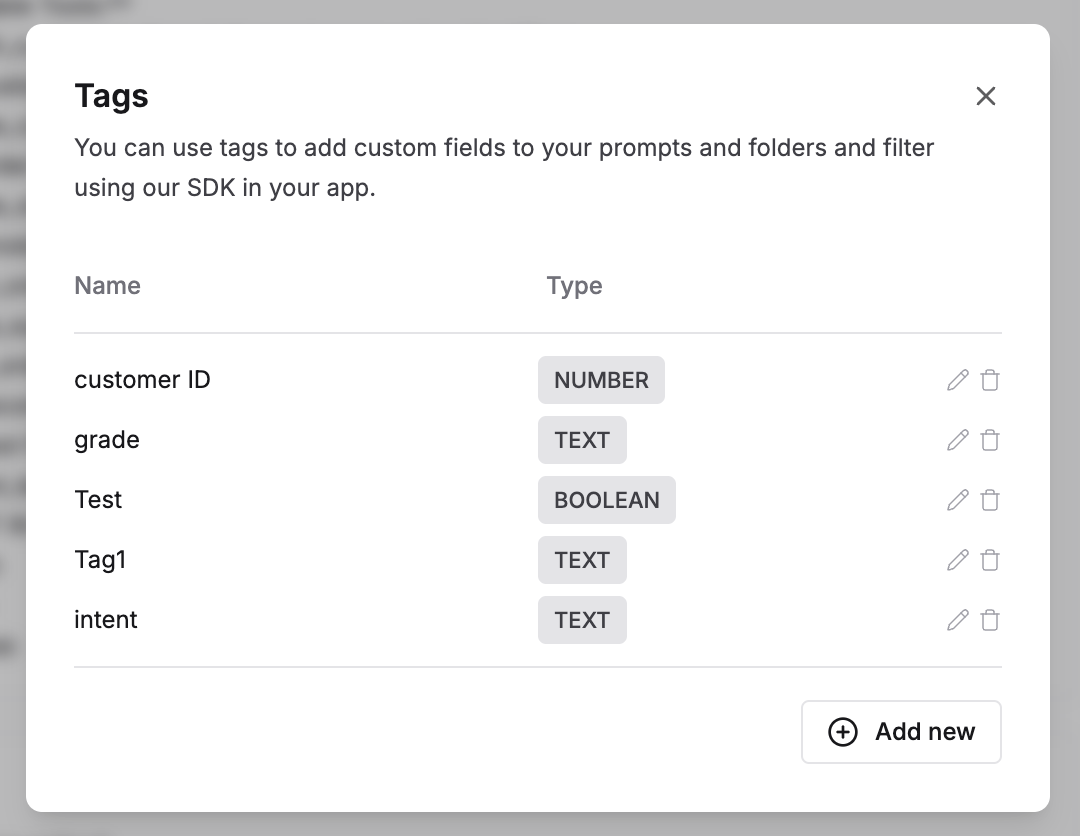 Fetch relevant Prompts in your code using the SDK and querying as per tag values as shown below:
```typescript JS/TS theme={null}
import { Maxim, QueryBuilder } from "@maximai/maxim-js";
const maxim = new Maxim({
apiKey: "",
});
const prompt = await maxim.getPrompt(
promptId,
new QueryBuilder()
.and()
.deploymentVar("Environment", "test")
.tag("CustomerId", 1234)
.tag("grade", "A")
.tag("test", true)
.exactMatch()
.build(),
);
```
```python Python theme={null}
from maxim import Maxim, Config
from maxim.models import QueryBuilder
maxim = Maxim(Config(api_key=""))
prompt = maxim.get_prompt(
prompt_id,
QueryBuilder()
.and_()
.deploymentVar("Environment", "test")
.tag("CustomerId", 1234)
.tag("grade", "A")
.tag("test", True)
.exactMatch()
.build()
)
```
## Prompt versions and sessions
Outside of folders or tags, iterations on your Prompts should also be organized effectively for insights on the impact of your changes. View details on [how to version Prompts](/prompt-engineering/prompt-versions) and use them for testing.
Fetch relevant Prompts in your code using the SDK and querying as per tag values as shown below:
```typescript JS/TS theme={null}
import { Maxim, QueryBuilder } from "@maximai/maxim-js";
const maxim = new Maxim({
apiKey: "",
});
const prompt = await maxim.getPrompt(
promptId,
new QueryBuilder()
.and()
.deploymentVar("Environment", "test")
.tag("CustomerId", 1234)
.tag("grade", "A")
.tag("test", true)
.exactMatch()
.build(),
);
```
```python Python theme={null}
from maxim import Maxim, Config
from maxim.models import QueryBuilder
maxim = Maxim(Config(api_key=""))
prompt = maxim.get_prompt(
prompt_id,
QueryBuilder()
.and_()
.deploymentVar("Environment", "test")
.tag("CustomerId", 1234)
.tag("grade", "A")
.tag("test", True)
.exactMatch()
.build()
)
```
## Prompt versions and sessions
Outside of folders or tags, iterations on your Prompts should also be organized effectively for insights on the impact of your changes. View details on [how to version Prompts](/prompt-engineering/prompt-versions) and use them for testing.