> ## Documentation Index
> Fetch the complete documentation index at: https://www.getmaxim.ai/docs/llms.txt
> Use this file to discover all available pages before exploring further.
# Prompt Evals
> Experimenting across prompt versions at scale helps you compare results for performance and quality scores. By running experiments across datasets of test cases, you can make more informed decisions, prevent regressions and push to production with confidence and speed.
export const MaximPlayer = ({url}) => {
return ;
};
## Why Run Comparison Experiments
* Make decisions between Prompt versions and models by comparing output differences.
* Analyze scores across all test cases in your Dataset for the evaluation metrics that you choose.
* Side by side comparison views for easy decision making and detailed view for every entry.
### Run a Comparison Report
Open the Prompt Playground for one of the Prompts you want to compare.
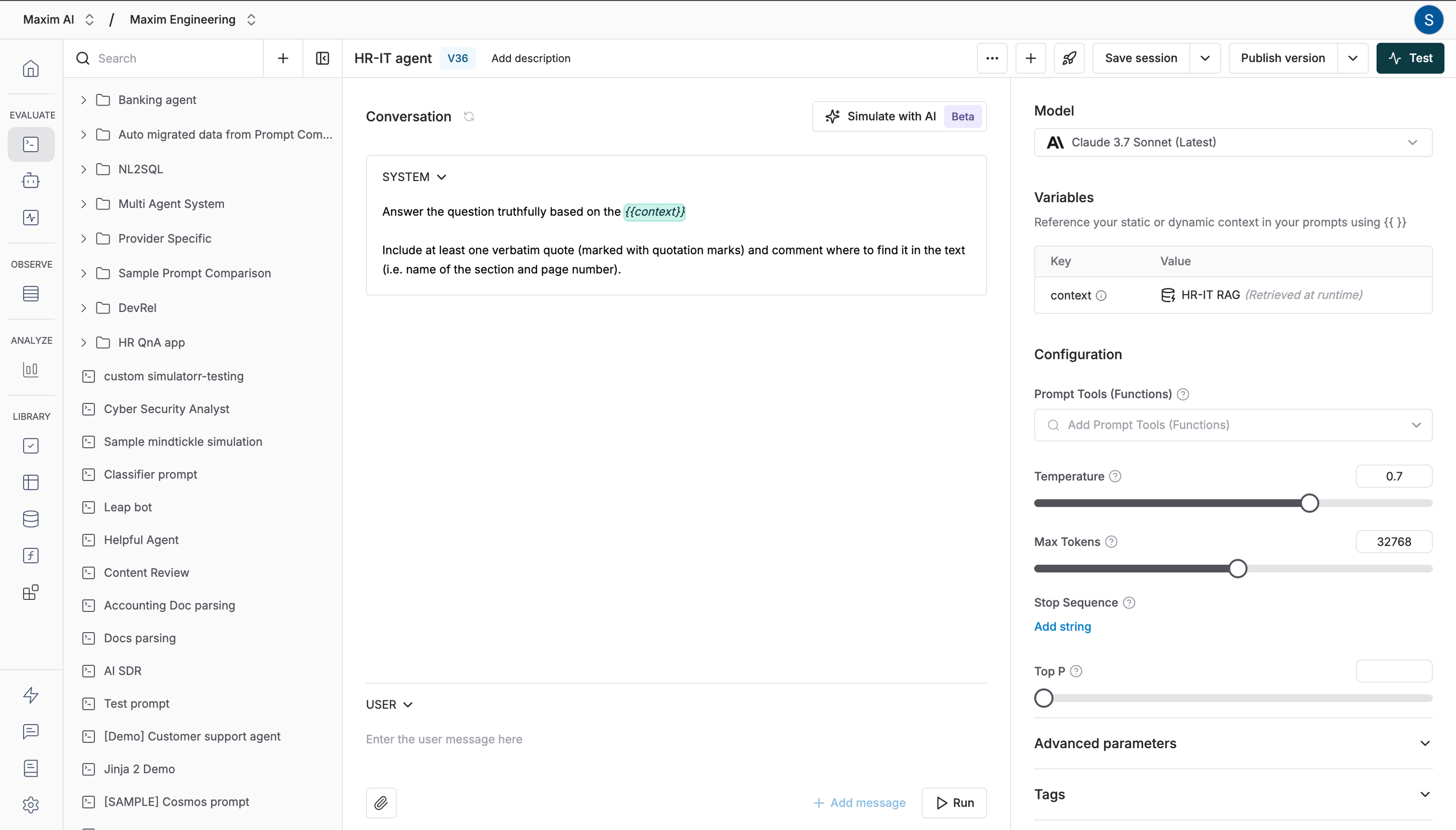 Click the `Test` button to start configuring your experiment.
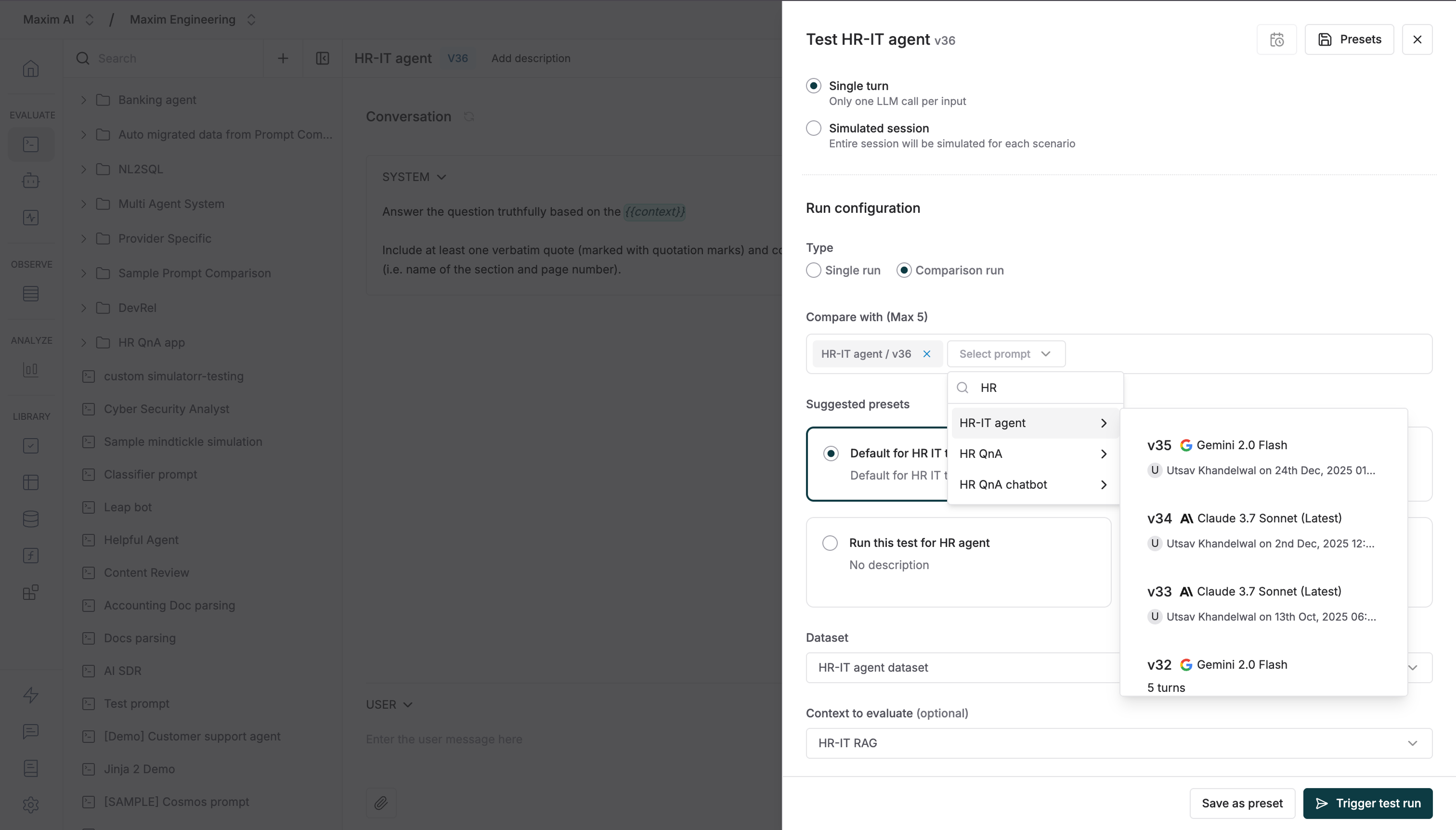
 Select the Prompt versions you want to compare it to. These could be totally different Prompts or another version of the same Prompt.
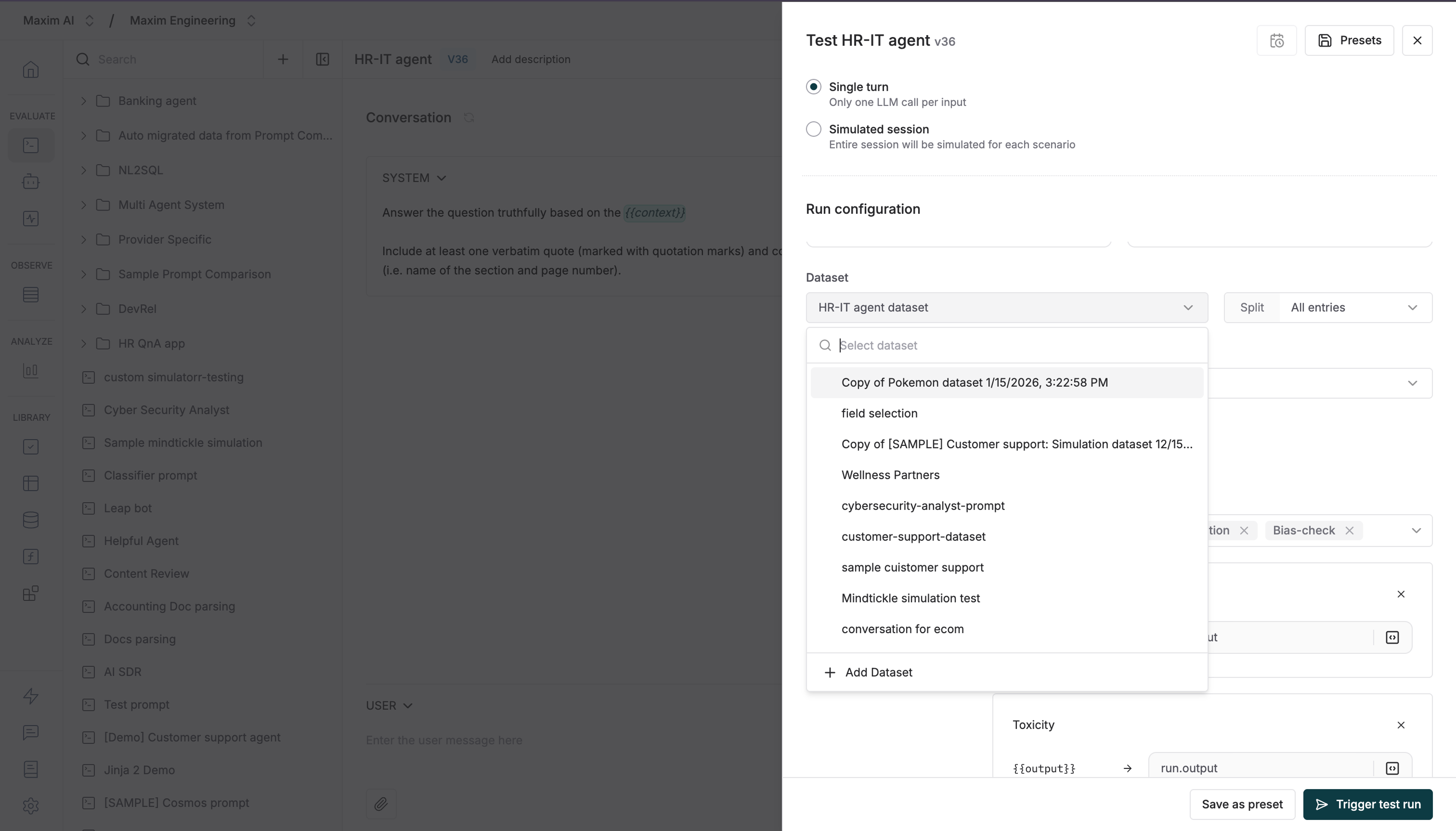
 Select your Dataset to test it against. learn more about [how to create a dataset](/library/datasets/import-or-create-datasets)
 Optionally, select the context you want to evaluate if there is a difference in retrieval pipeline that needs comparison.
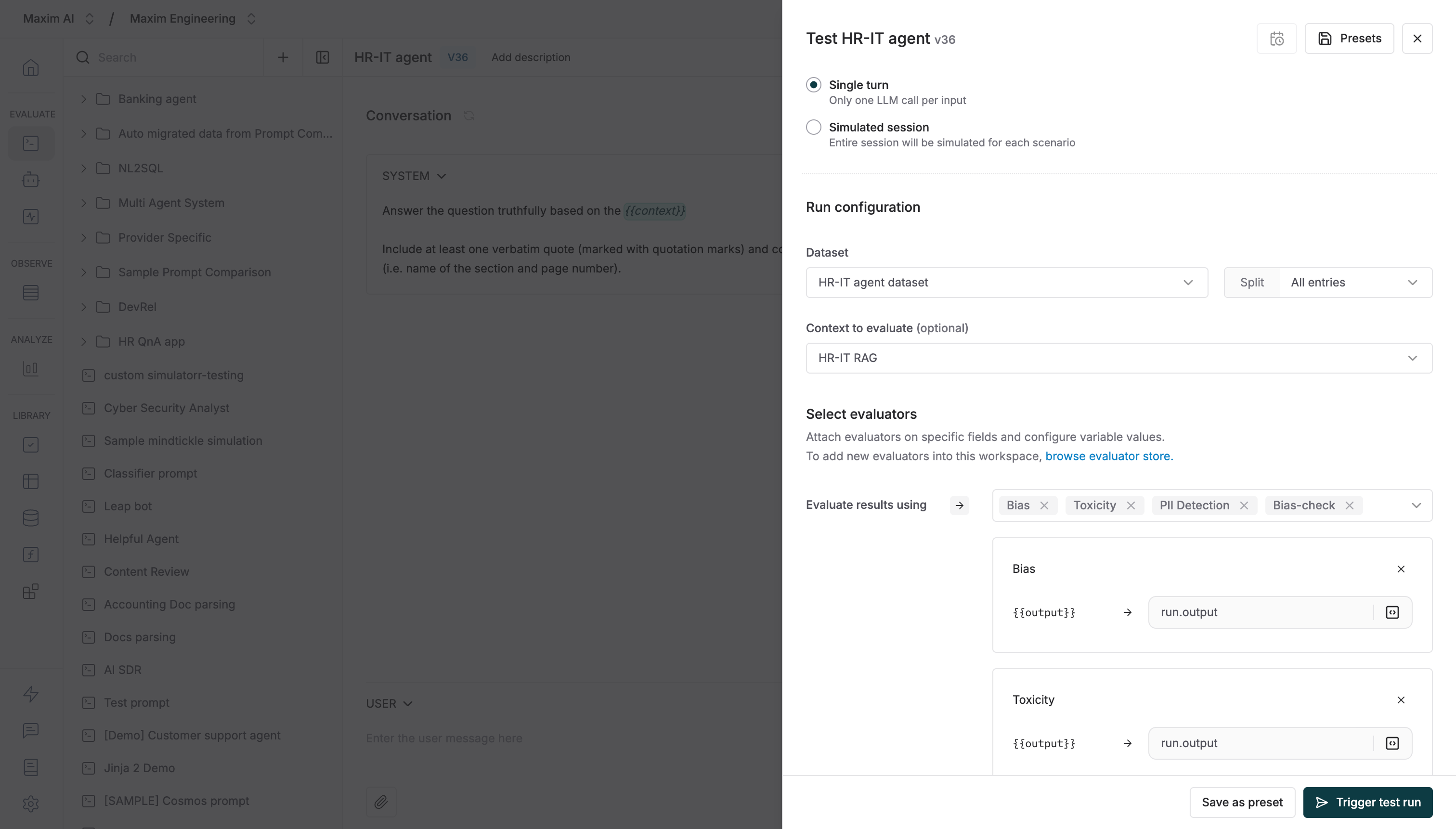
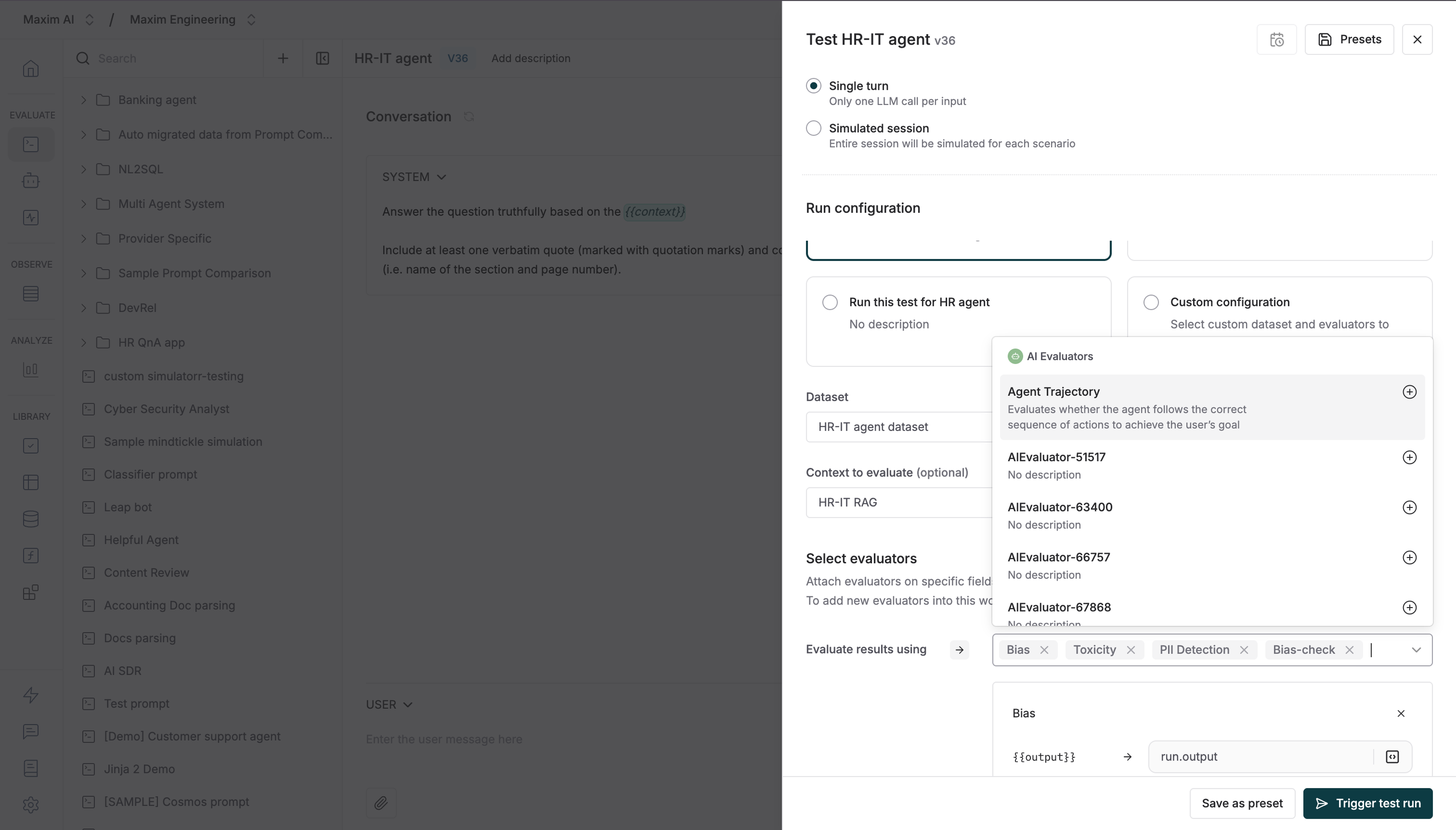
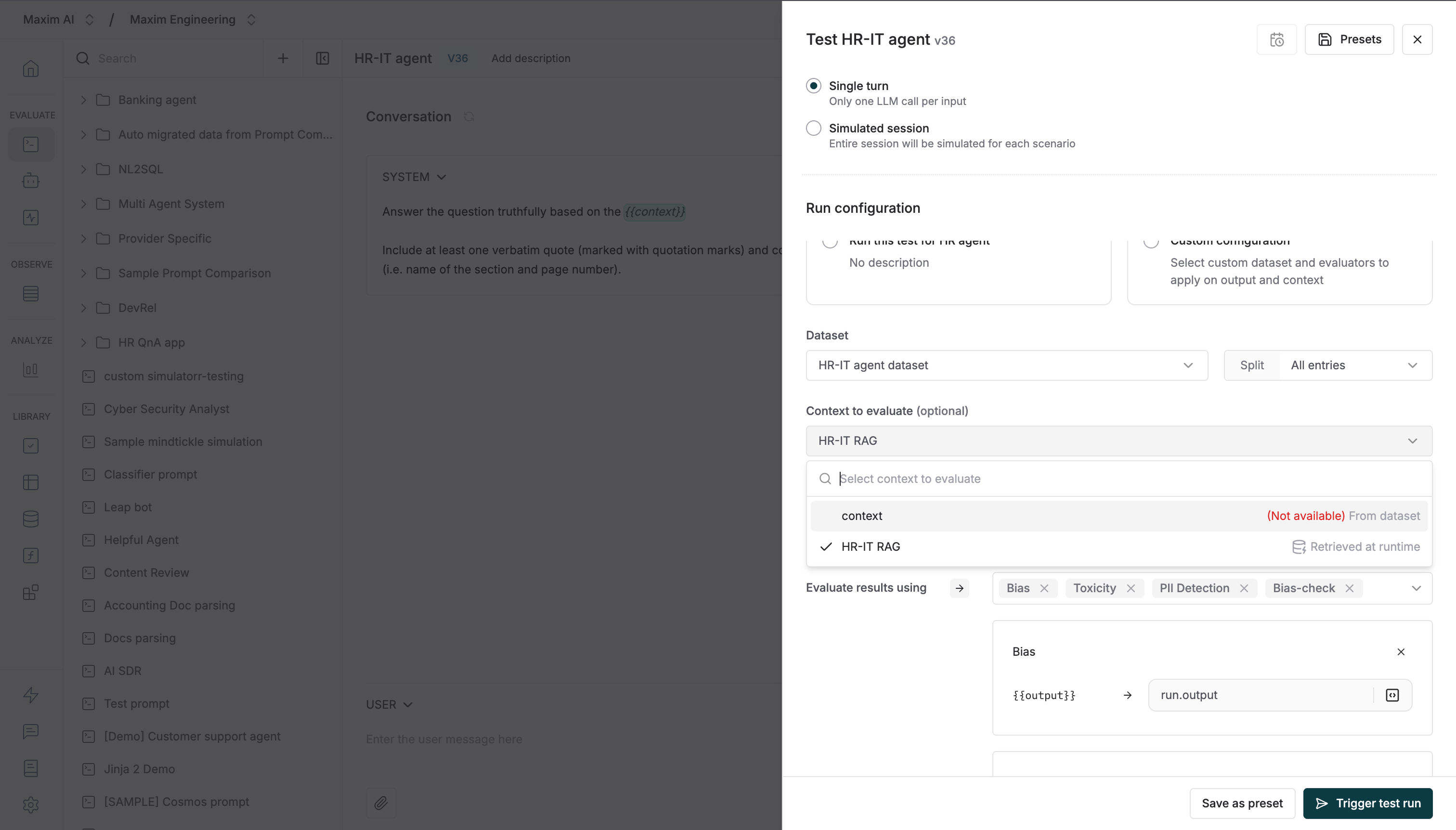 Select existing Evaluators or add new ones from the store, then run your test.
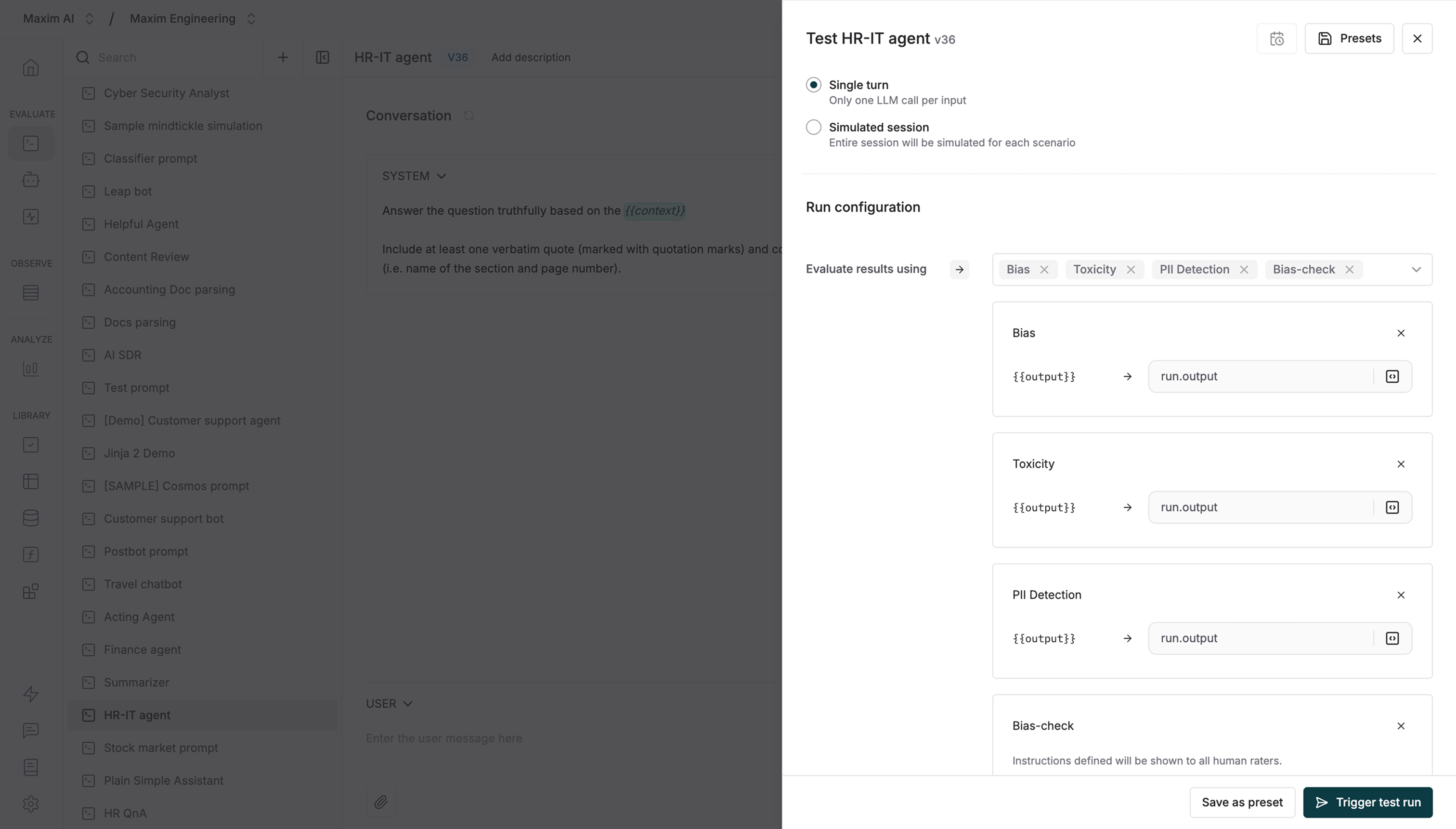
 Once evaluators are selected, you can map the variable values based on your needs. All built-in variables will be automatically mapped, but you can change the mapping if necessary.
[Learn more about mapping evaluator variables](/library/evaluators/variables-mapping#prompt-variable-mapping)
Once evaluators are selected, you can map the variable values based on your needs. All built-in variables will be automatically mapped, but you can change the mapping if necessary.
[Learn more about mapping evaluator variables](/library/evaluators/variables-mapping#prompt-variable-mapping)
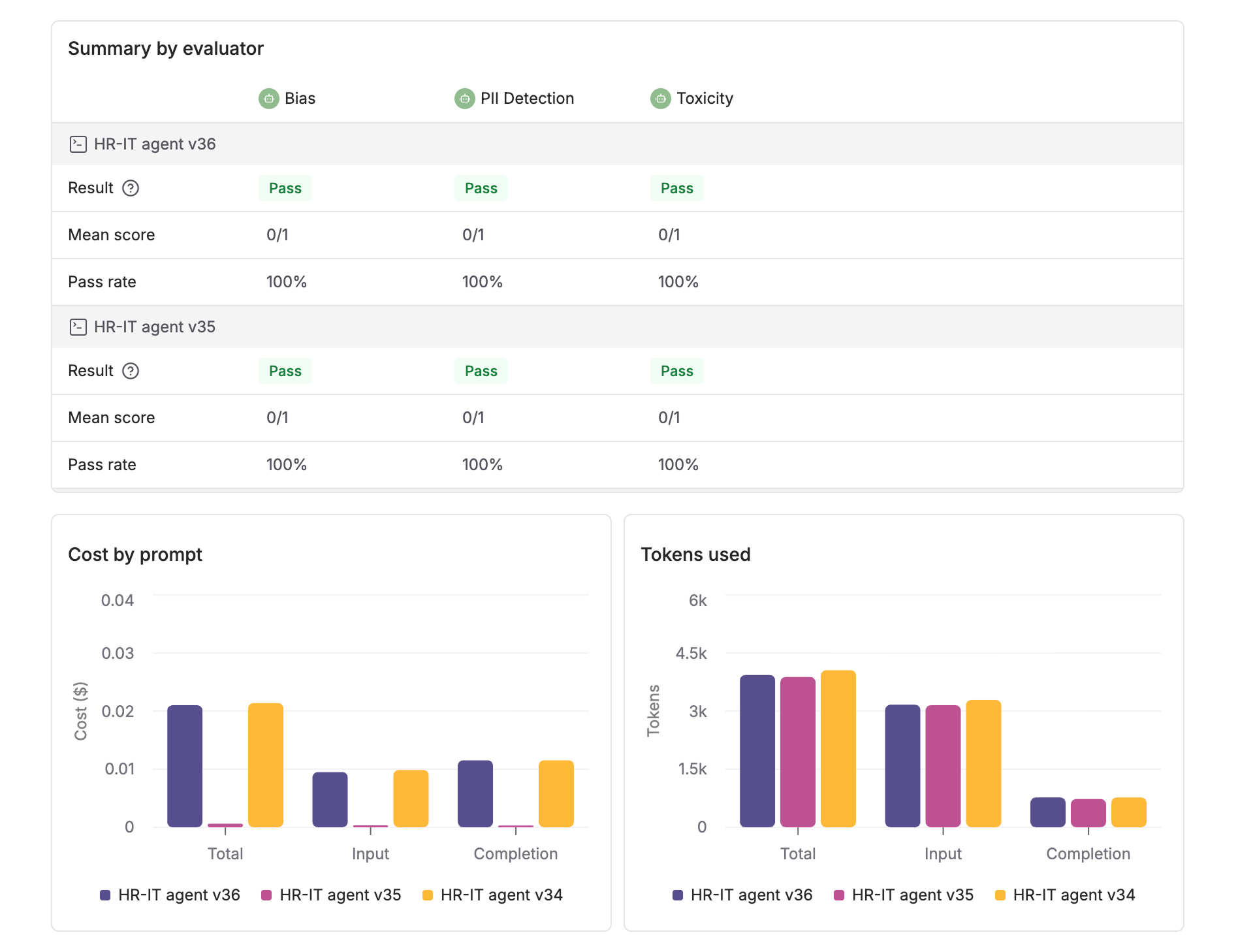
 Once the run is completed, you will see summary details for each Evaluator. Below that, charts show the comparison data for latency, cost and tokens used.
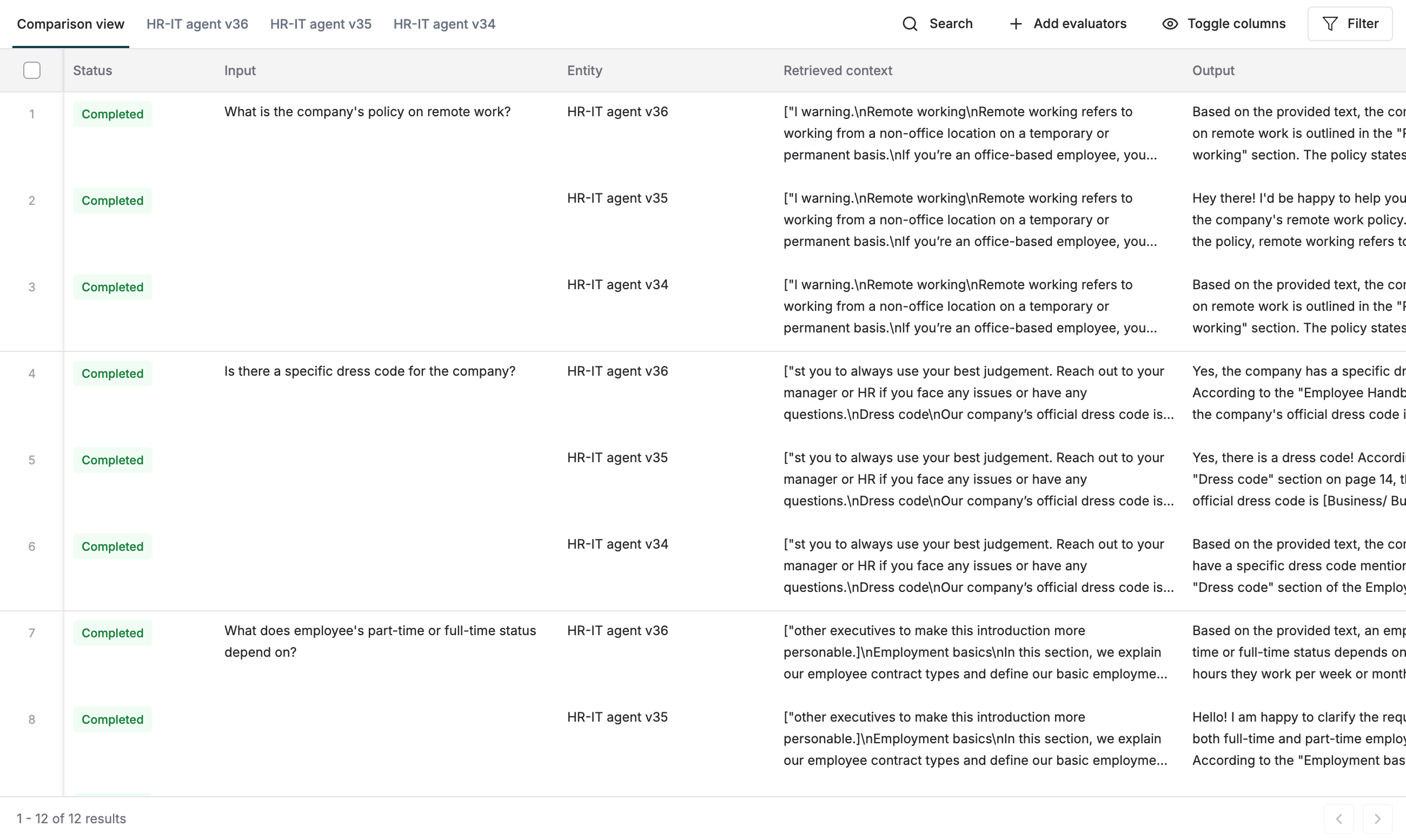
 Each entry has 2 rows one below the other showing the outputs, latency and scores for the entities or versions compared. Deep dive into any entry by clicking the row and looking into the particular messages, evaluation details and logs.
 If you want to compare Prompt versions over time (e.g. Last month's scores and this month's scores post a Prompt iteration), you can instead [generate a comparison report retrospectively](/prompt-engineering/prompt-playground#prompt-comparison) under the analyze section.
## Next steps
* [Create presets to re-use your test configurations](/offline-evals/via-ui/advanced/presets)
If you want to compare Prompt versions over time (e.g. Last month's scores and this month's scores post a Prompt iteration), you can instead [generate a comparison report retrospectively](/prompt-engineering/prompt-playground#prompt-comparison) under the analyze section.
## Next steps
* [Create presets to re-use your test configurations](/offline-evals/via-ui/advanced/presets)