> ## Documentation Index
> Fetch the complete documentation index at: https://www.getmaxim.ai/docs/llms.txt
> Use this file to discover all available pages before exploring further.
# HTTP Agent Evals
> Learn how to evaluate your HTTP endpoint agents by running them across datasets of test cases, measuring performance with automated evaluators. This page walks you through setting up test runs, analyzing metrics, and improving reliability.
export const MaximPlayer = ({url}) => {
return ;
};
## Test Your Endpoint
Send messages to your API from the **Messages** panel to test your endpoint with a conversational experience. See this demonstrated at the end of the video above.
## Map the Output for Evaluation
Before running tests, tell us what part of your response to evaluate by mapping an `output` from the response payload.
Click the `Test` button in the top right corner to open the **Test run** configuration panel. Select your **Output** from the dropdown of mappable response fields. View the full response payload by clicking `Show response`. Optionally, map the **Context to Evaluate** field using the **Context field** selector.
See how to map outputs for evaluation:
**Important**
* The `Test` button remains disabled until you send messages to your endpoint. The system requires a response payload structure for `output` mapping.
* When mapping without triggering a test run, save your endpoint explicitly. Map in the configuration sheet, click outside to close it, then click **Save endpoint**
### Mapping Evaluator Variables
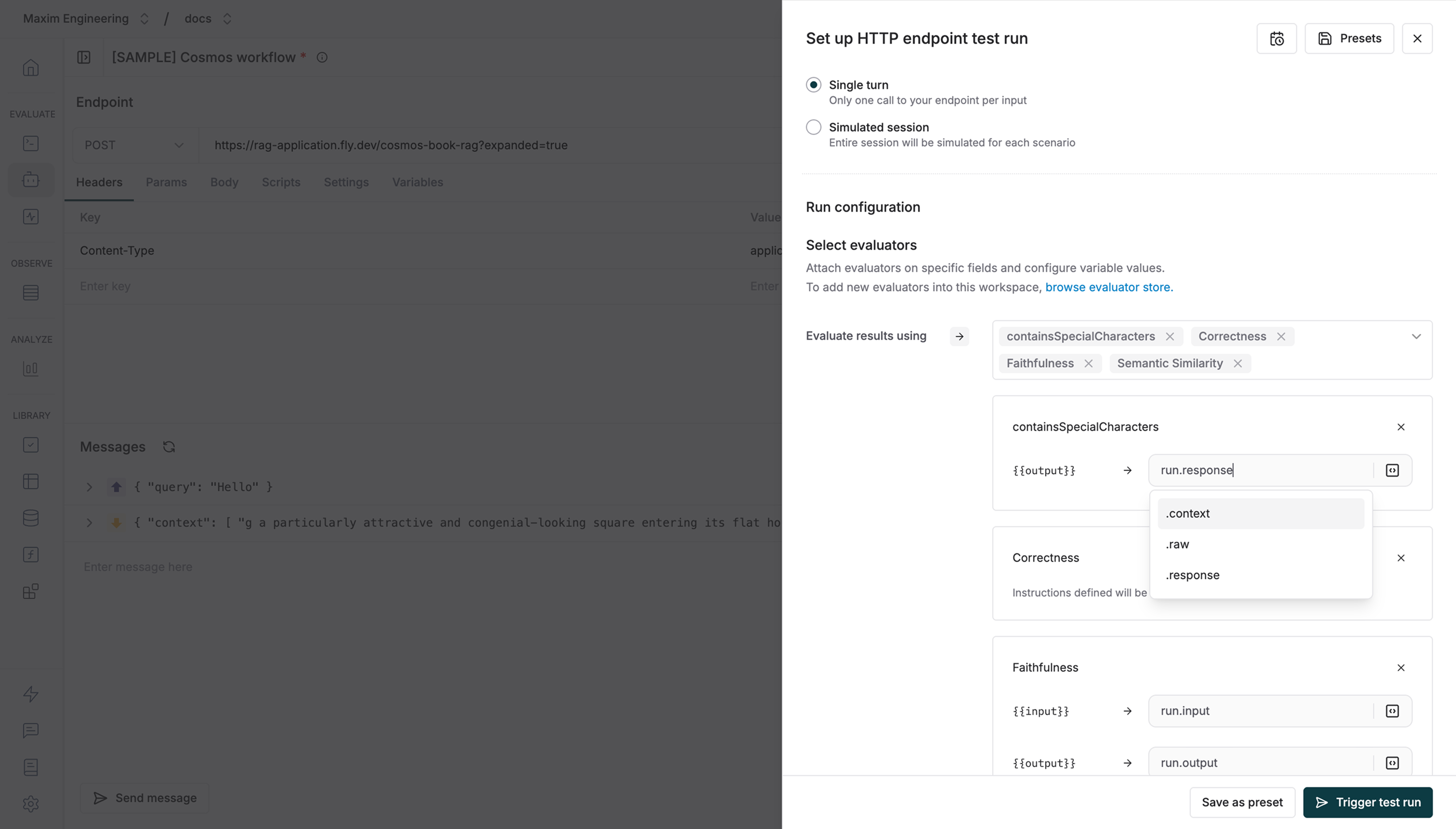
You can map evaluator variables to any fields in your workflow’s response payload.
Once your workflow is ready for testing, run the endpoint **at least once** to generate the response payload structure. After the response is available, you can:
* Select the evaluators you want to use
* Map each evaluator variable to:
* A value from the dropdown, **or**
* A field from your workflow response payload using the path
`run.response.`
This allows you to flexibly connect evaluator inputs to dynamic data returned by your workflow.
[Learn more about mapping evaluator variables](/library/evaluators/variables-mapping#agent-variable-mapping)
 ## Test Multi-Turn Conversations
Real conversations create fascinating puzzles because:
* Testing single responses doesn't reveal the complete interaction pattern
* Just like human conversations, AI chats can take unexpected turns
* When something goes wrong, you need to replay the conversation - but what if you could change history?
These intriguing challenges make it crucial to test your AI's conversational abilities thoroughly before it faces real users.
Maxim solves this with an interactive Messages panel that lets you simulate, manipulate, and debug multi-turn conversations in real-time. Bring your application endpoint to create and test multi-turn conversations without any code integration.
### Configure your endpoint for conversations
Before testing conversations, you need to configure your endpoint:
1. Enter your AI endpoint URL (e.g., `https://astronomy-ai.example.com/chat`)
2. Configure the request body
```json theme={null}
{
"query": "{{input}}"
}
```
Your application receives and processes messages correctly with this configuration.
### Start a conversation
1. Type your initial message in the input field
2. Click Send to start the conversation
### Edit and modify conversations
You can manipulate the conversation to test different scenarios:
* **Delete Messages**: Remove any message from the conversation history to test how your AI handles modified contexts
* **Edit History**: Change previous messages to simulate different conversation paths
## Test Multi-Turn Conversations
Real conversations create fascinating puzzles because:
* Testing single responses doesn't reveal the complete interaction pattern
* Just like human conversations, AI chats can take unexpected turns
* When something goes wrong, you need to replay the conversation - but what if you could change history?
These intriguing challenges make it crucial to test your AI's conversational abilities thoroughly before it faces real users.
Maxim solves this with an interactive Messages panel that lets you simulate, manipulate, and debug multi-turn conversations in real-time. Bring your application endpoint to create and test multi-turn conversations without any code integration.
### Configure your endpoint for conversations
Before testing conversations, you need to configure your endpoint:
1. Enter your AI endpoint URL (e.g., `https://astronomy-ai.example.com/chat`)
2. Configure the request body
```json theme={null}
{
"query": "{{input}}"
}
```
Your application receives and processes messages correctly with this configuration.
### Start a conversation
1. Type your initial message in the input field
2. Click Send to start the conversation
### Edit and modify conversations
You can manipulate the conversation to test different scenarios:
* **Delete Messages**: Remove any message from the conversation history to test how your AI handles modified contexts
* **Edit History**: Change previous messages to simulate different conversation paths
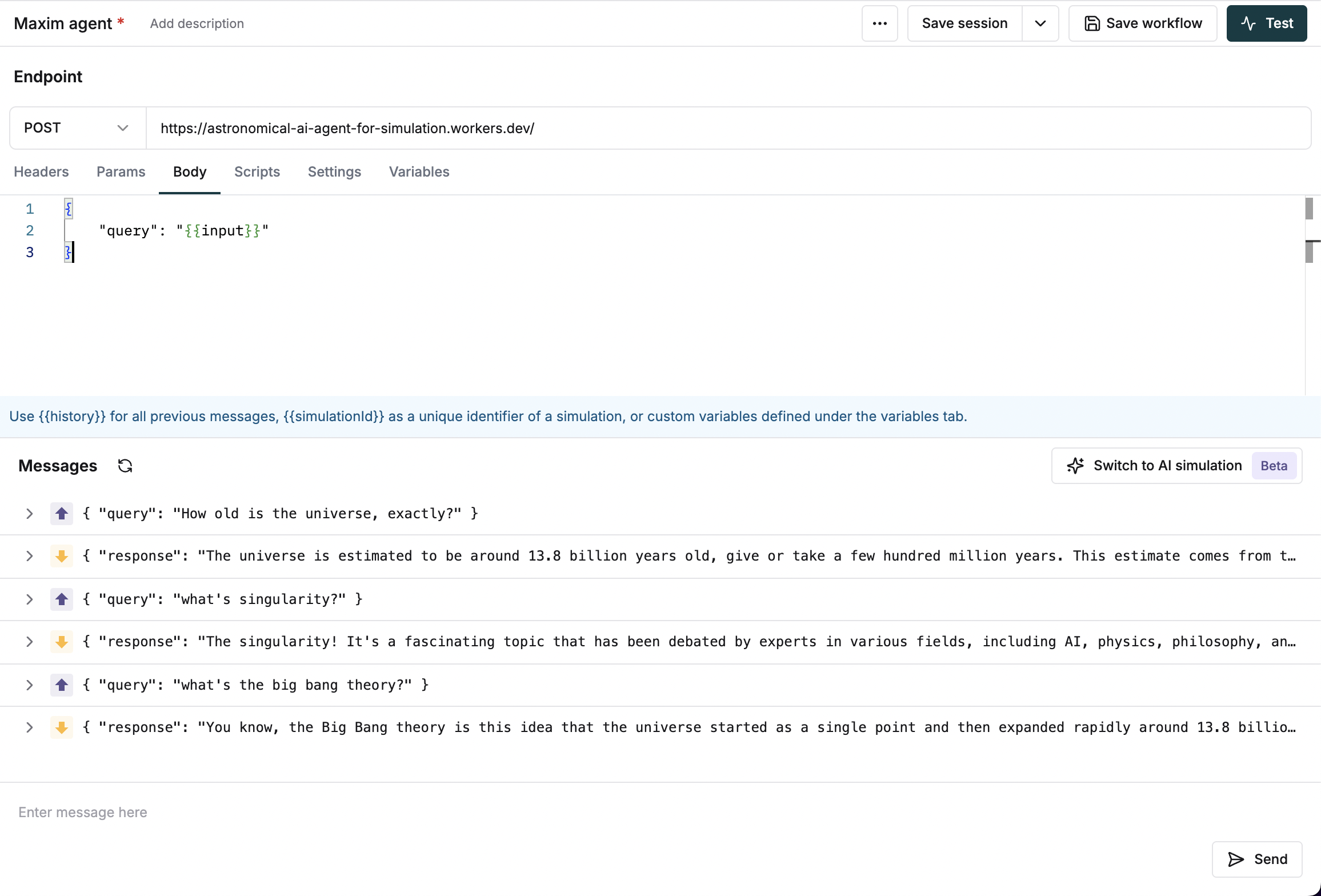 ### Example usage
Here's a typical endpoint for testing multi-turn conversations:
1. Start with a simple query:
```
User: "How old is the universe?"
AI: "The universe is estimated to be around 13.8 billion years old..."
```
2. Follow up with related questions:
```
User: "What's the Big Bang theory?"
AI: "The Big Bang theory explains the origin of the universe..."
```
By using the Messages panel effectively, you can ensure your AI endpoint handles multi-turn conversations reliably and maintains appropriate context throughout the interaction.
### Example usage
Here's a typical endpoint for testing multi-turn conversations:
1. Start with a simple query:
```
User: "How old is the universe?"
AI: "The universe is estimated to be around 13.8 billion years old..."
```
2. Follow up with related questions:
```
User: "What's the Big Bang theory?"
AI: "The Big Bang theory explains the origin of the universe..."
```
By using the Messages panel effectively, you can ensure your AI endpoint handles multi-turn conversations reliably and maintains appropriate context throughout the interaction.