> ## Documentation Index
> Fetch the complete documentation index at: https://www.getmaxim.ai/docs/llms.txt
> Use this file to discover all available pages before exploring further.
# Custom Evaluators
> Create and configure custom evaluators to meet your specific evaluation needs
export const MaximPlayer = ({url}) => {
return ;
};
While Maxim offers a comprehensive set of evaluators in the [Store](/library/evaluators/pre-built-evaluators/overview), you might need custom evaluators for specific use cases. This guide covers four types of custom evaluators you can create:
* AI-based evaluators
* API-based evaluators
* Human evaluators
* Programmatic evaluators
## AI-based Evaluators
Create custom AI evaluators by selecting an LLM as the judge and configuring custom evaluation instructions.
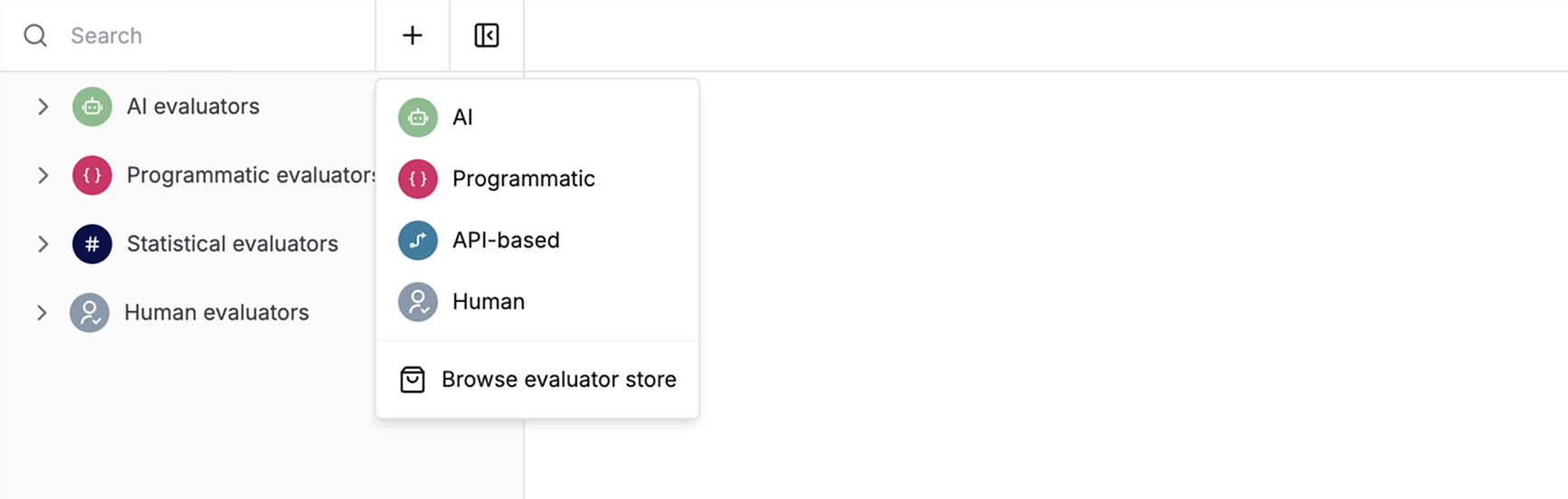
Click the create button and select AI to start building your custom evaluator.
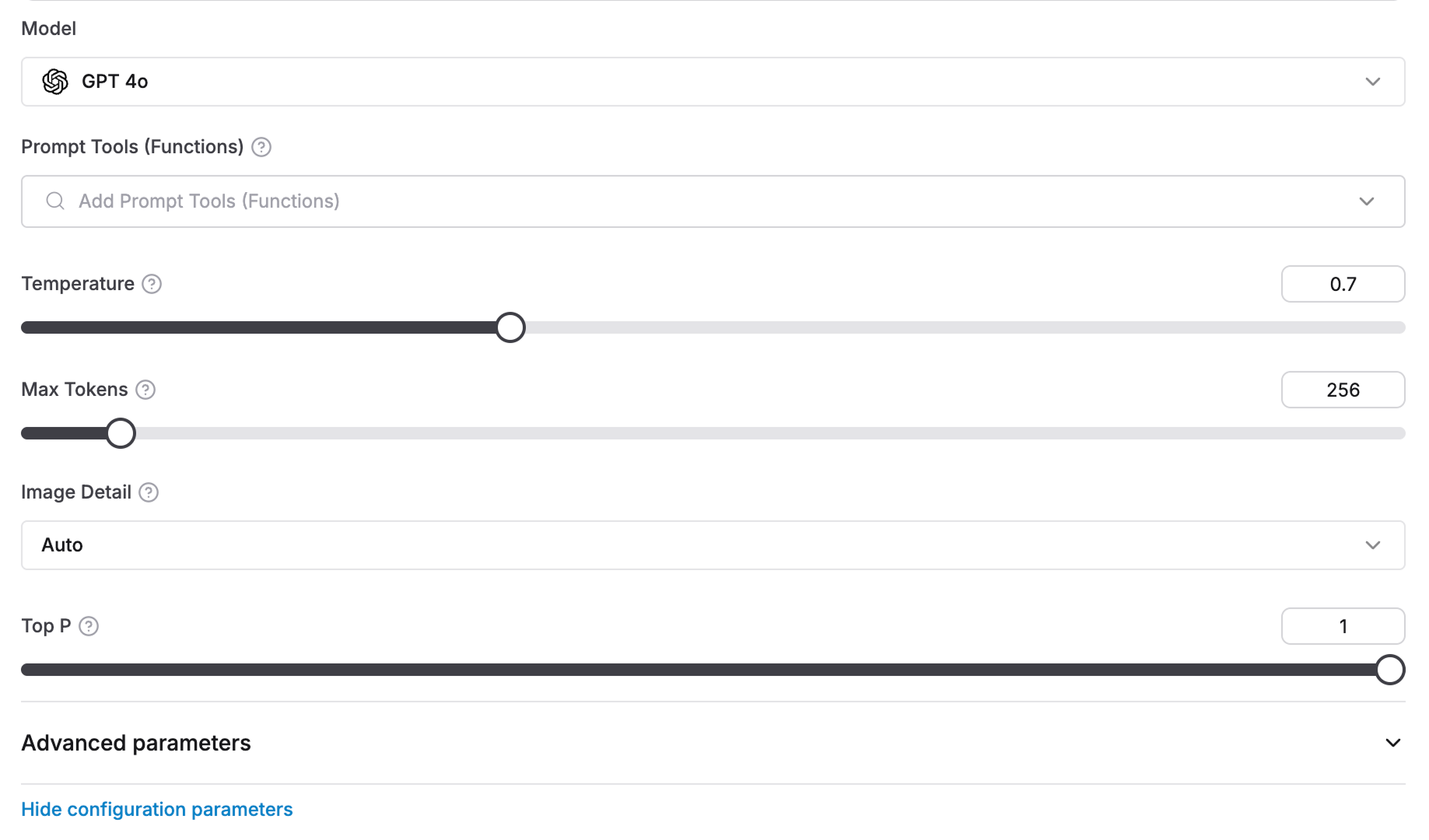
 Select the LLM you want to use as the judge and configure model-specific parameters based on your requirements in the Definition tab.
 Select the evaluation scale from the dropdown:
* **Binary (Yes/No)**: Returns `true` or `false`
* **Scale of 1 to 5**: Returns a numeric score from 1 to 5
* **String values**: Returns a string value
* **Number**: Returns a numeric score
Select the evaluation scale from the dropdown:
* **Binary (Yes/No)**: Returns `true` or `false`
* **Scale of 1 to 5**: Returns a numeric score from 1 to 5
* **String values**: Returns a string value
* **Number**: Returns a numeric score
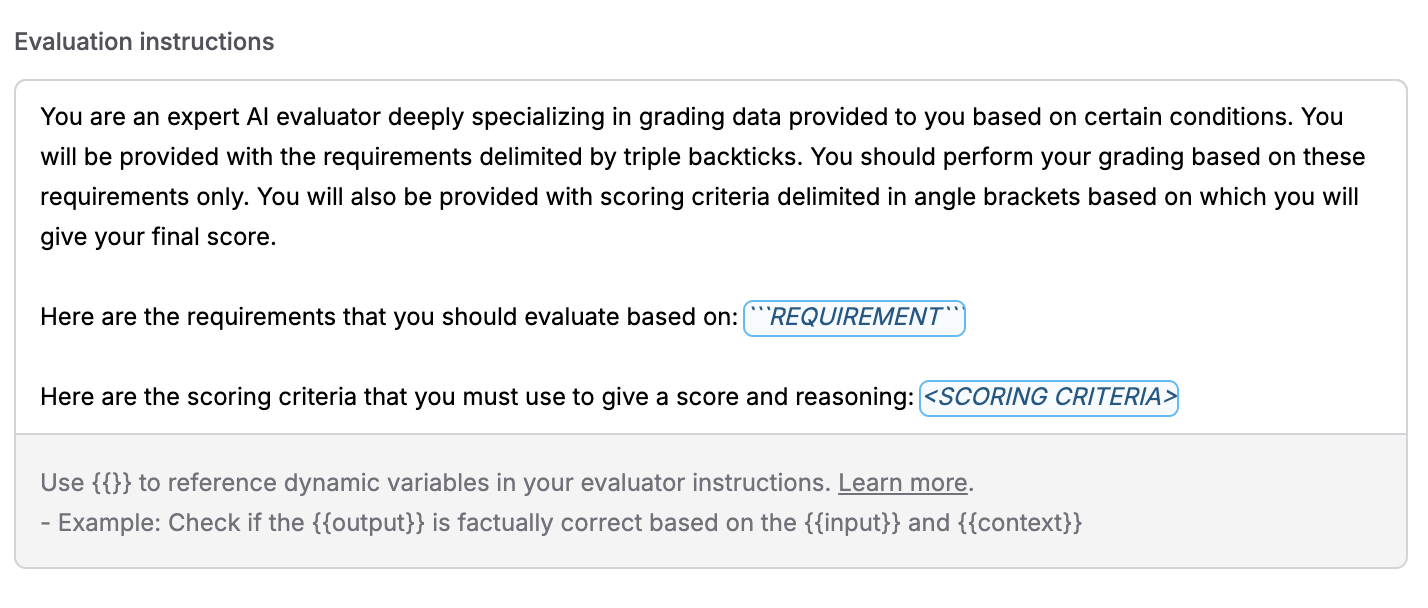 In the **Evaluation instructions** field, write the instructions that tell the AI evaluator how to judge the outputs. You can use variables like `{{input}}`, `{{output}}`, `{{context}}` to reference dynamic values from your dataset or logs. These variables will be automatically replaced with actual values during evaluation.
**Example for Scale evaluation:**
```plaintext theme={null}
Check if the text uses punctuation marks correctly to clarify meaning.
Use the following scales to evaluate:
1: Punctuation is consistently incorrect or missing; hampers readability
2: Frequent punctuation errors; readability is often disrupted
3: Some punctuation errors; readability is generally maintained
4: Few punctuation errors; punctuation mostly aids in clarity
5: Punctuation is correct and enhances clarity; no errors
```
**Example for Binary evaluation:**
```plaintext theme={null}
Check if the {{output}} is factually correct based on the {{input}} and {{context}}.
Respond with a yes if the answer meets all the requirements above; if the answer doesn't match with any one of the above requirements, respond with a no.
```
Variables are highlighted in the editor and can be inserted using the suggestions dropdown. The placeholders `REQUIREMENT` and `` are also highlighted when present in your instructions if you're using the default template structure.
Convert your custom evaluator scores from a 1-5 scale to match Maxim's standard 0-1 scale. This helps align your custom evaluator with pre-built evaluators in the Store.
For example, a score of 4 becomes 0.8 after normalization.
In the **Evaluation instructions** field, write the instructions that tell the AI evaluator how to judge the outputs. You can use variables like `{{input}}`, `{{output}}`, `{{context}}` to reference dynamic values from your dataset or logs. These variables will be automatically replaced with actual values during evaluation.
**Example for Scale evaluation:**
```plaintext theme={null}
Check if the text uses punctuation marks correctly to clarify meaning.
Use the following scales to evaluate:
1: Punctuation is consistently incorrect or missing; hampers readability
2: Frequent punctuation errors; readability is often disrupted
3: Some punctuation errors; readability is generally maintained
4: Few punctuation errors; punctuation mostly aids in clarity
5: Punctuation is correct and enhances clarity; no errors
```
**Example for Binary evaluation:**
```plaintext theme={null}
Check if the {{output}} is factually correct based on the {{input}} and {{context}}.
Respond with a yes if the answer meets all the requirements above; if the answer doesn't match with any one of the above requirements, respond with a no.
```
Variables are highlighted in the editor and can be inserted using the suggestions dropdown. The placeholders `REQUIREMENT` and `` are also highlighted when present in your instructions if you're using the default template structure.
Convert your custom evaluator scores from a 1-5 scale to match Maxim's standard 0-1 scale. This helps align your custom evaluator with pre-built evaluators in the Store.
For example, a score of 4 becomes 0.8 after normalization.
 ## Understanding the AI Evaluator Interface
The AI evaluator editor is organized into three main tabs:
### Definition Tab
The **Definition** tab is where you configure your AI evaluator:
* **Model selection**: Choose the LLM you want to use as the judge
* **Model configuration**: Configure model-specific parameters (temperature, max tokens, etc.)
* **Evaluation scale**: Select the scoring type (Binary, Scale, String values, or Number)
* **Evaluation instructions**: Write the instructions that tell the AI how to evaluate outputs
* **Score normalization** (optional): Convert scores from 1-5 scale to 0-1 scale for Scale evaluations
### Variables Tab
The **Variables** tab shows all available variables for your evaluator:
* **Reserved variables**: These are built-in variables provided by Maxim that you can use in your evaluator instructions:
* `input`: Input query from dataset or logged trace
* `output`: Output from the test run or logged trace
* `context`: Retrieved context from your data source
* `expectedOutput`: Expected output as mentioned in dataset
* `expectedToolCalls`: Expected tools to be called as mentioned in dataset
* `toolCalls`: Actual tool calls made during execution
* `toolOutputs`: Outputs of all tool calls made
* `prompt`: Content of all messages in the prompt version
* `scenario`: Scenario for simulating multi-turn session
* `sessionOutputs`: Agent outputs across all turns of the session
* `session`: A sequence of multi-turn interactions between user and your application
* `history`: Prior turns in the current session before the latest input
* `expectedSteps`: Expected steps to be followed by the agent as mentioned in dataset
* **Custom variables**: You can define additional custom variables if needed
Variables are automatically replaced with actual values during evaluation execution.
### Pass Criteria Tab
The **Pass Criteria** tab allows you to configure when an evaluation should be considered passing:
* **Pass query**: Define criteria for individual evaluation metrics
Example: Pass if evaluation score > 0.8
* **Pass evaluator (%)**: Set threshold for overall evaluation across multiple entries
Example: Pass if 80% of entries meet the evaluation criteria
## API-based Evaluators
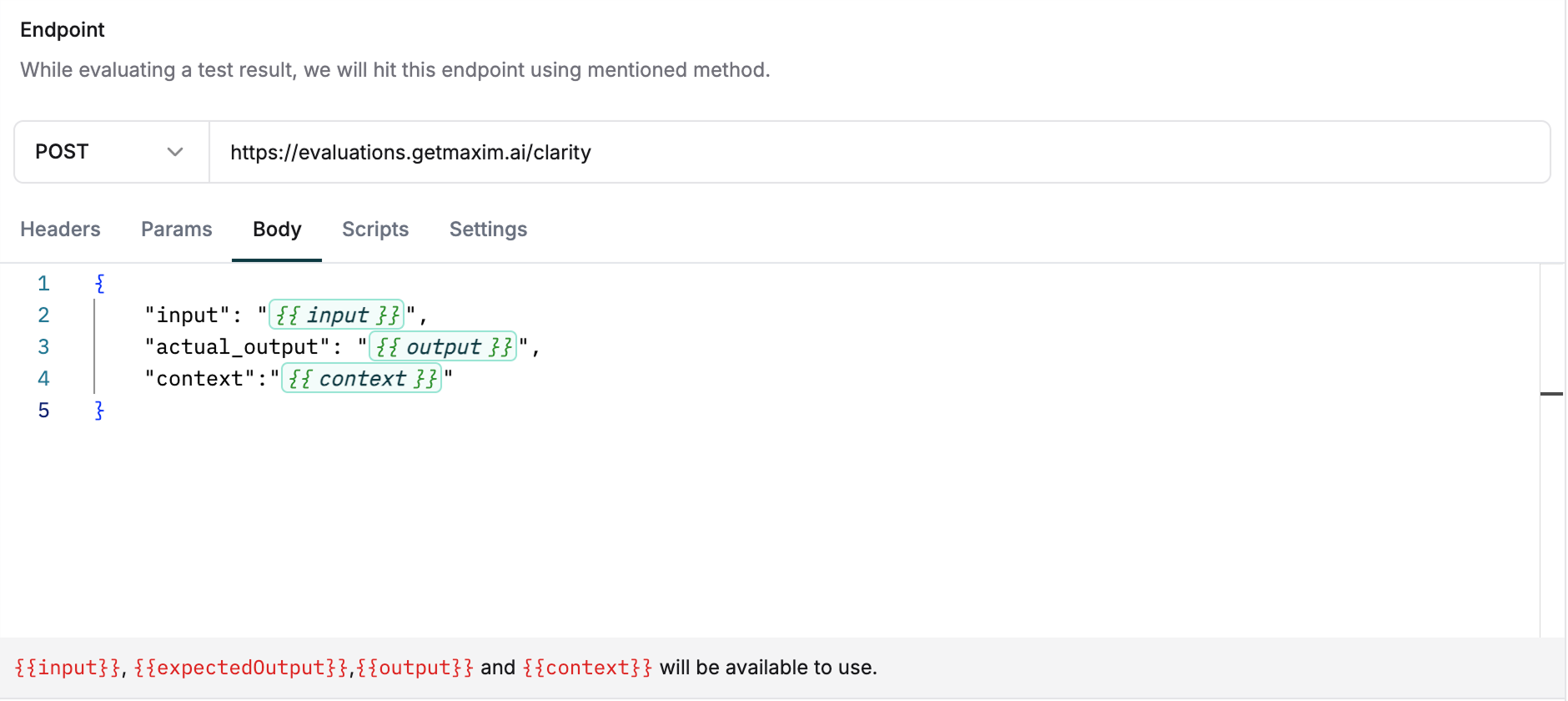
Connect your existing evaluation system to Maxim by exposing it via an API endpoint. This lets you reuse your evaluators without rebuilding them.
Select `API-based` from the create menu to start building.
Add your API endpoint details including:
* Headers
* Query parameters
* Request body
For advanced transformations, use pre and post scripts under the `Scripts` tab.
Use variables in the body, query parameters and headers
## Understanding the AI Evaluator Interface
The AI evaluator editor is organized into three main tabs:
### Definition Tab
The **Definition** tab is where you configure your AI evaluator:
* **Model selection**: Choose the LLM you want to use as the judge
* **Model configuration**: Configure model-specific parameters (temperature, max tokens, etc.)
* **Evaluation scale**: Select the scoring type (Binary, Scale, String values, or Number)
* **Evaluation instructions**: Write the instructions that tell the AI how to evaluate outputs
* **Score normalization** (optional): Convert scores from 1-5 scale to 0-1 scale for Scale evaluations
### Variables Tab
The **Variables** tab shows all available variables for your evaluator:
* **Reserved variables**: These are built-in variables provided by Maxim that you can use in your evaluator instructions:
* `input`: Input query from dataset or logged trace
* `output`: Output from the test run or logged trace
* `context`: Retrieved context from your data source
* `expectedOutput`: Expected output as mentioned in dataset
* `expectedToolCalls`: Expected tools to be called as mentioned in dataset
* `toolCalls`: Actual tool calls made during execution
* `toolOutputs`: Outputs of all tool calls made
* `prompt`: Content of all messages in the prompt version
* `scenario`: Scenario for simulating multi-turn session
* `sessionOutputs`: Agent outputs across all turns of the session
* `session`: A sequence of multi-turn interactions between user and your application
* `history`: Prior turns in the current session before the latest input
* `expectedSteps`: Expected steps to be followed by the agent as mentioned in dataset
* **Custom variables**: You can define additional custom variables if needed
Variables are automatically replaced with actual values during evaluation execution.
### Pass Criteria Tab
The **Pass Criteria** tab allows you to configure when an evaluation should be considered passing:
* **Pass query**: Define criteria for individual evaluation metrics
Example: Pass if evaluation score > 0.8
* **Pass evaluator (%)**: Set threshold for overall evaluation across multiple entries
Example: Pass if 80% of entries meet the evaluation criteria
## API-based Evaluators
Connect your existing evaluation system to Maxim by exposing it via an API endpoint. This lets you reuse your evaluators without rebuilding them.
Select `API-based` from the create menu to start building.
Add your API endpoint details including:
* Headers
* Query parameters
* Request body
For advanced transformations, use pre and post scripts under the `Scripts` tab.
Use variables in the body, query parameters and headers
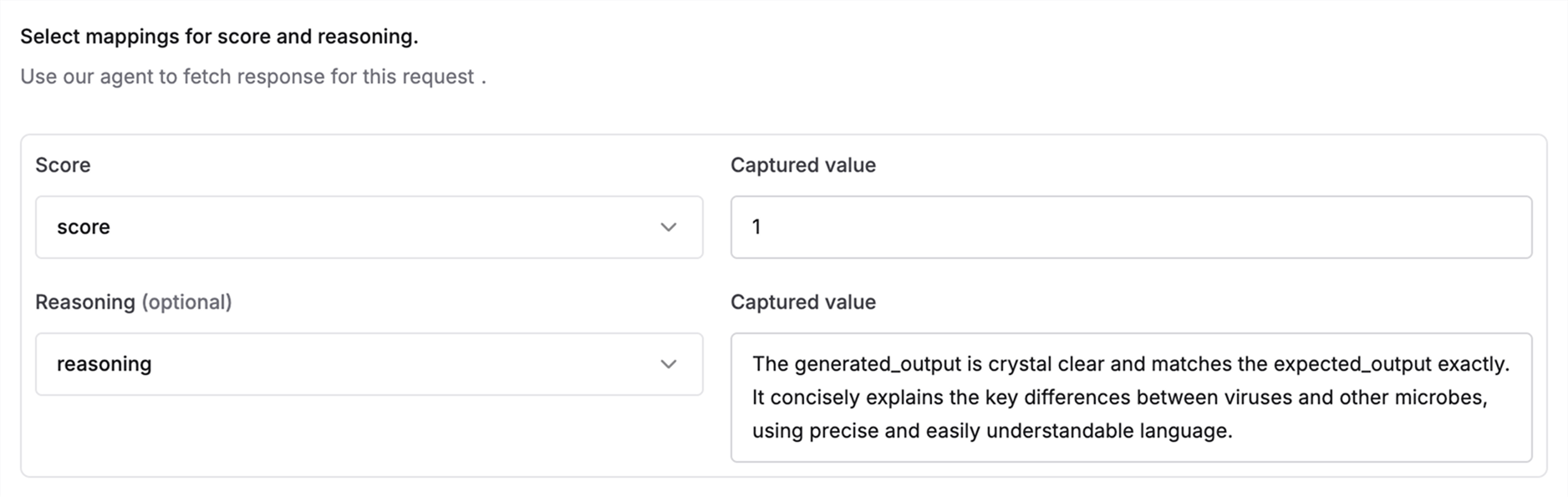
 Test your endpoint using the playground. On successful response, map your API response fields to:
* Score (required)
* Reasoning (optional)
This mapping allows you to keep your API structure unchanged.
Test your endpoint using the playground. On successful response, map your API response fields to:
* Score (required)
* Reasoning (optional)
This mapping allows you to keep your API structure unchanged.
 ## Human Evaluators
Set up human raters to review and assess AI outputs for quality control. Human evaluation is essential for maintaining quality control and oversight of your AI system's outputs.
Select `Human` from the create menu.
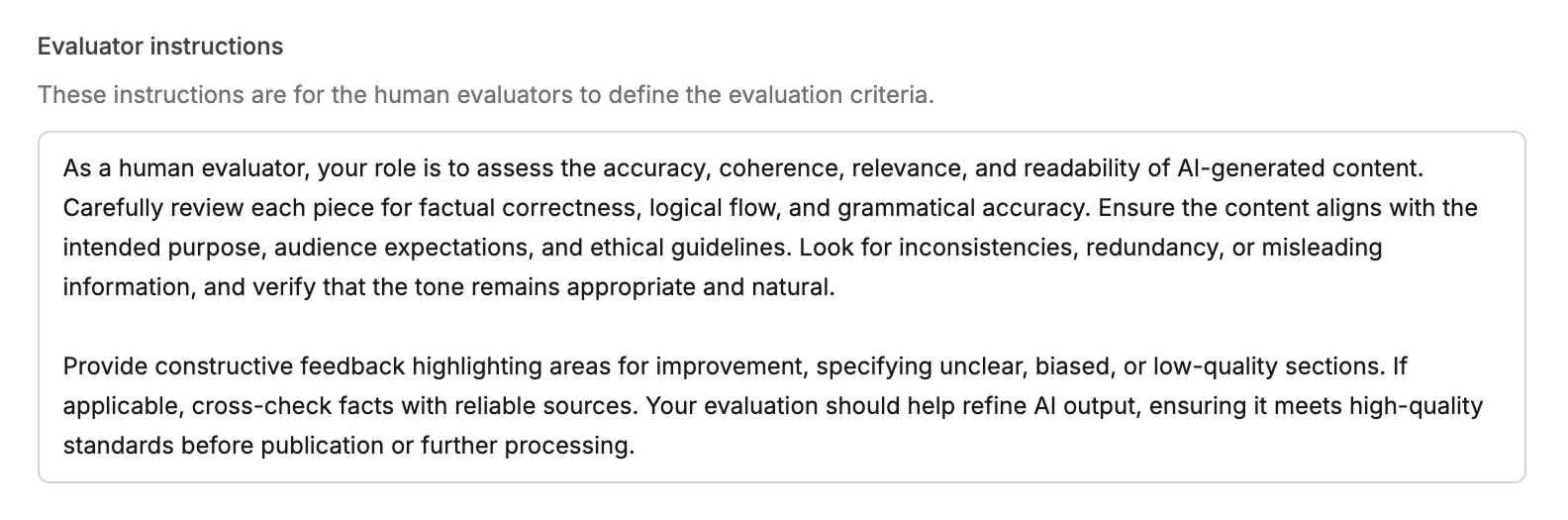
Write clear guidelines for human reviewers. These instructions appear during the review process and should include:
* What aspects to evaluate
* How to assign ratings
* Examples of good and bad responses
## Human Evaluators
Set up human raters to review and assess AI outputs for quality control. Human evaluation is essential for maintaining quality control and oversight of your AI system's outputs.
Select `Human` from the create menu.
Write clear guidelines for human reviewers. These instructions appear during the review process and should include:
* What aspects to evaluate
* How to assign ratings
* Examples of good and bad responses
 Choose between two rating formats:
**Binary (Yes/No)**
Simple binary evaluation
Choose between two rating formats:
**Binary (Yes/No)**
Simple binary evaluation

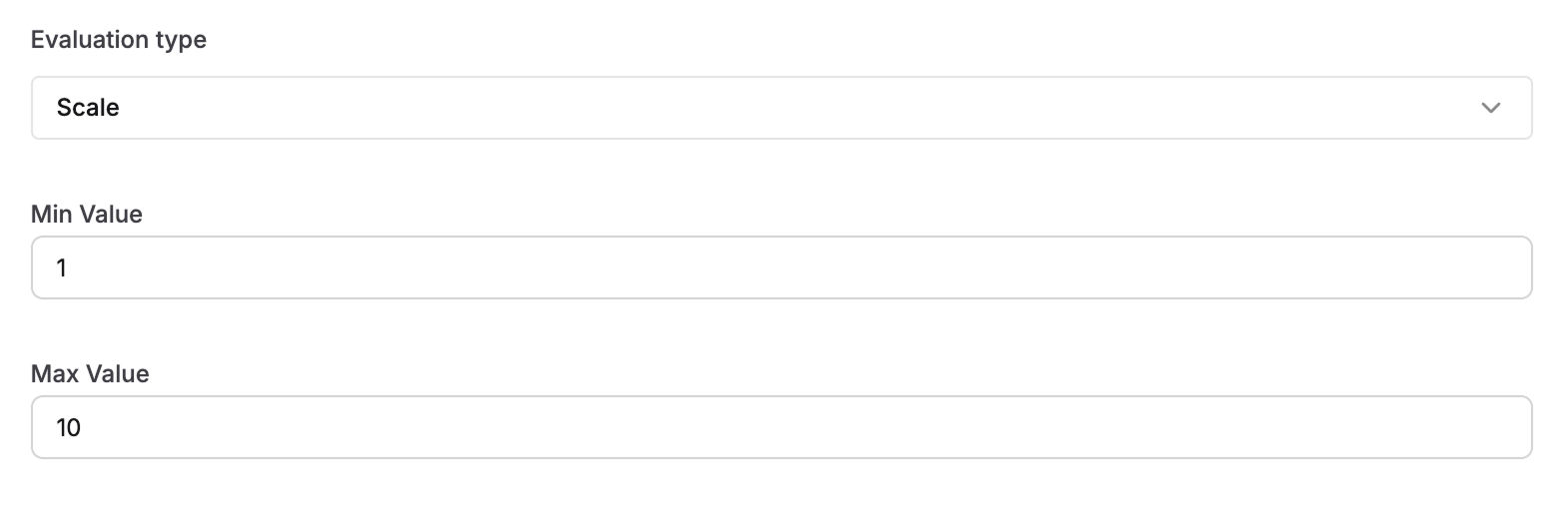
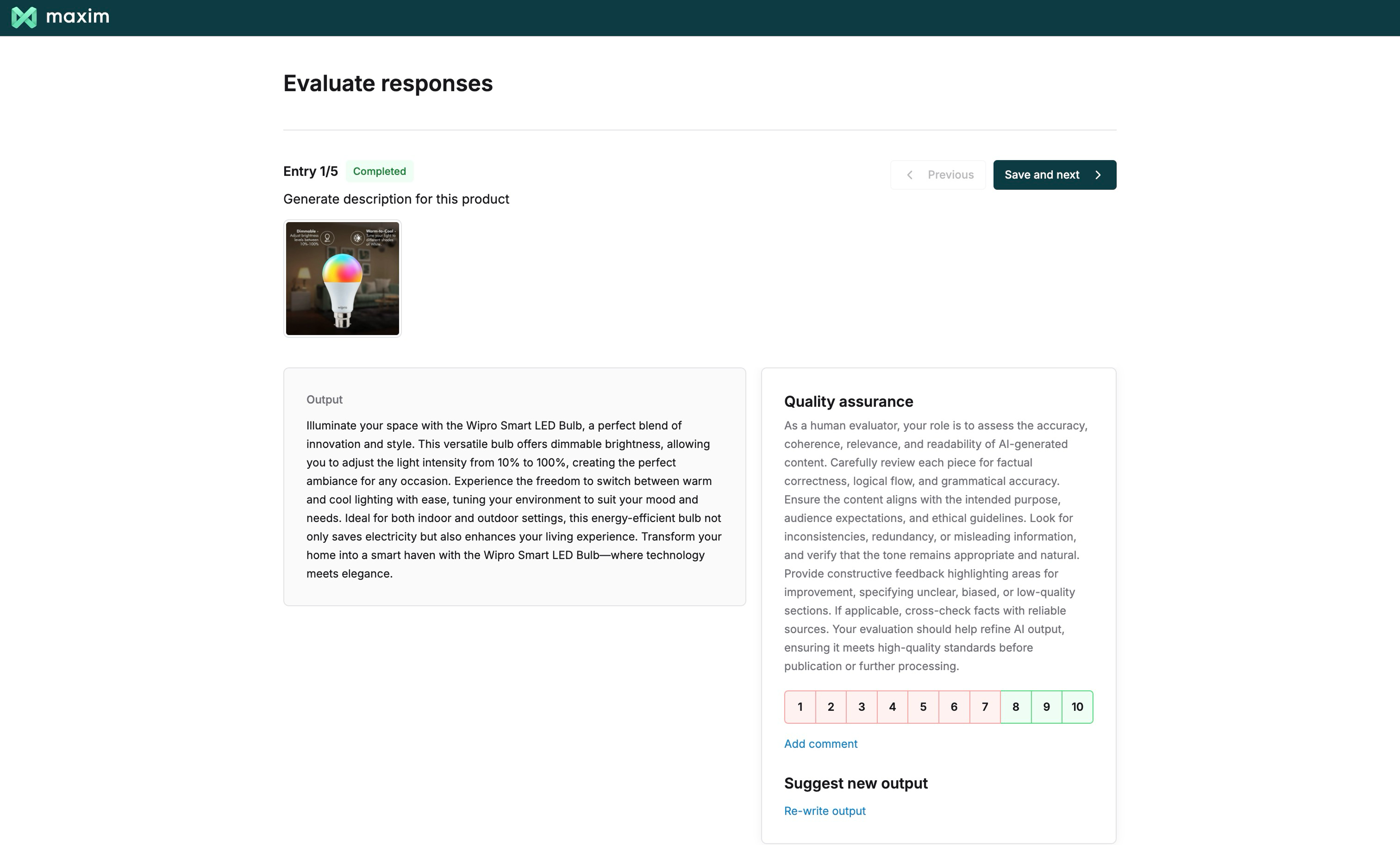
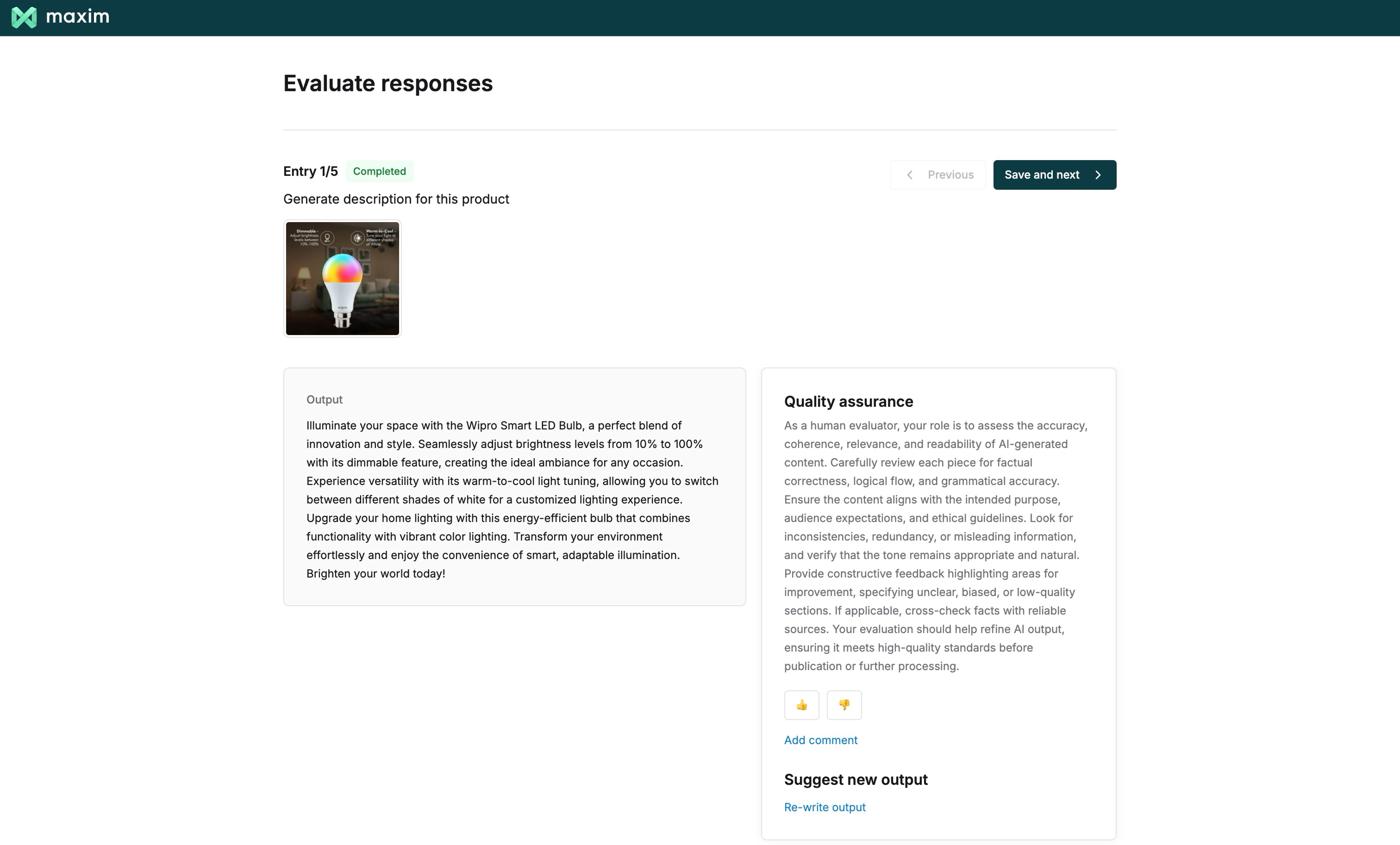 **Scale**
Nuanced rating system for detailed quality assessment
**Scale**
Nuanced rating system for detailed quality assessment
 ## Programmatic Evaluators
Build custom code-based evaluators using Javascript or Python with access to standard libraries.
Select Programmatic from the create menu to start building
Choose your programming language and set the Response type (Number, Boolean, or String) from the top bar. The response type determines what your evaluator function should return:
* **Boolean**: Returns `true` or `false` (Yes/No evaluation)
* **Number**: Returns a numeric score for scale-based evaluation
* **String values**: Returns a string value for multi-select or categorical evaluation
The evaluator result can be a string value when using the "String values" response type. This is useful for categorical evaluations or when you need to return specific string labels rather than numeric scores.
## Programmatic Evaluators
Build custom code-based evaluators using Javascript or Python with access to standard libraries.
Select Programmatic from the create menu to start building
Choose your programming language and set the Response type (Number, Boolean, or String) from the top bar. The response type determines what your evaluator function should return:
* **Boolean**: Returns `true` or `false` (Yes/No evaluation)
* **Number**: Returns a numeric score for scale-based evaluation
* **String values**: Returns a string value for multi-select or categorical evaluation
The evaluator result can be a string value when using the "String values" response type. This is useful for categorical evaluations or when you need to return specific string labels rather than numeric scores.
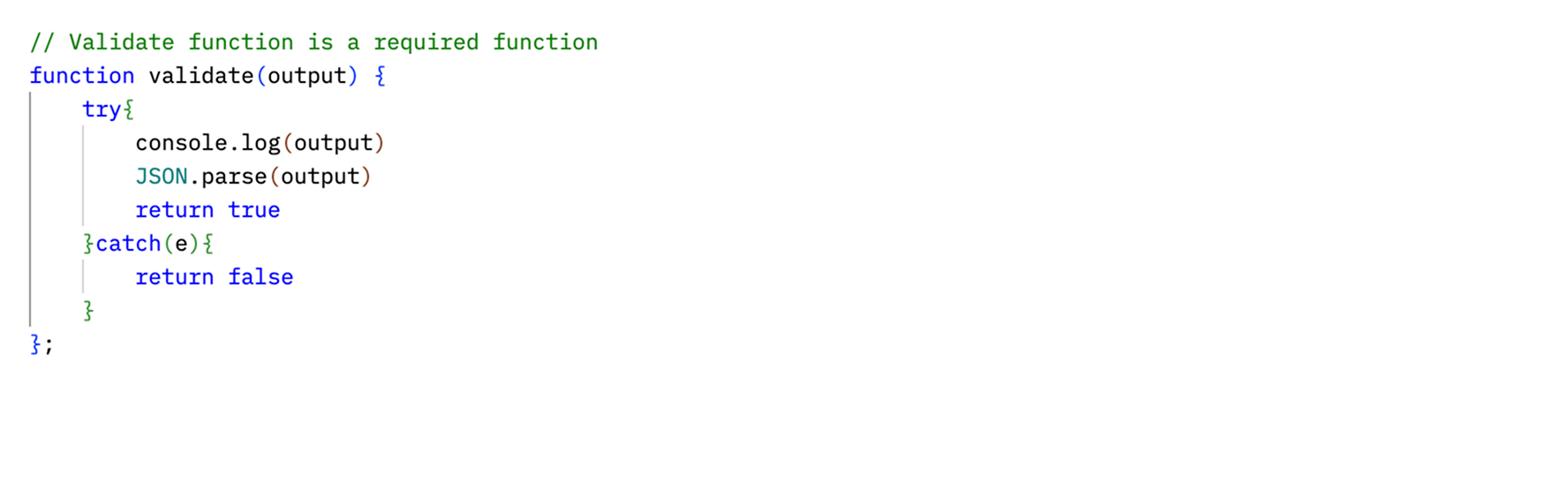
 Define a function named `validate` in your chosen language. This function is required as Maxim uses it during execution.
**Code restrictions**
**Javascript**
* No infinite loops
* No debugger statements
* No global objects (window, document, global, process)
* No require statements
* No with statements
* No Function constructor
* No eval
* No setTimeout or setInterval
**Python**
* No infinite loops
* No recursive functions
* No global/nonlocal statements
* No raise, try, or assert statements
* No disallowed variable assignments
Define a function named `validate` in your chosen language. This function is required as Maxim uses it during execution.
**Code restrictions**
**Javascript**
* No infinite loops
* No debugger statements
* No global objects (window, document, global, process)
* No require statements
* No with statements
* No Function constructor
* No eval
* No setTimeout or setInterval
**Python**
* No infinite loops
* No recursive functions
* No global/nonlocal statements
* No raise, try, or assert statements
* No disallowed variable assignments
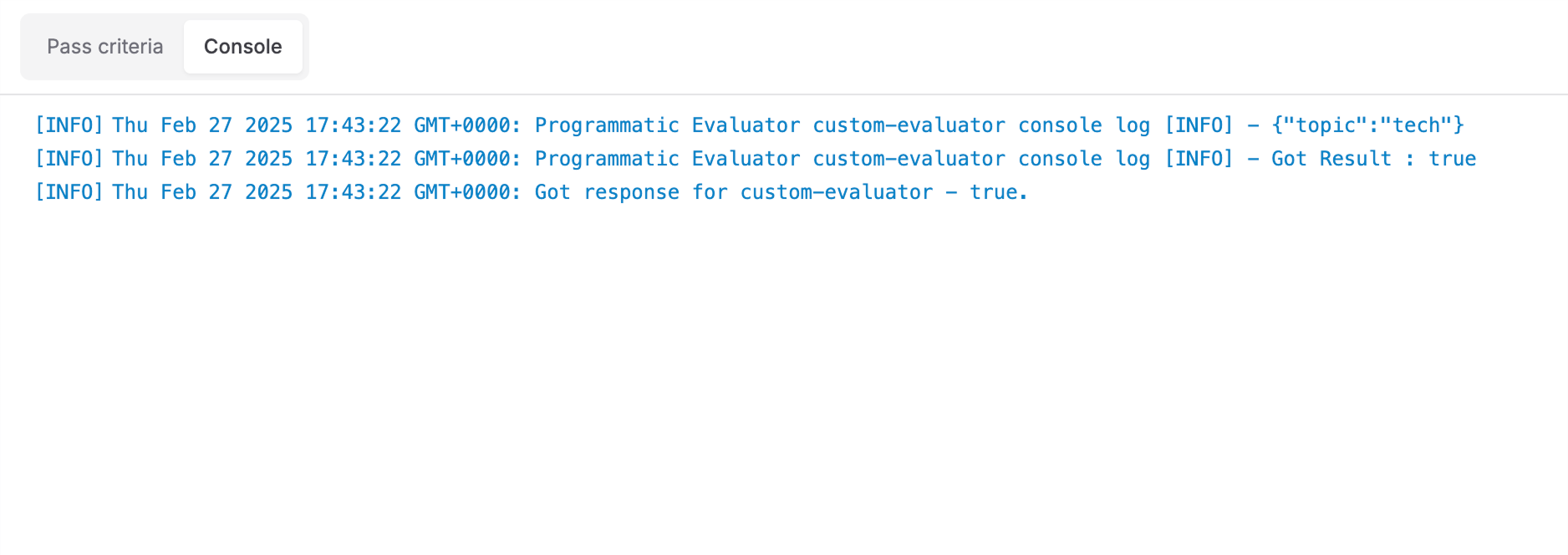
 Monitor your evaluator execution with the built-in console. Add console logs for debugging to track what's happening during evaluation. All logs will appear in this view.
 ## Understanding the Programmatic Evaluator Interface
The programmatic evaluator editor is organized into three main tabs:
### Definition Tab
The **Definition** tab is where you write your evaluation code. Here you can:
* Select your programming language (JavaScript or Python)
* Choose the response type (Boolean, Number, or String values)
* Write your `validate` function that contains the evaluation logic
* Use reserved variables (see below) in your code
### Variables Tab
The **Variables** tab shows all available variables for your evaluator:
* **Reserved variables**: These are built-in variables provided by Maxim that you can use in your evaluator code:
* `input`: Input query from dataset or logged trace
* `output`: Output from the test run or logged trace
* `context`: Retrieved context from your data source
* `expectedOutput`: Expected output as mentioned in dataset
* `expectedToolCalls`: Expected tools to be called as mentioned in dataset
* `toolCalls`: Actual tool calls made during execution
* `scenario`: Scenario for simulating multi-turn session
* `sessionOutputs`: Agent outputs across all turns of the session
* `session`: A sequence of multi-turn interactions between user and your application
* `history`: Prior turns in the current session before the latest input
* `expectedSteps`: Expected steps to be followed by the agent as mentioned in dataset
* **Custom variables**: You can define additional custom variables if needed
Variables are automatically replaced with actual values during evaluation execution.
### Pass Criteria Tab
The **Pass Criteria** tab allows you to configure when an evaluation should be considered passing:
* **Pass query**: Define criteria for individual evaluation metrics
Example: Pass if evaluation score > 0.8
* **Pass evaluator (%)**: Set threshold for overall evaluation across multiple entries
Example: Pass if 80% of entries meet the evaluation criteria
## Common Configuration Steps
All evaluator types share some common configuration steps:
### Configure Pass Criteria
Configure two types of pass criteria for any evaluator type:
**Pass query**
Define criteria for individual evaluation metrics
Example: Pass if evaluation score > 0.8
**Pass evaluator (%)**
Set threshold for overall evaluation across multiple entries
Example: Pass if 80% of entries meet the evaluation criteria
## Understanding the Programmatic Evaluator Interface
The programmatic evaluator editor is organized into three main tabs:
### Definition Tab
The **Definition** tab is where you write your evaluation code. Here you can:
* Select your programming language (JavaScript or Python)
* Choose the response type (Boolean, Number, or String values)
* Write your `validate` function that contains the evaluation logic
* Use reserved variables (see below) in your code
### Variables Tab
The **Variables** tab shows all available variables for your evaluator:
* **Reserved variables**: These are built-in variables provided by Maxim that you can use in your evaluator code:
* `input`: Input query from dataset or logged trace
* `output`: Output from the test run or logged trace
* `context`: Retrieved context from your data source
* `expectedOutput`: Expected output as mentioned in dataset
* `expectedToolCalls`: Expected tools to be called as mentioned in dataset
* `toolCalls`: Actual tool calls made during execution
* `scenario`: Scenario for simulating multi-turn session
* `sessionOutputs`: Agent outputs across all turns of the session
* `session`: A sequence of multi-turn interactions between user and your application
* `history`: Prior turns in the current session before the latest input
* `expectedSteps`: Expected steps to be followed by the agent as mentioned in dataset
* **Custom variables**: You can define additional custom variables if needed
Variables are automatically replaced with actual values during evaluation execution.
### Pass Criteria Tab
The **Pass Criteria** tab allows you to configure when an evaluation should be considered passing:
* **Pass query**: Define criteria for individual evaluation metrics
Example: Pass if evaluation score > 0.8
* **Pass evaluator (%)**: Set threshold for overall evaluation across multiple entries
Example: Pass if 80% of entries meet the evaluation criteria
## Common Configuration Steps
All evaluator types share some common configuration steps:
### Configure Pass Criteria
Configure two types of pass criteria for any evaluator type:
**Pass query**
Define criteria for individual evaluation metrics
Example: Pass if evaluation score > 0.8
**Pass evaluator (%)**
Set threshold for overall evaluation across multiple entries
Example: Pass if 80% of entries meet the evaluation criteria
 ### Test in Playground
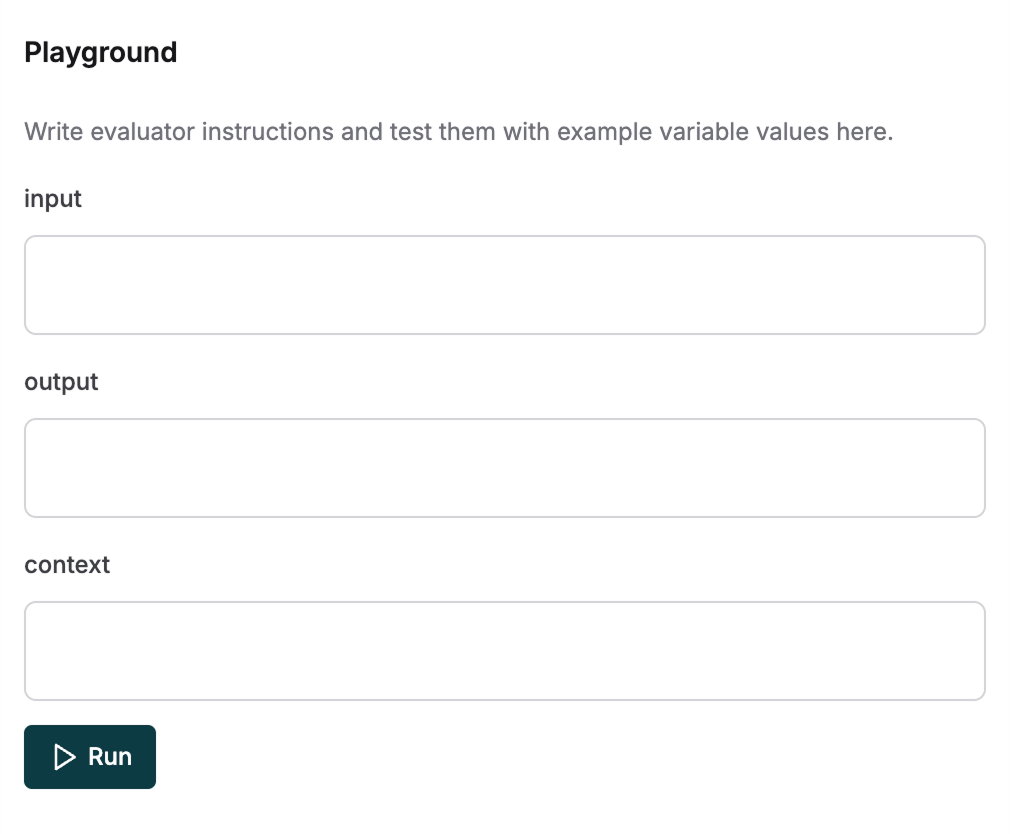
Test your evaluator in the playground before using it in your workflows. The right panel shows input fields for all variables used in your evaluator.
1. Fill in sample values for each variable
2. Click **Run** to see how your evaluator performs
3. Iterate and improve your evaluator based on the results
### Test in Playground
Test your evaluator in the playground before using it in your workflows. The right panel shows input fields for all variables used in your evaluator.
1. Fill in sample values for each variable
2. Click **Run** to see how your evaluator performs
3. Iterate and improve your evaluator based on the results