> ## Documentation Index
> Fetch the complete documentation index at: https://www.getmaxim.ai/docs/llms.txt
> Use this file to discover all available pages before exploring further.
# Manage Datasets
> Learn how to manage datasets
export const MaximPlayer = ({url}) => {
return ;
};
## Use Splits for Targeted Testing
Splits let you isolate specific rows from a dataset for targeted testing. Here's how to use them:
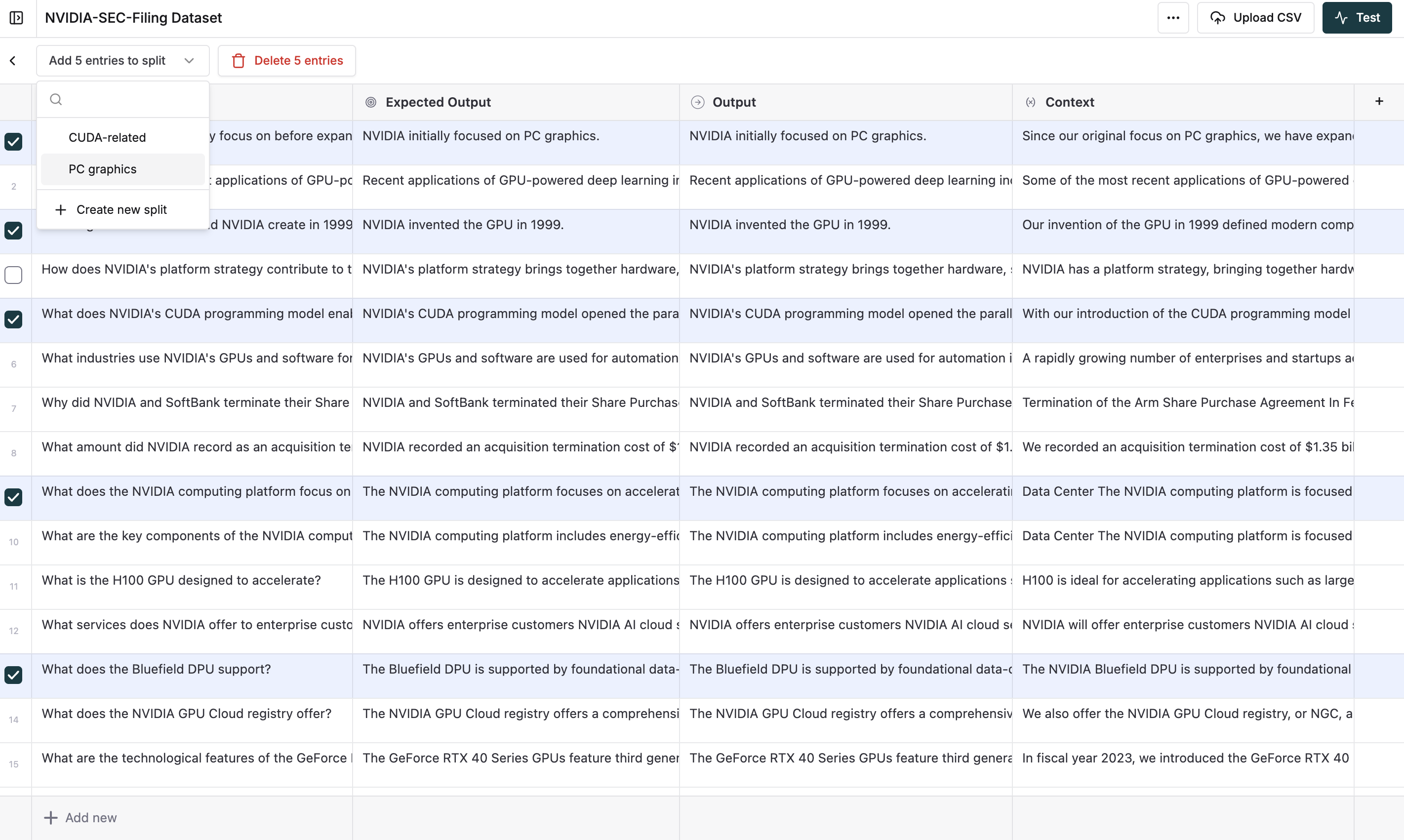
In your Dataset, select the rows you want to include in a split. Click the `Add x entries to split` button that appears.
 Attach your split to a test run for evaluation:
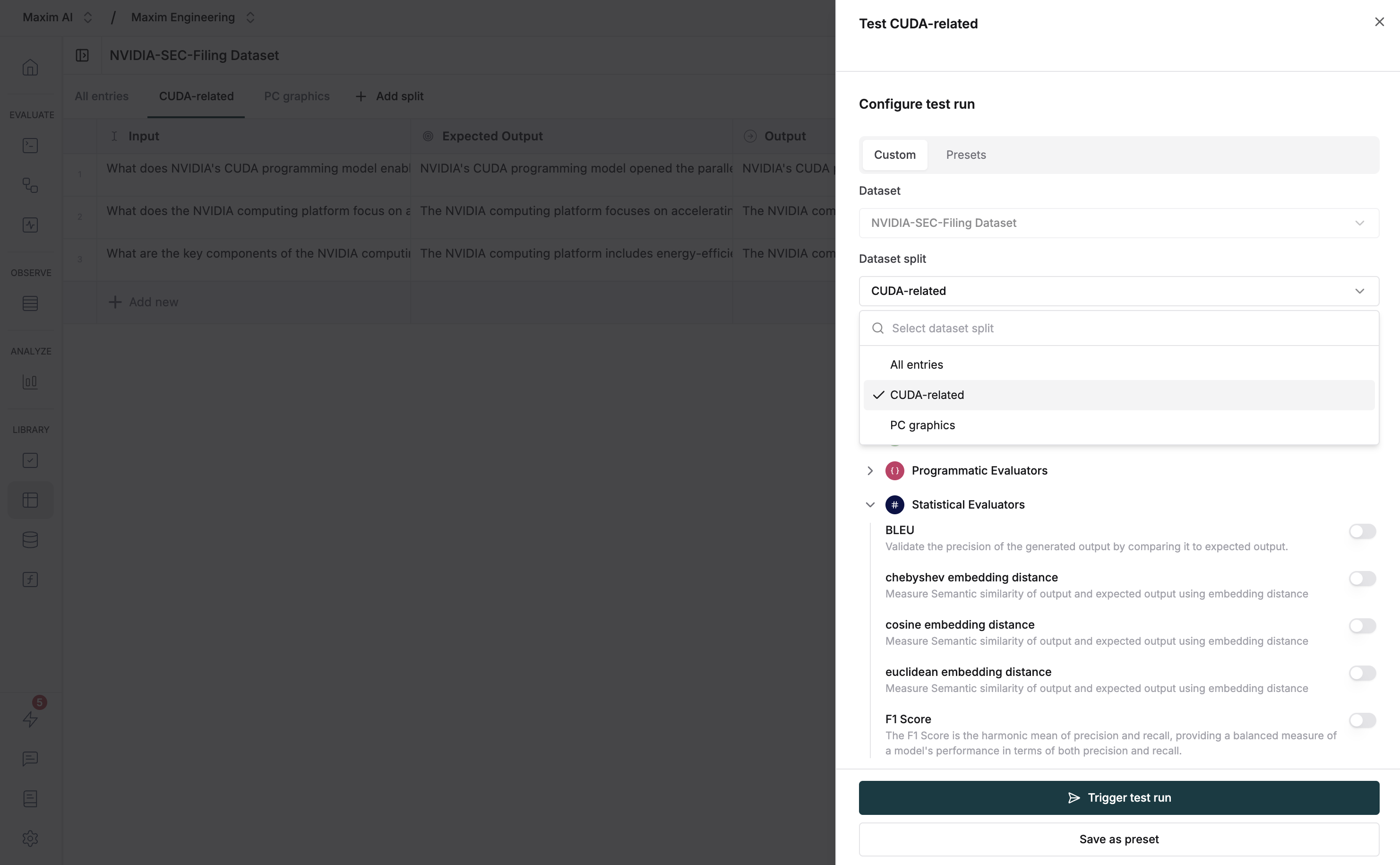 Splits function just like Datasets across the platform and can be used with Prompts, Workflows, and other testing features.
## Use Variable Columns
Maxim provides a way to insert dynamic values into your entities at runtime via your Datasets in the form of variables. A variable is a collection of a key and a value.
You can refer to variables using the Jinja template syntax (double curly braces) `{{variable_name}}`.
You can populate variable values in various ways:
* Dataset column
* Use a context source to retrieve it at runtime
Maxim has specific types of reserved columns that take priority over the variables you've defined. These columns include:
* input
* expectedOutput
* output
* expectedToolCalls
* scenario
* expectedSteps
You can use variables in your Prompt to refer to dynamic values at runtime.
For example, if you're creating a Prompt and want to provide context to the model, you can refer to the context via a variable in your system prompt:
```plaintext theme={null}
You are a helpful assistant, answer a given answer with respect, be nice and respectful
You may use {{context}} to answer the questions
```
If you're using the Prompt playground, you can add variables via static values on the right side of the interface.
Alternatively, if you're using it in a test run, you can create a context-named variable in your dataset. When the test run executes, this variable will be replaced with the values from your dataset column.
You can use variables for Prompt Comparison and No-code Agent in the same way as you do in your Prompt playground
Splits function just like Datasets across the platform and can be used with Prompts, Workflows, and other testing features.
## Use Variable Columns
Maxim provides a way to insert dynamic values into your entities at runtime via your Datasets in the form of variables. A variable is a collection of a key and a value.
You can refer to variables using the Jinja template syntax (double curly braces) `{{variable_name}}`.
You can populate variable values in various ways:
* Dataset column
* Use a context source to retrieve it at runtime
Maxim has specific types of reserved columns that take priority over the variables you've defined. These columns include:
* input
* expectedOutput
* output
* expectedToolCalls
* scenario
* expectedSteps
You can use variables in your Prompt to refer to dynamic values at runtime.
For example, if you're creating a Prompt and want to provide context to the model, you can refer to the context via a variable in your system prompt:
```plaintext theme={null}
You are a helpful assistant, answer a given answer with respect, be nice and respectful
You may use {{context}} to answer the questions
```
If you're using the Prompt playground, you can add variables via static values on the right side of the interface.
Alternatively, if you're using it in a test run, you can create a context-named variable in your dataset. When the test run executes, this variable will be replaced with the values from your dataset column.
You can use variables for Prompt Comparison and No-code Agent in the same way as you do in your Prompt playground
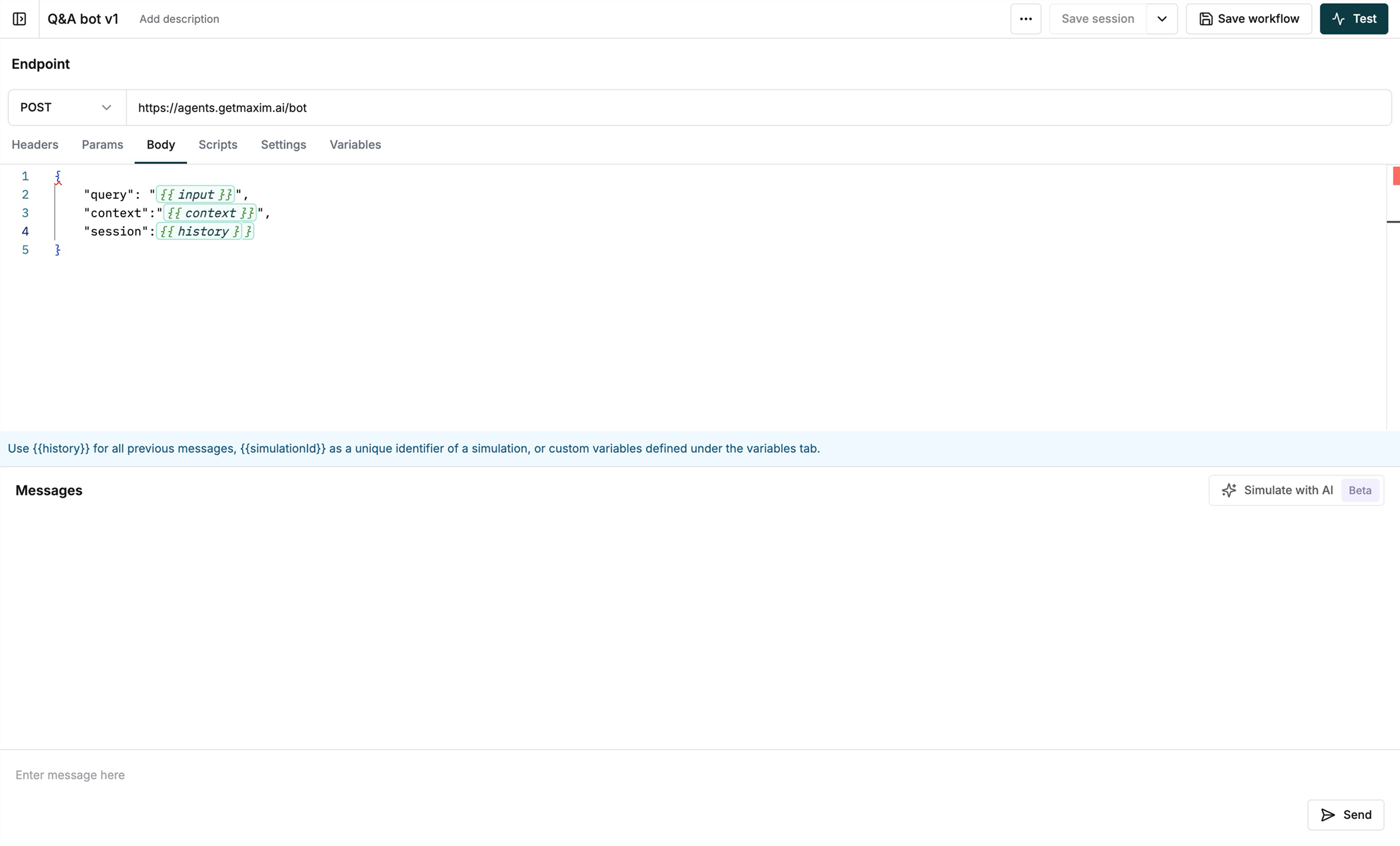
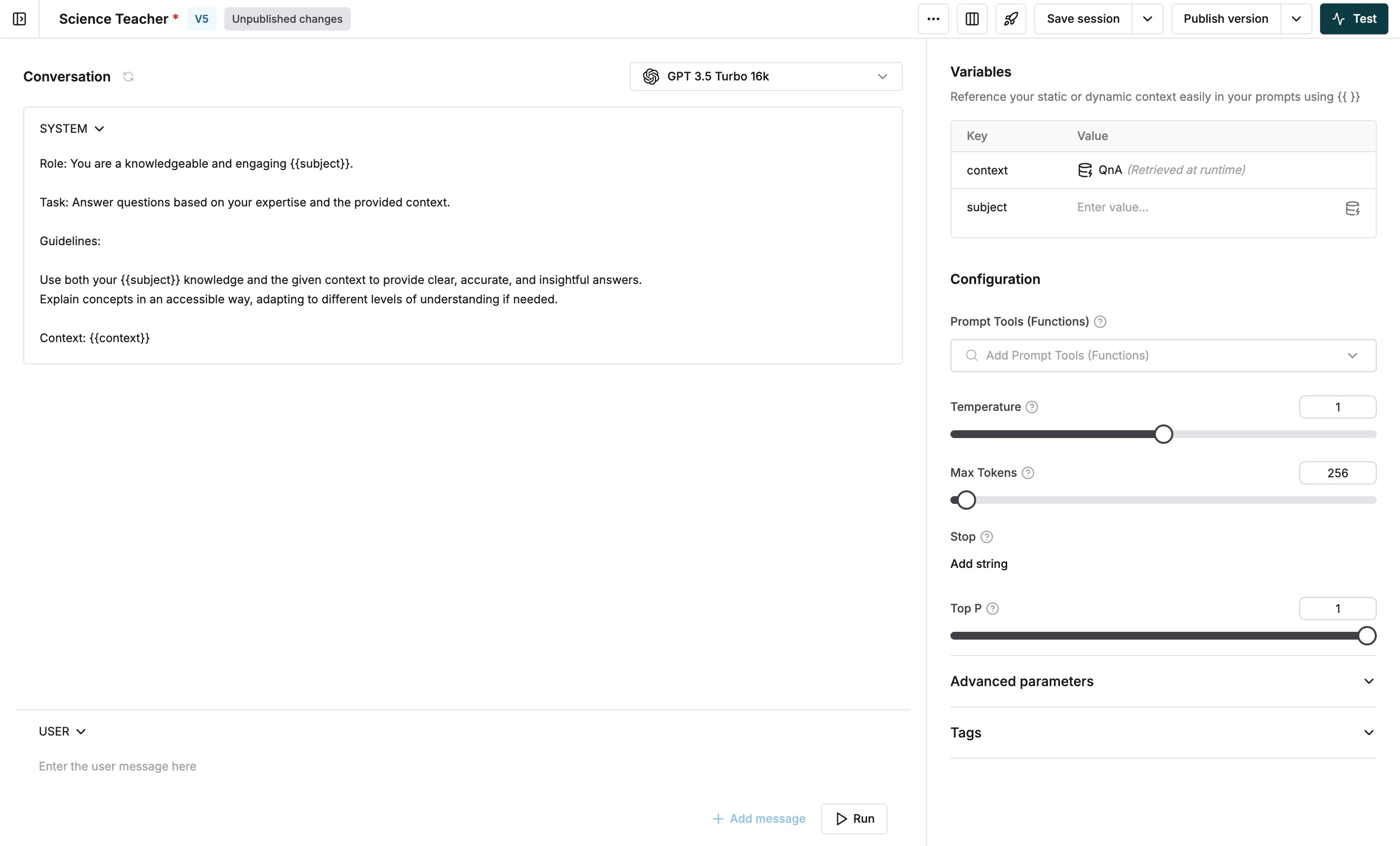 If you're using an API Workflow, you can add variables to your workflow body, headers, or query parameters in the same way.
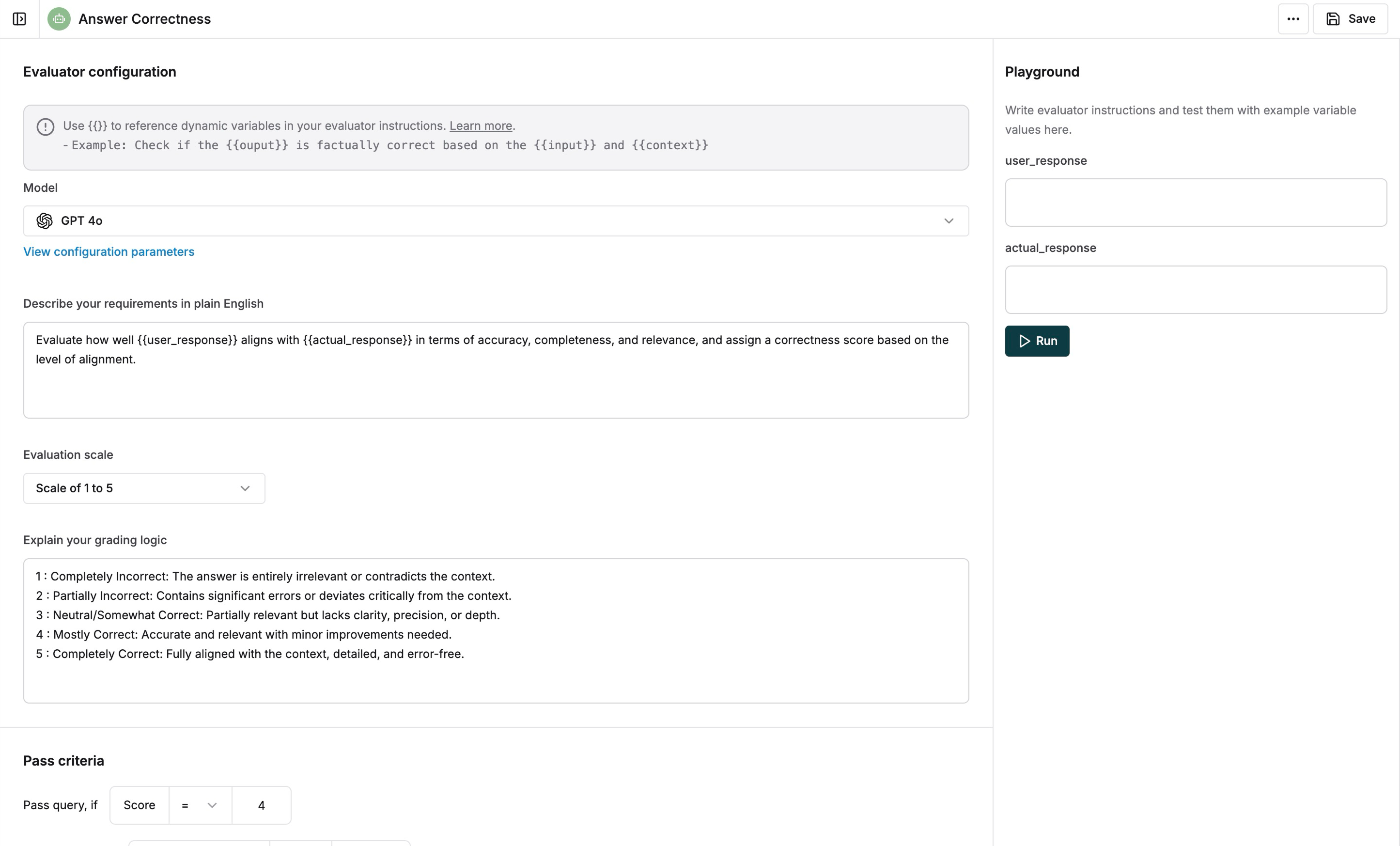
 You can use variables in your custom evaluators in the same way as you do in your Prompts. This allows you to provide additional context to your evaluators for better results.