> ## Documentation Index
> Fetch the complete documentation index at: https://www.getmaxim.ai/docs/llms.txt
> Use this file to discover all available pages before exploring further.
# Simulate AWS Bedrock Agents
> Test and evaluate your AWS Bedrock agents with Maxim AI
## Overview
[AWS Bedrock](https://aws.amazon.com/bedrock/) provides a fully managed service to build and deploy AI agents that can interact with your enterprise data and AWS services. With Maxim, you can test these agents at scale using automated simulations to ensure they handle various scenarios correctly before deploying to production.
This guide shows you how to:
1. Create an agent in AWS Bedrock
2. Set up an agent alias for testing
3. Deploy a Lambda function to expose your agent as an HTTP endpoint
4. Connect the endpoint to Maxim
5. Run automated simulations to test agent behavior
## Prerequisites
* An AWS account with access to Bedrock
* IAM permissions for Bedrock Agent Runtime and Lambda
* A Maxim account
## Step 1: Create Your Agent in AWS Bedrock
First, create and configure your agent in AWS Bedrock:
1. Open the AWS Console
2. Navigate to **Amazon Bedrock**
3. Go to **Agents** in the left sidebar
1. Click **Create Agent**
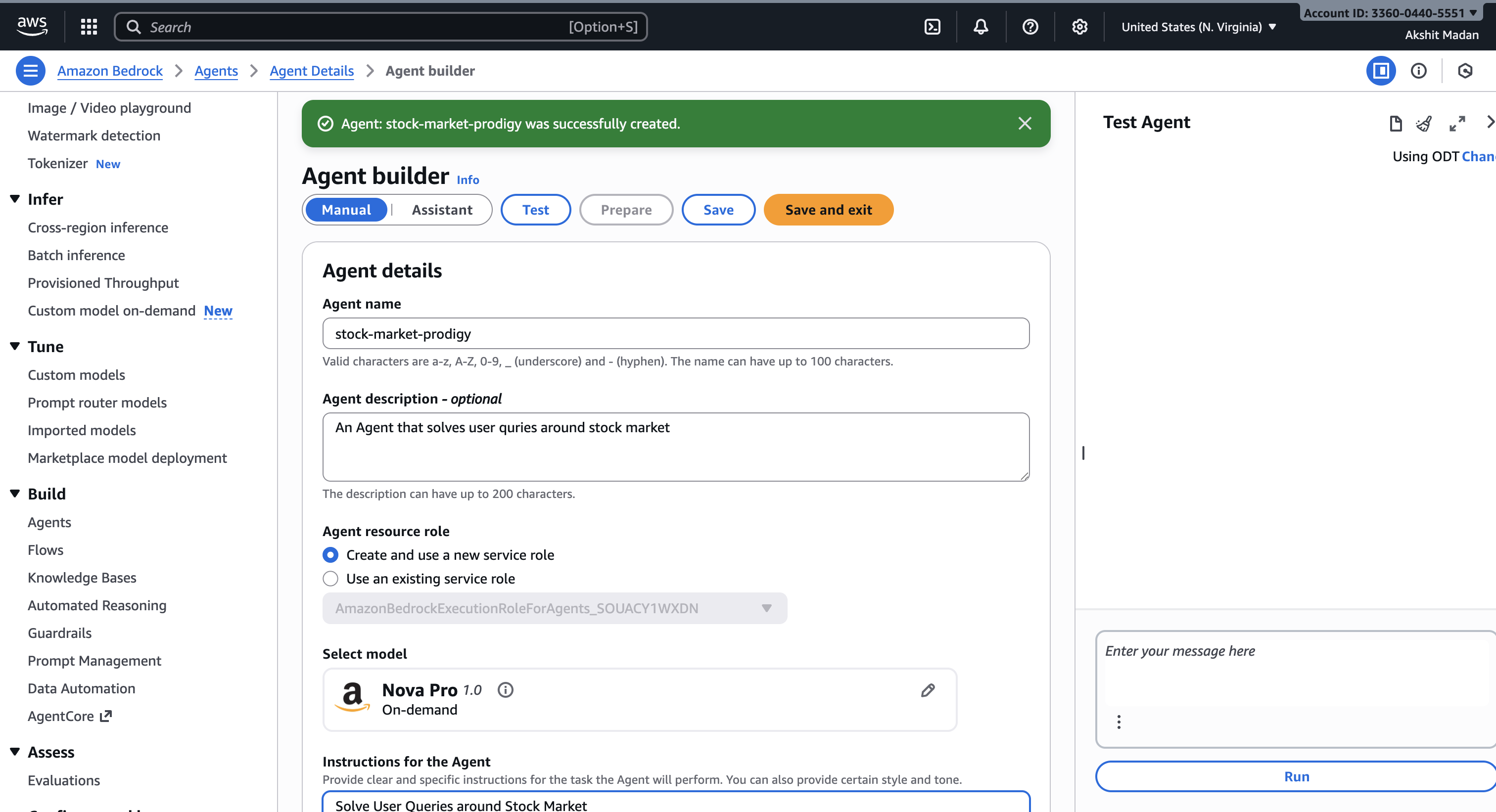 2. Configure your agent:
* **Agent name**: Give it a descriptive name (e.g., "FinancialAdvisor")
* **Description**: Describe what your agent does
* **Instructions**: Define your agent's behavior and capabilities
* **Foundation model**: Select the model (e.g., Claude 3, Titan)
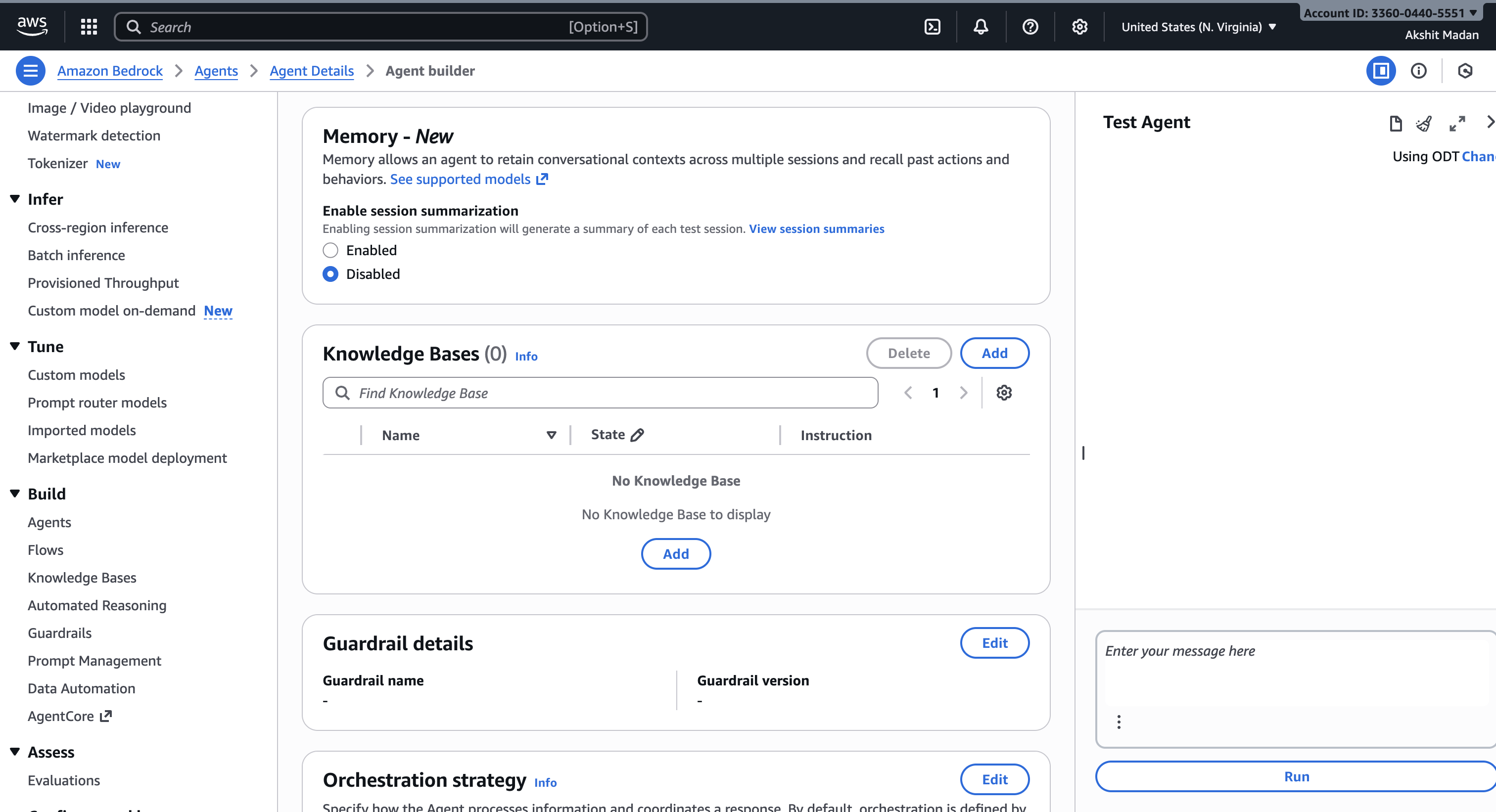
3. Add any required **Knowledge Bases** or **Action Groups** (tools/APIs your agent can use)
2. Configure your agent:
* **Agent name**: Give it a descriptive name (e.g., "FinancialAdvisor")
* **Description**: Describe what your agent does
* **Instructions**: Define your agent's behavior and capabilities
* **Foundation model**: Select the model (e.g., Claude 3, Titan)
3. Add any required **Knowledge Bases** or **Action Groups** (tools/APIs your agent can use)
 4. Click **Create**
After creation, you'll see your Agent ID (e.g., `4UDWU64G6Z`). Save this - you'll need it later.
## Step 2: Create an Alias and Test
Before deploying, create an alias to manage versions:
1. In your agent's details page, go to **Aliases**
2. Click **Create alias**
3. Name it (e.g., "test" or "production")
4. Select the agent version
5. Click **Create**
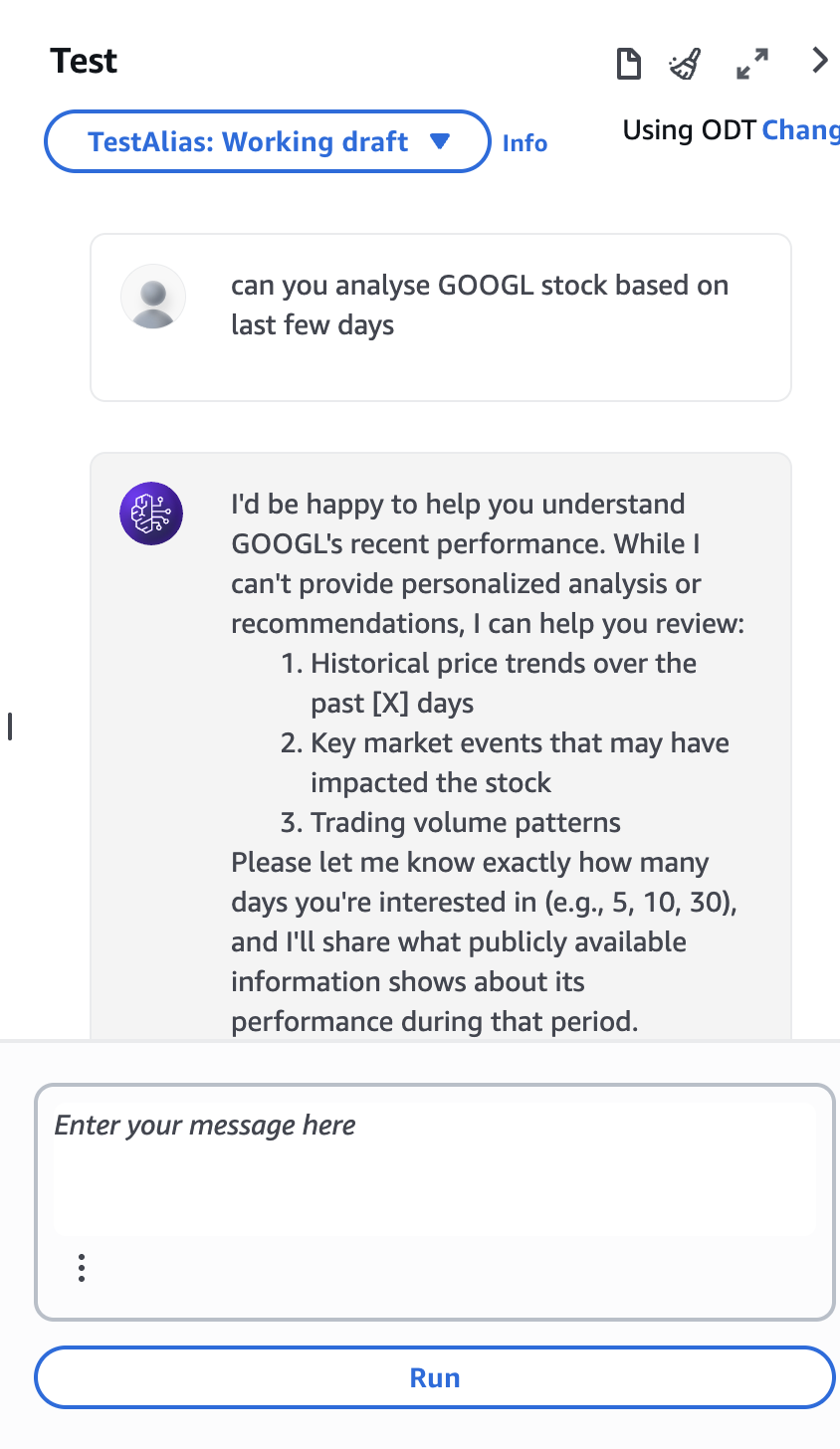
1. Use the **Test** button in the Bedrock console
2. Have a conversation with your agent
3. Verify it responds correctly and uses tools as expected
4. Note the **Alias ID** - you'll need it for deployment
4. Click **Create**
After creation, you'll see your Agent ID (e.g., `4UDWU64G6Z`). Save this - you'll need it later.
## Step 2: Create an Alias and Test
Before deploying, create an alias to manage versions:
1. In your agent's details page, go to **Aliases**
2. Click **Create alias**
3. Name it (e.g., "test" or "production")
4. Select the agent version
5. Click **Create**
1. Use the **Test** button in the Bedrock console
2. Have a conversation with your agent
3. Verify it responds correctly and uses tools as expected
4. Note the **Alias ID** - you'll need it for deployment
 ## Step 3: Deploy Lambda Function as HTTP Endpoint
Create a Lambda function to expose your Bedrock agent as an HTTP API. This Lambda function will handle multi-turn conversations by maintaining session context through the `sessionId` parameter.
1. Navigate to **AWS Lambda** in the console
2. Click **Create function**
3. Choose **Author from scratch**
4. Configure:
* **Function name**: `bedrock-agent-proxy`
* **Runtime**: Python 3.11 or later
* **Architecture**: x86\_64
5. Click **Create function**
Replace the default code with the following:
**Multi-turn Conversation Support**: This Lambda function maintains conversation context across multiple turns using the `sessionId`. When Maxim simulates conversations, it passes the same `sessionId` for all messages in a conversation, allowing the Bedrock agent to remember previous interactions and maintain context.
```python theme={null}
import json
import uuid
import boto3
import logging
from botocore.exceptions import ClientError
# Configure logging
logging.basicConfig(level=logging.INFO)
logger = logging.getLogger(__name__)
# Initialize Bedrock client
bedrock_client = boto3.client("bedrock-agent-runtime", region_name="us-east-1")
# Replace these with your actual values
AGENT_ID = "4UDWU64G6Z" # Your Agent ID
AGENT_ALIAS_ID = "YOUR_ALIAS" # Your Alias ID
def lambda_handler(event, context):
"""
Lambda handler to invoke Bedrock agent and maintain multi-turn conversations.
The sessionId parameter enables conversation context across multiple turns.
"""
try:
# Parse incoming request body
body = json.loads(event.get("body") or "{}")
user_message = body.get("message", "")
session_id = body.get("sessionId") or str(uuid.uuid4())
if not user_message:
return _response(400, {"error": "message is required"})
logger.info(f"Invoking agent {AGENT_ID} with sessionId: {session_id}")
# Call the Bedrock agent with sessionId to maintain conversation context
# The same sessionId across multiple calls enables multi-turn conversations
response = bedrock_client.invoke_agent(
agentId=AGENT_ID,
agentAliasId=AGENT_ALIAS_ID,
sessionId=session_id, # Maintains context across conversation turns
inputText=user_message,
enableTrace=True, # Enable trace for debugging
streamingConfigurations={
"applyGuardrailInterval": 20,
"streamFinalResponse": False
}
)
# Process the streaming response
completion_text = ""
for event_stream in response.get("completion", []):
# Collect agent output
if "chunk" in event_stream:
chunk = event_stream["chunk"]
completion_text += chunk["bytes"].decode("utf-8")
# Log trace output for debugging (optional)
if "trace" in event_stream:
trace_event = event_stream.get("trace")
trace = trace_event.get("trace", {})
for key, value in trace.items():
logger.info("%s: %s", key, value)
logger.info(f"Agent response length: {len(completion_text)} characters")
# Return the response with sessionId so Maxim can maintain continuity
return _response(200, {
"reply": completion_text,
"sessionId": session_id,
})
except ClientError as e:
logger.error("AWS Client error: %s", str(e))
return _response(500, {"error": f"AWS error: {str(e)}"})
except Exception as e:
logger.error("Unexpected error: %s", str(e))
return _response(500, {"error": "Internal server error"})
def _response(status_code, body_dict):
"""Helper function to format HTTP response"""
return {
"statusCode": status_code,
"headers": {
"Content-Type": "application/json",
"Access-Control-Allow-Origin": "*",
},
"body": json.dumps(body_dict),
}
```
**Important**:
* Replace `AGENT_ID` and `AGENT_ALIAS_ID` with your actual values
* The code includes `enableTrace=True` for debugging - you can set this to `False` in production if you don't need detailed traces
* Logs are sent to CloudWatch Logs for monitoring and debugging
1. Go to **Configuration** → **Permissions**
2. Click on the execution role
3. Add the following policy to allow Bedrock access:
```json theme={null}
{
"Version": "2012-10-17",
"Statement": [
{
"Effect": "Allow",
"Action": [
"bedrock:InvokeAgent"
],
"Resource": "*"
}
]
}
```
1. Go to **Configuration** → **Function URL**
2. Click **Create function URL**
3. **Auth type**: Select `NONE` (or `AWS_IAM` if you want authentication)
4. Configure **CORS** if needed
5. Click **Save**
6. Copy the **Function URL** - this is your endpoint for Maxim
Test your endpoint using curl:
```bash theme={null}
curl -X POST https://your-lambda-url.lambda-url.us-east-1.on.aws/ \
-H "Content-Type: application/json" \
-d '{
"message": "What are my investment options?",
"sessionId": "test-session-123"
}'
```
You should receive a response with the agent's reply.
**Multi-turn Conversation Support**: The `sessionId` parameter enables conversation context. When you send multiple messages with the same `sessionId`, the Bedrock agent remembers previous messages and can reference them in responses. This allows for natural, contextual conversations where the agent can build on earlier information.
## Step 4: Configure HTTP Endpoint in Maxim
Now, set up the Bedrock agent as an HTTP endpoint in Maxim:
1. In Maxim, navigate to the **Evaluate** section
2. Click on **Agents via HTTP Endpoint** or create a new workflow
3. Name your workflow (e.g., "Financial Advisor Agent")
Set up your Lambda endpoint:
**Endpoint URL:**
```
https://your-lambda-url.lambda-url.us-east-1.on.aws/
```
**Method:** POST
**Headers:**
Add the required header:
| Key | Value |
| -------------- | ------------------ |
| `Content-Type` | `application/json` |
Set up the message structure that your Lambda function expects:
```json theme={null}
{
"message": "string",
"sessionId": "string"
}
```
**Map your variables:**
* `message`: The user message from your dataset (e.g., `{{user_message}}`)
* `sessionId`: Optional - can use `{{sessionId}}` or leave empty for auto-generation
**Example:**
```json theme={null}
{
"message": "{{user_message}}",
"sessionId": "{{sessionId}}"
}
```
**Complete curl example for reference:**
```bash theme={null}
curl -X POST https://your-lambda-url.lambda-url.us-east-1.on.aws/ \
-H 'Content-Type: application/json' \
-d '{
"message": "I want to invest $10,000. What are my options?",
"sessionId": "sim-session-001"
}'
```
## Step 5: Create a Simulation Dataset
Create a dataset with financial advisory scenarios:
Go to the **Library** section and select **Datasets**
When creating your dataset, select the **Agent simulation** template. This will create a dataset with the following columns:
* **user\_message**: The initial message from the user to start the conversation
* **agent\_scenario**: Description of what the user is trying to accomplish
* **expected\_steps**: Step-by-step description of how you expect the agent to handle the scenario
Example dataset for a Financial Advisor agent:
| user\_message | agent\_scenario | expected\_steps |
| -------------------------------------------------------------- | --------------------------------------------------------------- | -------------------------------------------------------------------------------------------------------------------------------------------------------------------------------------------------------------------------------------------- |
| "I want to invest \$10,000. What are my options?" | New investor seeking investment guidance with moderate budget | 1) Agent asks about risk tolerance and investment timeline; 2) Agent provides 3-4 investment options (stocks, bonds, ETFs, mutual funds); 3) Agent explains pros/cons of each; 4) Agent recommends specific allocation based on risk profile |
| "Should I invest in tech stocks right now?" | Investor asking for advice on sector-specific investment timing | 1) Agent acknowledges the question about tech sector; 2) Agent explains current market conditions for tech; 3) Agent discusses risks and opportunities; 4) Agent asks about existing portfolio before giving specific recommendation |
| "I need to save for my child's college in 10 years" | Parent planning for education expenses with specific timeline | 1) Agent asks about target amount needed; 2) Agent asks about current savings; 3) Agent recommends 529 plan or similar education savings vehicle; 4) Agent suggests investment strategy based on 10-year timeline |
| "What's my current portfolio performance?" | Existing client checking portfolio status | 1) Agent asks for account identifier or authenticates user; 2) Agent retrieves portfolio data; 3) Agent presents performance metrics (returns, allocation, vs. benchmark); 4) Agent offers to discuss rebalancing if needed |
| "I'm retiring in 2 years. How should I adjust my investments?" | Pre-retiree seeking portfolio rebalancing advice | 1) Agent congratulates on upcoming retirement; 2) Agent asks about retirement income needs; 3) Agent analyzes current allocation; 4) Agent recommends shifting to more conservative investments; 5) Agent explains withdrawal strategies |
## Step 6: Run Simulated Sessions
Now you can test your Bedrock agent with automated simulations:
1. Navigate to your HTTP endpoint workflow
2. Click **Test** in the top right
3. Select **Simulated session** mode
**Dataset**: Select the dataset you created with financial test scenarios
**Environment** (optional): Choose if you have different environments configured
**Response fields to evaluate**:
* **Output field**: Select the field from the response that contains the agent's reply (typically `reply`)
* **Context field** (optional): Select fields containing retrieved context or tool outputs
**Select evaluators**: Choose evaluators to assess your agent:
* Task Completion
* Agent Trajectory
You can also browse the Evaluator Store to add more evaluators.
Click **Trigger test run** to start the simulation.
The system will:
1. Iterate through each scenario in your dataset
2. Simulate multi-turn conversations based on the scenario
3. Maintain conversation context using the `sessionId` parameter
4. Evaluate the agent's performance using your selected evaluators
5. Generate a comprehensive report
Once complete, you'll see a comprehensive test run report with:
**Test Summary (Left Panel)**
* HTTP endpoint and dataset information
* Status overview (e.g., "15 Completed")
* Test run duration
* Simulation cost and evaluation cost
* Timestamp and author information
**Summary by Evaluator**
* Pass/Fail status for each evaluator
* Mean scores (e.g., 0.4/1)
* Pass rates (e.g., 40%)
* Visual indicators for performance
**Latency Metrics**
* Minimum, maximum, and p50 latency
* Helps identify Lambda cold starts or Bedrock agent performance issues
**Detailed Results Table**
Each row shows:
* **Status**: Whether the simulation completed successfully
* **Agent scenario**: The financial scenario from your dataset
* **Expected steps**: The expected agent behavior
* **sessionId**: Unique identifier for each simulated conversation
* **Avg. latency (ms)**: Response time
* **Cost (\$)**: Individual test cost
* **Tokens**: Token usage per scenario
You can:
* Click on any row to view the full conversation transcript
* Sort by any column to identify patterns
* Filter results to focus on specific scenarios
* Export the report for compliance or analysis
## Understanding Multi-turn Conversations
Bedrock agents natively support multi-turn conversations through the `sessionId` parameter. Here's how it works in Maxim simulations:
### How Session Context Works
1. **Session Initialization**: When a simulation starts, Maxim generates a unique `sessionId` for each scenario
2. **Context Preservation**: The same `sessionId` is passed with every message in that conversation
3. **Agent Memory**: Bedrock stores all messages and agent responses for that `sessionId`
4. **Context Access**: The agent can reference any previous information from the session
### Example Conversation Flow
```
Turn 1 (sessionId: "abc123"):
User: "I want to invest $10,000"
Agent: "Great! What's your risk tolerance and investment timeline?"
Turn 2 (same sessionId: "abc123"):
User: "I'm comfortable with moderate risk, 5-year timeline"
Agent: "Based on your $10,000 investment and 5-year moderate risk profile,
I recommend a balanced portfolio of 60% stock ETFs and 40% bonds..."
```
The agent remembers the \$10,000 amount from Turn 1 and references it in Turn 2.
### Session Lifecycle
* **Duration**: Session data is stored by Bedrock for up to 1 hour by default
* **Isolation**: Each scenario in your test run gets a unique `sessionId` for clean test isolation
* **Cleanup**: After 1 hour of inactivity, session context is automatically cleared
### Testing Context Retention
To test your agent's ability to maintain context:
* Create scenarios that require remembering information across multiple turns
* Include follow-up questions that reference earlier parts of the conversation
* Test edge cases like very long conversations or complex information tracking
**Single turn vs. Simulated session**: Single-turn testing is faster and cheaper but doesn't test the agent's ability to maintain context and handle follow-up questions. Use simulated sessions to test realistic conversation flows where the agent needs to remember previous context.
## Resources
Learn about Bedrock Agents
API Reference
Simulation Documentation
***
Need help? Reach out to [Maxim support](/support/raising-an-incident) or check our community resources.
## Step 3: Deploy Lambda Function as HTTP Endpoint
Create a Lambda function to expose your Bedrock agent as an HTTP API. This Lambda function will handle multi-turn conversations by maintaining session context through the `sessionId` parameter.
1. Navigate to **AWS Lambda** in the console
2. Click **Create function**
3. Choose **Author from scratch**
4. Configure:
* **Function name**: `bedrock-agent-proxy`
* **Runtime**: Python 3.11 or later
* **Architecture**: x86\_64
5. Click **Create function**
Replace the default code with the following:
**Multi-turn Conversation Support**: This Lambda function maintains conversation context across multiple turns using the `sessionId`. When Maxim simulates conversations, it passes the same `sessionId` for all messages in a conversation, allowing the Bedrock agent to remember previous interactions and maintain context.
```python theme={null}
import json
import uuid
import boto3
import logging
from botocore.exceptions import ClientError
# Configure logging
logging.basicConfig(level=logging.INFO)
logger = logging.getLogger(__name__)
# Initialize Bedrock client
bedrock_client = boto3.client("bedrock-agent-runtime", region_name="us-east-1")
# Replace these with your actual values
AGENT_ID = "4UDWU64G6Z" # Your Agent ID
AGENT_ALIAS_ID = "YOUR_ALIAS" # Your Alias ID
def lambda_handler(event, context):
"""
Lambda handler to invoke Bedrock agent and maintain multi-turn conversations.
The sessionId parameter enables conversation context across multiple turns.
"""
try:
# Parse incoming request body
body = json.loads(event.get("body") or "{}")
user_message = body.get("message", "")
session_id = body.get("sessionId") or str(uuid.uuid4())
if not user_message:
return _response(400, {"error": "message is required"})
logger.info(f"Invoking agent {AGENT_ID} with sessionId: {session_id}")
# Call the Bedrock agent with sessionId to maintain conversation context
# The same sessionId across multiple calls enables multi-turn conversations
response = bedrock_client.invoke_agent(
agentId=AGENT_ID,
agentAliasId=AGENT_ALIAS_ID,
sessionId=session_id, # Maintains context across conversation turns
inputText=user_message,
enableTrace=True, # Enable trace for debugging
streamingConfigurations={
"applyGuardrailInterval": 20,
"streamFinalResponse": False
}
)
# Process the streaming response
completion_text = ""
for event_stream in response.get("completion", []):
# Collect agent output
if "chunk" in event_stream:
chunk = event_stream["chunk"]
completion_text += chunk["bytes"].decode("utf-8")
# Log trace output for debugging (optional)
if "trace" in event_stream:
trace_event = event_stream.get("trace")
trace = trace_event.get("trace", {})
for key, value in trace.items():
logger.info("%s: %s", key, value)
logger.info(f"Agent response length: {len(completion_text)} characters")
# Return the response with sessionId so Maxim can maintain continuity
return _response(200, {
"reply": completion_text,
"sessionId": session_id,
})
except ClientError as e:
logger.error("AWS Client error: %s", str(e))
return _response(500, {"error": f"AWS error: {str(e)}"})
except Exception as e:
logger.error("Unexpected error: %s", str(e))
return _response(500, {"error": "Internal server error"})
def _response(status_code, body_dict):
"""Helper function to format HTTP response"""
return {
"statusCode": status_code,
"headers": {
"Content-Type": "application/json",
"Access-Control-Allow-Origin": "*",
},
"body": json.dumps(body_dict),
}
```
**Important**:
* Replace `AGENT_ID` and `AGENT_ALIAS_ID` with your actual values
* The code includes `enableTrace=True` for debugging - you can set this to `False` in production if you don't need detailed traces
* Logs are sent to CloudWatch Logs for monitoring and debugging
1. Go to **Configuration** → **Permissions**
2. Click on the execution role
3. Add the following policy to allow Bedrock access:
```json theme={null}
{
"Version": "2012-10-17",
"Statement": [
{
"Effect": "Allow",
"Action": [
"bedrock:InvokeAgent"
],
"Resource": "*"
}
]
}
```
1. Go to **Configuration** → **Function URL**
2. Click **Create function URL**
3. **Auth type**: Select `NONE` (or `AWS_IAM` if you want authentication)
4. Configure **CORS** if needed
5. Click **Save**
6. Copy the **Function URL** - this is your endpoint for Maxim
Test your endpoint using curl:
```bash theme={null}
curl -X POST https://your-lambda-url.lambda-url.us-east-1.on.aws/ \
-H "Content-Type: application/json" \
-d '{
"message": "What are my investment options?",
"sessionId": "test-session-123"
}'
```
You should receive a response with the agent's reply.
**Multi-turn Conversation Support**: The `sessionId` parameter enables conversation context. When you send multiple messages with the same `sessionId`, the Bedrock agent remembers previous messages and can reference them in responses. This allows for natural, contextual conversations where the agent can build on earlier information.
## Step 4: Configure HTTP Endpoint in Maxim
Now, set up the Bedrock agent as an HTTP endpoint in Maxim:
1. In Maxim, navigate to the **Evaluate** section
2. Click on **Agents via HTTP Endpoint** or create a new workflow
3. Name your workflow (e.g., "Financial Advisor Agent")
Set up your Lambda endpoint:
**Endpoint URL:**
```
https://your-lambda-url.lambda-url.us-east-1.on.aws/
```
**Method:** POST
**Headers:**
Add the required header:
| Key | Value |
| -------------- | ------------------ |
| `Content-Type` | `application/json` |
Set up the message structure that your Lambda function expects:
```json theme={null}
{
"message": "string",
"sessionId": "string"
}
```
**Map your variables:**
* `message`: The user message from your dataset (e.g., `{{user_message}}`)
* `sessionId`: Optional - can use `{{sessionId}}` or leave empty for auto-generation
**Example:**
```json theme={null}
{
"message": "{{user_message}}",
"sessionId": "{{sessionId}}"
}
```
**Complete curl example for reference:**
```bash theme={null}
curl -X POST https://your-lambda-url.lambda-url.us-east-1.on.aws/ \
-H 'Content-Type: application/json' \
-d '{
"message": "I want to invest $10,000. What are my options?",
"sessionId": "sim-session-001"
}'
```
## Step 5: Create a Simulation Dataset
Create a dataset with financial advisory scenarios:
Go to the **Library** section and select **Datasets**
When creating your dataset, select the **Agent simulation** template. This will create a dataset with the following columns:
* **user\_message**: The initial message from the user to start the conversation
* **agent\_scenario**: Description of what the user is trying to accomplish
* **expected\_steps**: Step-by-step description of how you expect the agent to handle the scenario
Example dataset for a Financial Advisor agent:
| user\_message | agent\_scenario | expected\_steps |
| -------------------------------------------------------------- | --------------------------------------------------------------- | -------------------------------------------------------------------------------------------------------------------------------------------------------------------------------------------------------------------------------------------- |
| "I want to invest \$10,000. What are my options?" | New investor seeking investment guidance with moderate budget | 1) Agent asks about risk tolerance and investment timeline; 2) Agent provides 3-4 investment options (stocks, bonds, ETFs, mutual funds); 3) Agent explains pros/cons of each; 4) Agent recommends specific allocation based on risk profile |
| "Should I invest in tech stocks right now?" | Investor asking for advice on sector-specific investment timing | 1) Agent acknowledges the question about tech sector; 2) Agent explains current market conditions for tech; 3) Agent discusses risks and opportunities; 4) Agent asks about existing portfolio before giving specific recommendation |
| "I need to save for my child's college in 10 years" | Parent planning for education expenses with specific timeline | 1) Agent asks about target amount needed; 2) Agent asks about current savings; 3) Agent recommends 529 plan or similar education savings vehicle; 4) Agent suggests investment strategy based on 10-year timeline |
| "What's my current portfolio performance?" | Existing client checking portfolio status | 1) Agent asks for account identifier or authenticates user; 2) Agent retrieves portfolio data; 3) Agent presents performance metrics (returns, allocation, vs. benchmark); 4) Agent offers to discuss rebalancing if needed |
| "I'm retiring in 2 years. How should I adjust my investments?" | Pre-retiree seeking portfolio rebalancing advice | 1) Agent congratulates on upcoming retirement; 2) Agent asks about retirement income needs; 3) Agent analyzes current allocation; 4) Agent recommends shifting to more conservative investments; 5) Agent explains withdrawal strategies |
## Step 6: Run Simulated Sessions
Now you can test your Bedrock agent with automated simulations:
1. Navigate to your HTTP endpoint workflow
2. Click **Test** in the top right
3. Select **Simulated session** mode
**Dataset**: Select the dataset you created with financial test scenarios
**Environment** (optional): Choose if you have different environments configured
**Response fields to evaluate**:
* **Output field**: Select the field from the response that contains the agent's reply (typically `reply`)
* **Context field** (optional): Select fields containing retrieved context or tool outputs
**Select evaluators**: Choose evaluators to assess your agent:
* Task Completion
* Agent Trajectory
You can also browse the Evaluator Store to add more evaluators.
Click **Trigger test run** to start the simulation.
The system will:
1. Iterate through each scenario in your dataset
2. Simulate multi-turn conversations based on the scenario
3. Maintain conversation context using the `sessionId` parameter
4. Evaluate the agent's performance using your selected evaluators
5. Generate a comprehensive report
Once complete, you'll see a comprehensive test run report with:
**Test Summary (Left Panel)**
* HTTP endpoint and dataset information
* Status overview (e.g., "15 Completed")
* Test run duration
* Simulation cost and evaluation cost
* Timestamp and author information
**Summary by Evaluator**
* Pass/Fail status for each evaluator
* Mean scores (e.g., 0.4/1)
* Pass rates (e.g., 40%)
* Visual indicators for performance
**Latency Metrics**
* Minimum, maximum, and p50 latency
* Helps identify Lambda cold starts or Bedrock agent performance issues
**Detailed Results Table**
Each row shows:
* **Status**: Whether the simulation completed successfully
* **Agent scenario**: The financial scenario from your dataset
* **Expected steps**: The expected agent behavior
* **sessionId**: Unique identifier for each simulated conversation
* **Avg. latency (ms)**: Response time
* **Cost (\$)**: Individual test cost
* **Tokens**: Token usage per scenario
You can:
* Click on any row to view the full conversation transcript
* Sort by any column to identify patterns
* Filter results to focus on specific scenarios
* Export the report for compliance or analysis
## Understanding Multi-turn Conversations
Bedrock agents natively support multi-turn conversations through the `sessionId` parameter. Here's how it works in Maxim simulations:
### How Session Context Works
1. **Session Initialization**: When a simulation starts, Maxim generates a unique `sessionId` for each scenario
2. **Context Preservation**: The same `sessionId` is passed with every message in that conversation
3. **Agent Memory**: Bedrock stores all messages and agent responses for that `sessionId`
4. **Context Access**: The agent can reference any previous information from the session
### Example Conversation Flow
```
Turn 1 (sessionId: "abc123"):
User: "I want to invest $10,000"
Agent: "Great! What's your risk tolerance and investment timeline?"
Turn 2 (same sessionId: "abc123"):
User: "I'm comfortable with moderate risk, 5-year timeline"
Agent: "Based on your $10,000 investment and 5-year moderate risk profile,
I recommend a balanced portfolio of 60% stock ETFs and 40% bonds..."
```
The agent remembers the \$10,000 amount from Turn 1 and references it in Turn 2.
### Session Lifecycle
* **Duration**: Session data is stored by Bedrock for up to 1 hour by default
* **Isolation**: Each scenario in your test run gets a unique `sessionId` for clean test isolation
* **Cleanup**: After 1 hour of inactivity, session context is automatically cleared
### Testing Context Retention
To test your agent's ability to maintain context:
* Create scenarios that require remembering information across multiple turns
* Include follow-up questions that reference earlier parts of the conversation
* Test edge cases like very long conversations or complex information tracking
**Single turn vs. Simulated session**: Single-turn testing is faster and cheaper but doesn't test the agent's ability to maintain context and handle follow-up questions. Use simulated sessions to test realistic conversation flows where the agent needs to remember previous context.
## Resources
Learn about Bedrock Agents
API Reference
Simulation Documentation
***
Need help? Reach out to [Maxim support](/support/raising-an-incident) or check our community resources.